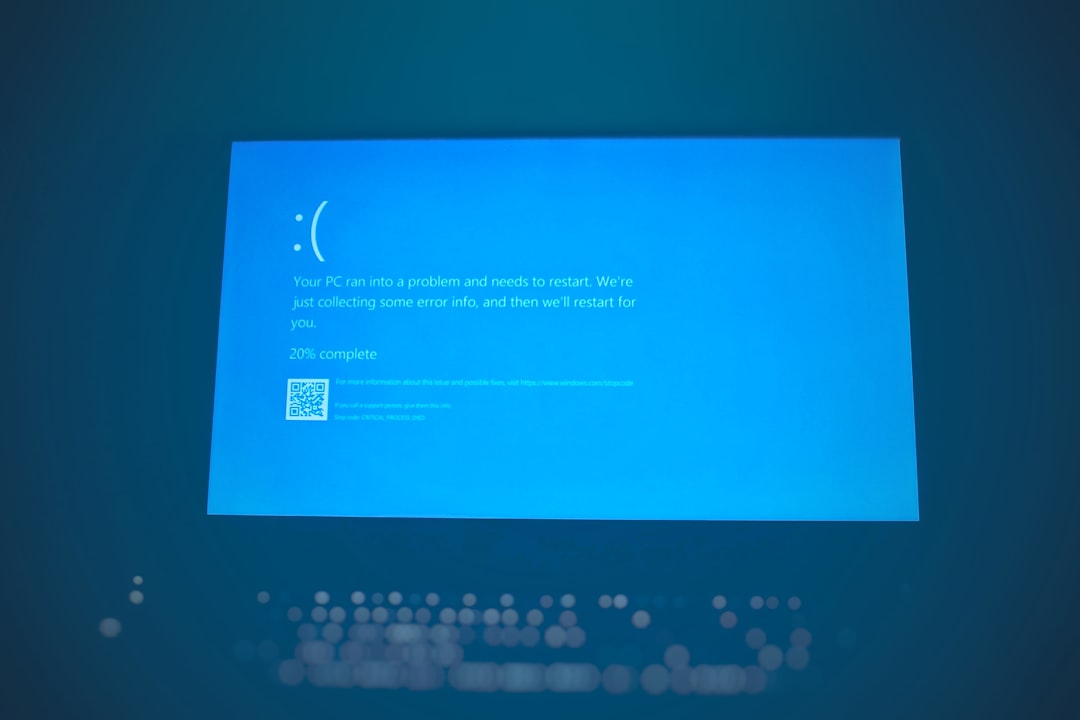
Quick answer: BAD_POOL_CALLER (stop code 0x000000C2) means a driver asked Windows for memory in a way that isn’t allowed, for example freeing the same memory twice. It’s almost always caused by a faulty or outdated driver, often from antivirus, VPN, network or graphics software, and sometimes by bad RAM. Uninstall anything you added just before the crashes started, update or roll back your drivers, test your memory with Windows Memory Diagnostic and repair system files with DISM and SFC.
Applies to: Windows 11 and Windows 10, when the PC restarts with a blue screen that says Stop code: BAD_POOL_CALLER or shows bug check 0x000000C2.
In this guide
- What BAD_POOL_CALLER means
- If Windows keeps crashing before you can fix it
- Fix 1: Find the driver behind the crash
- Fix 2: Remove recent software and updates
- Fix 3: Update or roll back drivers
- Fix 4: Test your memory
- Fix 5: Repair system files and the disk
- Fix 6: Use Driver Verifier (advanced)
- If nothing works
- Related guides
- Frequently asked questions
What BAD_POOL_CALLER means
Windows keeps shared areas of memory called pools for drivers and other parts of the system. Each request to use or free that memory has to follow strict rules. According to Microsoft, BAD_POOL_CALLER means the current thread made an invalid pool request: for example, asking for zero bytes, freeing memory that was already freed, or making the request at the wrong time. When that happens, Windows stops with a blue screen to protect your data.
Because the request comes from code running deep inside Windows, the cause is nearly always one of these:
- A third-party driver with a bug, often one installed by antivirus, VPN, firewall, backup, disk encryption or RGB/monitoring software.
- An outdated or incompatible hardware driver, especially for network adapters, graphics cards and storage controllers.
- Faulty or unstable RAM, including memory running an overclocked XMP or EXPO profile.
- Damaged Windows system files, less often.
If the crashes started right after you installed something, that is the most likely cause.
If Windows keeps crashing before you can fix it
Start in Safe Mode, which loads only the drivers Windows needs, and do the fixes from there:
- On the sign-in screen, hold Shift and select Power > Restart. If Windows can’t reach the sign-in screen, it should open the recovery screen by itself after two or three failed starts.
- Select Troubleshoot > Advanced options > Startup Settings and then Restart.
- When the list appears, press 4 or F4 for Safe Mode, or 5 or F5 for Safe Mode with Networking if you need to download drivers.
If Safe Mode won’t start either, use System Restore or Uninstall Updates from the same Advanced options screen.
Fix 1: Find the driver behind the crash
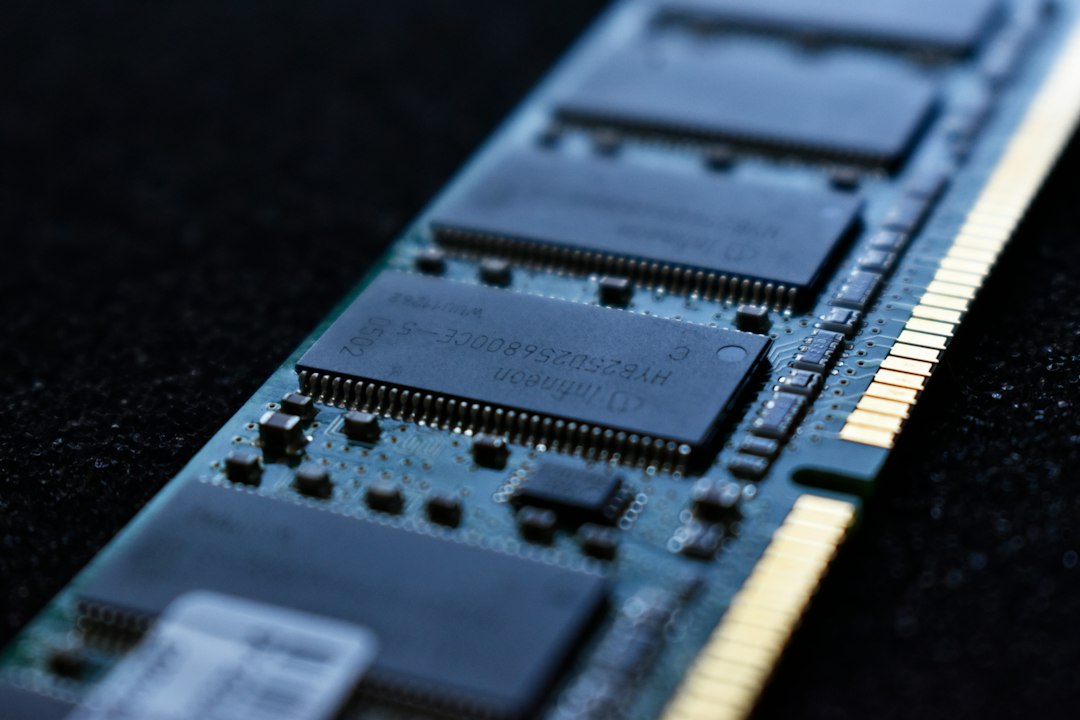
The blue screen sometimes shows What failed: followed by a file name ending in .sys. That’s the driver involved, and searching for the file name usually tells you which program or device it belongs to. If no file name appeared:
- Reliability Monitor: press Win + R, type
perfmon /reland press Enter. Select the red X on the day of the crash and open the critical event for it (often listed as Windows shutting down unexpectedly) to see the details. - Event Viewer: in Windows Logs > System, look for event ID 1001 from BugCheck at the time of the crash. It confirms the stop code and where the memory dump was saved.
- Memory dump: small crash dumps are saved in
C:\Windows\Minidump. Microsoft’s free WinDbg debugger (from the Microsoft Store) can open them; the!analyze -vcommand usually names the faulting driver.
If the named file is a Windows file such as ntoskrnl.exe, that doesn’t mean Windows itself is at fault; it only means the problem was caught there. Work through the fixes below.
Fix 2: Remove recent software and updates
- Go to Settings > Apps > Installed apps (Apps & features on Windows 10), sort by install date and uninstall anything added shortly before the crashes started. Third-party antivirus, VPN clients and system tune-up tools are the usual suspects; uninstalling them is a good test even if they’re older, and Microsoft Defender takes over automatically.
- If the crashes began after a Windows update, go to Settings > Windows Update > Update history, select Uninstall updates and remove the most recent one. Pause updates for a week to see if the crashes stop.
- Unplug hardware you added recently, such as a USB Wi-Fi adapter, dock or capture card, and see whether the crashes stop.
Fix 3: Update or roll back drivers
Network, graphics and storage drivers are the most common hardware drivers behind this error.
- Update: get the latest drivers from your PC or motherboard maker’s support page, or from Intel, AMD, NVIDIA, Realtek and similar. Also check Settings > Windows Update > Advanced options > Optional updates for driver updates.
- Roll back: if the crashes started after a driver update, right-click Start, open Device Manager, right-click the device, choose Properties and select Roll Back Driver on the Driver tab. The button is greyed out if there’s no older version to go back to.
- BIOS: a BIOS update from your PC or motherboard maker can fix memory and device compatibility problems. Follow the maker’s instructions exactly and don’t interrupt the update.
The same driver checks help with DPC_WATCHDOG_VIOLATION, which is often caused by the same kinds of drivers.
Fix 4: Test your memory
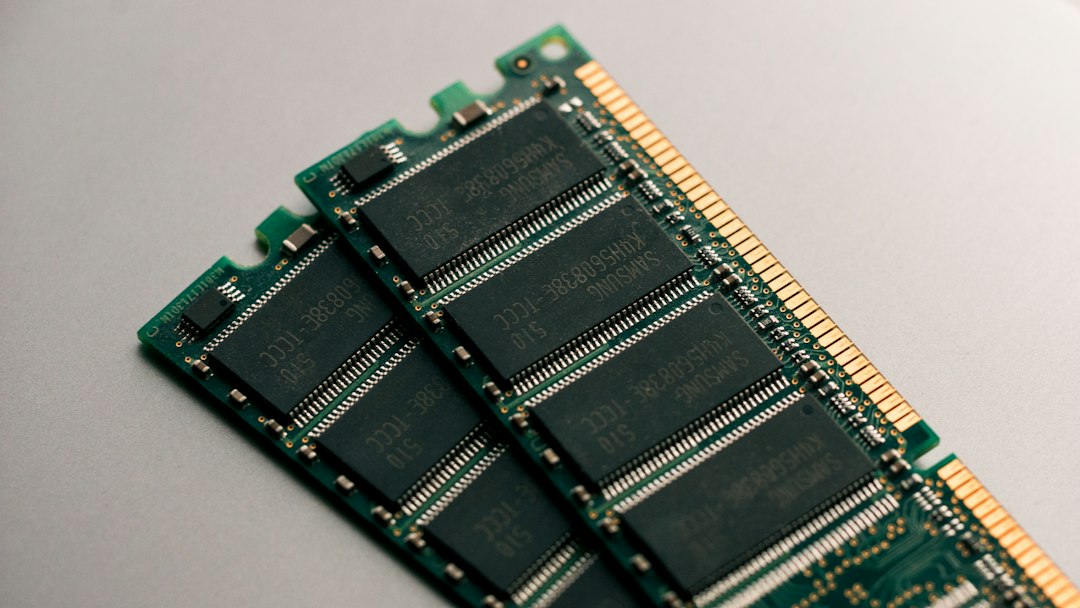
Microsoft suggests checking physical memory when pool corruption is suspected. Save your work, then:
- Press Win + R, type
mdsched.exeand press Enter. - Select Restart now and check for problems. The test runs before Windows starts and can take a while.
- After Windows starts, open Event Viewer and look in Windows Logs > System for a MemoryDiagnostics-Results entry.
If errors are found, or the crashes stop when you turn off the XMP or EXPO memory profile in the BIOS, the RAM or its speed setting is the problem. On a desktop with two or more sticks, test with one stick at a time to find the faulty one. Memory faults can also cause WHEA_UNCORRECTABLE_ERROR and “the instruction referenced memory” errors.
Fix 5: Repair system files and the disk
Open Command Prompt as administrator and run these one at a time:
DISM /Online /Cleanup-Image /RestoreHealth
sfc /scannow
chkdsk C: /scan
Restart when they finish. If SFC says it couldn’t perform the operation, see Windows Resource Protection could not perform the requested operation.
Fix 6: Use Driver Verifier (advanced)
If you still can’t find the driver, Microsoft’s Driver Verifier puts drivers under extra checks so that the faulty one causes a crash with its own name on it. It can make Windows crash on purpose, so create a restore point first and make sure you know how to reach Safe Mode.
- Open Command Prompt as administrator, type
verifierand press Enter. - Choose Create standard settings, then Select driver names from a list.
- Tick only drivers that aren’t from Microsoft (check the Provider column), select Finish and restart.
- Use the PC normally. If it crashes, the blue screen or dump should now name the faulty driver.
When you’re done, or if Windows won’t start, turn Driver Verifier off from an administrator Command Prompt, in Safe Mode if needed, then restart:
verifier /resetDon’t leave Driver Verifier running, because it slows the PC down.
If nothing works
If the crashes continue after clean drivers, a passing memory test and repaired system files, back up your files and reinstall Windows, either with Reset this PC or a clean install. Our guide on how to reinstall Windows 10 covers each option; the steps are similar on Windows 11. If BAD_POOL_CALLER appears even on a fresh installation before you add any software, the cause is hardware, most likely the RAM.
Related guides
- DPC_WATCHDOG_VIOLATION: how to fix it on Windows 11 and 10
- WHEA_UNCORRECTABLE_ERROR: how to fix it
- “The instruction at referenced memory could not be read”: how to fix it
- Windows Resource Protection could not perform the requested operation (SFC and DISM)
- How to reinstall Windows 10: reset, repair install or clean install
- Intel High Definition DSP driver: how to fix the Device Manager error
- CRITICAL_PROCESS_DIED on Windows 10 and 11: how to fix it
Official sources: for more detail, see Microsoft’s own documentation:
- Microsoft Learn: Bug check 0xC2 BAD_POOL_CALLER
- Microsoft Support: Troubleshooting Windows unexpected restarts and stop code errors
Frequently asked questions
Is BAD_POOL_CALLER a hardware or software problem?
Usually software, specifically a driver. Faulty RAM is the main hardware cause, which is why the memory test is worth running. If a clean Windows installation still crashes with this code, suspect hardware.
Can a virus cause BAD_POOL_CALLER?
It’s possible but uncommon. Malware that installs its own driver can crash Windows. More often, the problem is a legitimate security program’s driver. Run a Microsoft Defender full scan once the PC is stable.
What is the BAD_POOL_CALLER error code?
It’s bug check 0x000000C2, sometimes written as 0xC2. It’s a different error from BAD_POOL_HEADER (0x00000019), although both point to drivers or memory.
Will I lose my files?
Not from the error itself. Any unsaved work open at the moment of the crash is lost, and repeated crashes can occasionally damage files that were being written. Back up important files before trying Driver Verifier or reinstalling Windows.
Leave a Reply