Quick answer: To turn off efficiency mode for an app in Windows 11, open Task Manager with Ctrl + Shift + Esc, go to Processes, right-click the process with the green leaf icon and uncheck Efficiency mode. If the leaf is on Microsoft Edge, turn it off in Edge under Settings > System and performance > Performance. If the whole PC feels slow, also turn off Energy saver and set Power mode to Balanced or Best performance.
Applies to: Windows 11 version 22H2 and later, where Task Manager shows a green leaf next to an app or the Status column says Efficiency mode.
In this guide

What efficiency mode does
Efficiency mode is a Task Manager feature added in Windows 11 version 22H2. It lowers a single process’s priority and, on supported processors, lets Windows run it in a more power-efficient way. The idea is to stop a busy background app from slowing down the app you’re using, and to save battery.
The trade-off is that the throttled app itself can become slow. Common signs are a game, video export or download that suddenly runs slower, or an app that freezes for a moment when you switch back to it. Turning efficiency mode off returns the process to normal priority.
There are three different things people call “efficiency mode” on Windows 11, and they’re turned off in different places:
| What you see | Where to turn it off |
|---|---|
| Green leaf next to an app in Task Manager | Task Manager, per process |
Leaf on msedge.exe or chrome.exe processes | The browser’s own settings |
| Whole PC slower on battery | Windows energy saver and power mode |
Turn off efficiency mode in Task Manager
- Press Ctrl + Shift + Esc to open Task Manager, and select Processes.
- Find the app with the green leaf in the Status column. If it’s a group (an arrow next to the name), expand it to see the individual processes.
- Right-click the process and uncheck Efficiency mode. You can also select it and click Efficiency mode in the bar at the top of Task Manager.
- The leaf disappears and the process goes back to its normal priority.
This setting only applies to the running process. When the app closes and opens again, it starts without efficiency mode unless the app (or Windows) turns it on itself.
If the option is greyed out or keeps coming back
- Greyed out on a group: expand the group and select a single process. Efficiency mode works on one process at a time.
- Greyed out on a Windows process: Task Manager doesn’t let you change efficiency mode for core Windows processes, because throttling them could affect the whole system. That’s expected and needs no fix.
- The leaf comes back on its own: some apps, including Microsoft Edge and Google Chrome, put their own background processes into efficiency mode to save power. Turning it off in Task Manager may only last until the app applies it again. Change the setting in the app instead, as shown below.
- An app you don’t recognise is using a lot of resources: find out what it is before changing anything. Our guide to svchost.exe (netsvcs) shows how to identify busy Windows processes, and an unknown process using a lot of CPU is a reason to scan for malware.
Turn off efficiency mode in Edge or Chrome
Microsoft Edge:
- Select Settings and more (the … menu) and choose Settings.
- Select System and performance, then Performance.
- Turn off Efficiency mode. If you don’t see that name, type
efficiencyinto the search box at the top of Edge’s Settings.
Microsoft says Edge’s efficiency mode can switch on by itself when a laptop is unplugged or Windows battery saver is on, so check the options under Efficiency mode on the same page as well as the Windows energy saver setting (next section). Edge’s efficiency mode is separate from Task Manager’s, so changing one doesn’t change the other.
Google Chrome: go to Settings > Performance and turn off Energy saver. Chrome may still mark some background tab processes with the leaf in Task Manager, which is normal and doesn’t affect the tab you’re looking at.
Turn off energy saver and change the power mode
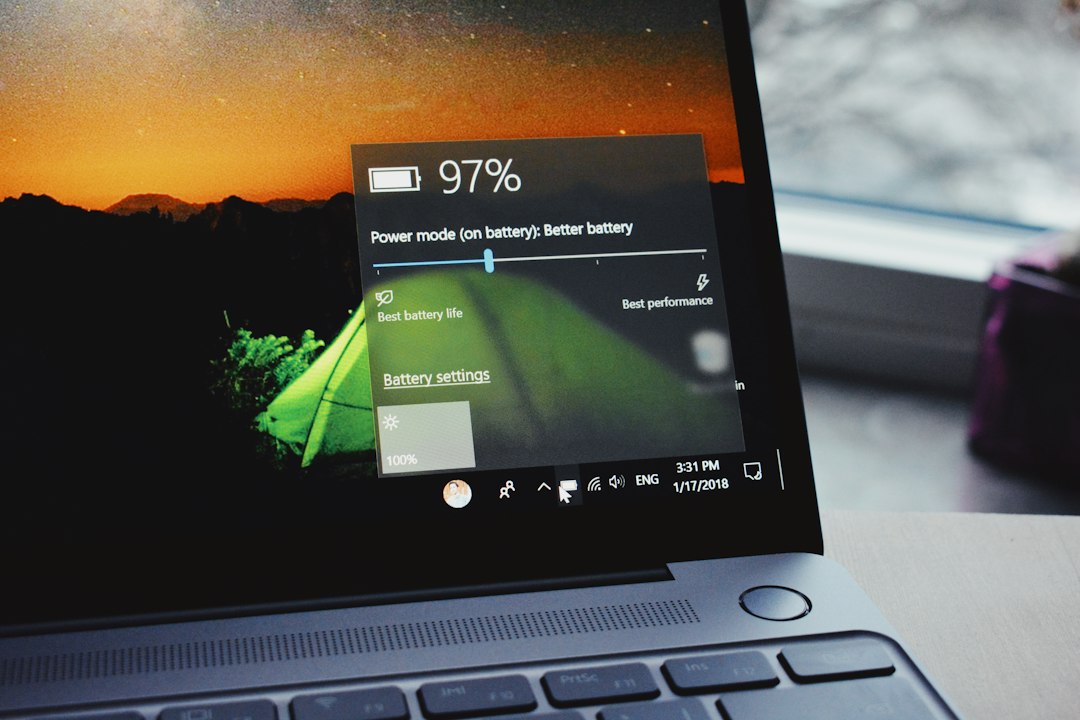
If everything is slow rather than one app, the cause is probably a Windows power setting rather than Task Manager’s efficiency mode:
- Go to Settings > System > Power & battery.
- Under Energy saver (called Battery saver on older Windows 11 versions), turn it off and check when it turns on automatically.
- Set Power mode to Balanced, or Best performance if you’re plugged in and need speed. Best power efficiency is the setting that slows the PC most.
You can also switch energy saver on or off from Quick Settings (Win + A). On some laptops, the manufacturer’s own power app (for example from Lenovo, HP, Dell or ASUS) has a quiet or battery mode that overrides these settings; check it if the PC is still slow.
Looking for S mode instead?
S mode is unrelated to efficiency mode. It’s a locked-down version of Windows that only installs apps from the Microsoft Store. To leave it, go to Settings > System > Activation, find Switch to Windows 11 Pro or Switch to Windows 11 Home and select Go to the Store, then select Get on the “Switch out of S mode” page. Switching out is free, but it’s one-way: you can’t go back to S mode afterwards.
Related guides
- svchost.exe (netsvcs): what it is and how to fix high CPU, memory or network use
- How to scan for malware on Windows
- How to disable the Adobe updater (Creative Cloud, Acrobat and Reader)
- WMI Provider Host (WmiPrvSE.exe): how to fix high CPU
Official sources: for more detail, see Microsoft’s own documentation:
- Microsoft Support: Learn about performance features in Microsoft Edge
- Microsoft Support: Switching out of S mode in Windows
Frequently asked questions
Is it bad to turn off efficiency mode?
No. It only returns the app to normal priority. On a laptop the app may use a little more battery, and on a slower PC a busy background app can make other apps less responsive, which is what efficiency mode was meant to prevent.
Can I turn off efficiency mode for all apps at once?
Task Manager has no global switch. Windows only applies it to the processes you choose or that apps choose for themselves, so turn it off per process, and change the browser setting for Edge or Chrome.
Why does Task Manager show efficiency mode on apps I never changed?
Apps can put their own processes into efficiency mode. Browsers do this for background tabs, and some other apps do it for background helpers. It’s normal and usually harmless.
Does efficiency mode exist in Windows 10?
No. It was added to Task Manager in Windows 11 version 22H2. Windows 10’s Task Manager lets you lower a process’s priority on the Details tab, which is a similar but older control.
Leave a Reply