Quick answer: Open Windows Security > Virus & threat protection, check for protection updates, then select Scan options > Full scan > Scan now. If you think something is hiding, run Microsoft Defender Offline scan from the same page, which restarts the PC and scans before Windows loads. All of this is built into Windows 11 and 10 and free.
Applies to: Windows 11 and Windows 10. You don’t need to buy or install anything for the main steps.
In this guide
- Signs your PC may have malware
- Which scan should you run?
- Step 1: Update Windows Security
- Step 2: Run a quick scan
- Step 3: Run a full scan
- Step 4: Run a Microsoft Defender Offline scan
- Step 5: Get a second opinion
- Scan a single file, folder or USB drive
- What to do with the results
- After the scan: clean-up checklist
- Frequently asked questions
Signs your PC may have malware
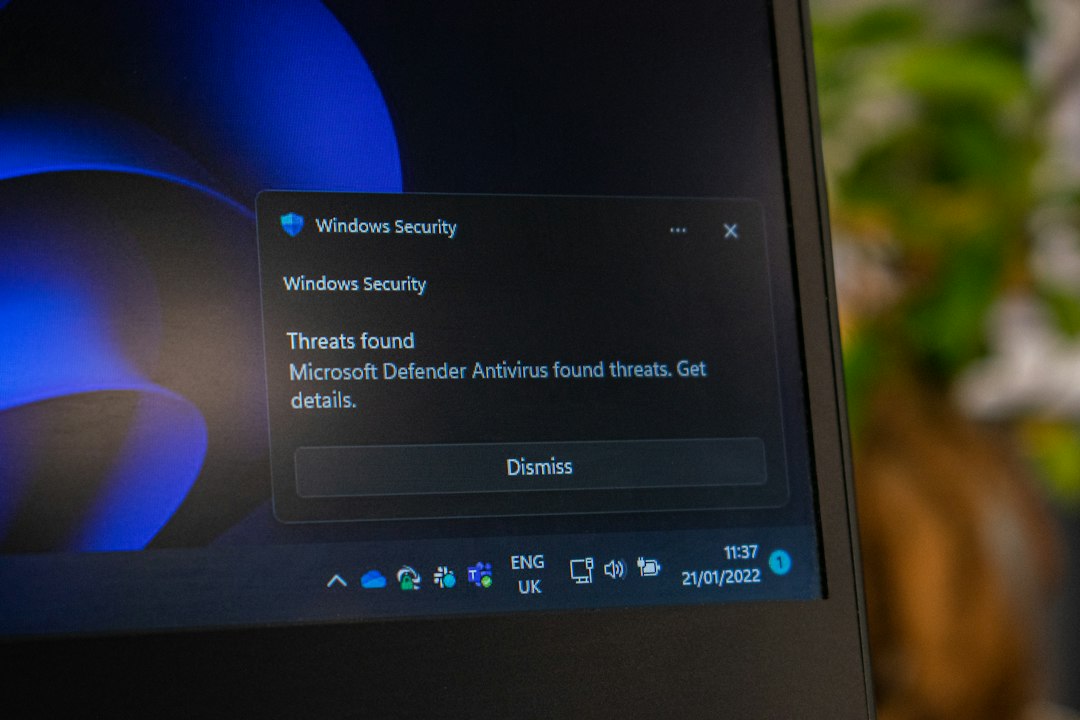
A scan is worth running if you notice any of these:
- Pop-up ads appear even when the browser is closed, or your browser’s home page or search engine changed by itself.
- New toolbars, extensions or programs you don’t remember installing.
- The PC is suddenly much slower, or the fan runs hard while you’re doing nothing.
- Friends get strange messages or emails from your accounts.
- Windows Security is switched off and won’t turn back on, or you can’t open security websites.
- Files are renamed, encrypted or missing, often with a note asking for payment (ransomware).
Slowness on its own is usually not malware. But a scan only takes a few minutes and rules it out.
Which scan should you run?
| Scan | What it checks | How long | Use it when |
|---|---|---|---|
| Quick scan | Places malware usually hides: running programs, startup items, key system folders | A few minutes | A routine check, or a first look |
| Full scan | Every file and running program on all fixed drives | Up to an hour or more | You think the PC is infected |
| Custom scan | A file, folder or drive you choose | Depends on size | A download or USB drive you don’t trust |
| Microsoft Defender Offline scan | Runs outside Windows, so hidden malware can’t interfere | About 15 minutes, with a restart | Malware keeps coming back or blocks other scans |
Step 1: Update Windows Security
A scan is only as good as its definitions, the list of known threats. Update them first:
- Press Win, type
Windows Securityand open it. - Select Virus & threat protection.
- Under Virus & threat protection updates, select Protection updates, then Check for updates.
If you have another antivirus program installed, Windows Security shows it here instead, and Microsoft Defender’s real-time protection is switched off. In that case, update and scan with that program, or use Step 5 for a second opinion.
Step 2: Run a quick scan
In Virus & threat protection, select Quick scan. You can keep using the PC while it runs. If it finds nothing but you still see the signs above, go on to a full scan.
Step 3: Run a full scan
- In Virus & threat protection, select Scan options.
- Choose Full scan, then Scan now.
- Leave the PC plugged in. A full scan can take an hour or longer on a large drive, and the PC may feel slower while it runs.
If you prefer the command line, open PowerShell as administrator and run:
Update-MpSignature
Start-MpScan -ScanType FullScan
Step 4: Run a Microsoft Defender Offline scan
Some malware, such as rootkits, hides from scans while Windows is running. The offline scan restarts the PC into a small, separate environment and scans from there, where the malware isn’t active.
- Save your work and close your apps. The PC will restart.
- In Virus & threat protection > Scan options, choose Microsoft Defender Offline scan and select Scan now.
- Confirm the prompts. The scan takes about 15 minutes, and Windows starts again by itself when it’s done.
- To see what it found, open Virus & threat protection > Protection history.
If your PC uses BitLocker, make sure you know where your recovery key is before you start, in case the restart asks for it.
Step 5: Get a second opinion
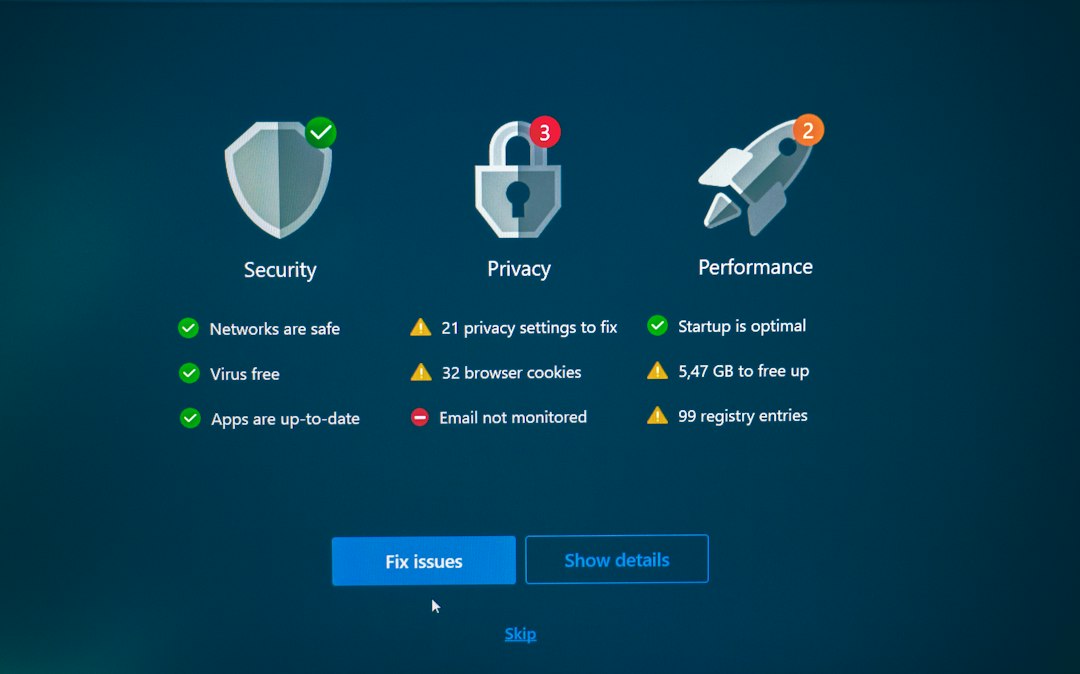
No scanner catches everything. If you’re still suspicious, run a second, on-demand scanner. These don’t replace your antivirus and can run alongside it:
- Microsoft Safety Scanner (
msert.exe): a free portable scanner from Microsoft. Download it fresh each time from Microsoft’s website, because each copy stops working 10 days after download. - Malwarebytes Free: good at catching adware and unwanted programs that some antivirus tools ignore. The free version scans and removes on demand.
Only download security tools from the developer’s own website. Fake “PC cleaner” and “virus scanner” ads are a common way malware gets installed in the first place.
Scan a single file, folder or USB drive
- In File Explorer, right-click the file, folder or drive.
- On Windows 11, select Show more options if you don’t see the scan option straight away.
- Choose Scan with Microsoft Defender.
What to do with the results
Open Virus & threat protection > Protection history to see every threat found. For each one you can choose:
| Option | What it does | When to use it |
|---|---|---|
| Quarantine | Moves the file somewhere it can’t run, so you can restore it later | The safe default for anything you’re unsure about |
| Remove | Deletes the threat | Anything you don’t recognise or need |
| Allow on device | Tells Windows Security to ignore it | Only if you’re certain it’s a false alarm, such as a tool you trust |
If the scan finds nothing and the problems continue, the cause may be an unwanted browser extension or a normal program misbehaving rather than malware. The clean-up checklist below helps with both.
After the scan: clean-up checklist
- Restart the PC, then run another quick scan to confirm the threats are gone.
- Change your important passwords (email first, then banking and social media), ideally from a different device you know is clean, and turn on two-step verification.
- Remove browser extensions you don’t recognise, and reset the browser if its home page or search engine was changed.
- Check Settings > Apps > Startup and Installed apps for programs you didn’t install, and uninstall them.
- Install pending Windows and app updates, so the hole the malware used is closed.
- If ransomware encrypted your files, don’t pay. Disconnect from the network, restore from a backup, and check whether a free decryptor exists for that ransomware (the No More Ransom project lists them).
- If malware keeps coming back after all of this, back up your personal files and use Settings > System > Recovery > Reset this PC. If Reset this PC says the recovery environment can’t be found, see The Windows RE image was not found.

Related guides
- SFC: “Windows Resource Protection could not perform the requested operation”
- Error 0xc0000005: application unable to start
- “The referenced account is currently locked out”
- How to disable the Adobe updater (Creative Cloud, Acrobat and Reader)
- svchost.exe (netsvcs): is it safe, and how to fix high CPU or network use
- SmartScreen can’t be reached right now: how to fix it
- Adware removal: how to get rid of pop-up ads on Windows
- Windows Security not opening in Windows 11? 7 fixes
- Threat service has stopped. Restart it now: how to fix it
Official sources: for more detail, see Microsoft’s own documentation:
- Microsoft Learn: Microsoft Defender Offline scan in Windows
- Microsoft Support: Troubleshoot problems with detecting and removing malware
Frequently asked questions
Is Windows Security good enough on its own?
For most home users, yes. Microsoft Defender Antivirus is built in, updates automatically and scores well in independent lab tests. Keep it switched on, keep Windows updated, and add an on-demand scanner (Step 5) when you want a second opinion.
How often should I scan for malware?
Real-time protection checks files as you use them, and Windows also runs a quick scan automatically in the background. Run a manual full scan whenever something seems wrong, after installing software from an unfamiliar site, or once a month for peace of mind.
Can I scan for malware without installing anything?
Yes. Everything in Steps 1 to 4 uses Windows Security, which is already on every Windows 11 and 10 PC. Microsoft Safety Scanner also runs without installing.
A website says my PC is infected. Should I scan with the tool it offers?
No. Websites can’t scan your PC, and pop-ups like this are scams designed to get you to install malware or call a fake support line. Close the browser tab and scan with Windows Security instead.
Leave a Reply