Quick answer: “The instruction at 0x00007ff… referenced memory at 0x… The memory could not be read” (or “written”) means a program crashed because it tried to use memory it wasn’t allowed to. It’s almost always a problem in that one program or something it loads, such as an add-on or driver, not your RAM. Check the window title to see which program it is, then update or reinstall it. If it pops up when you shut down, find the background app with Event Viewer. If many programs crash this way, repair Windows files with SFC and DISM and test your RAM with Windows Memory Diagnostic.
Applies to: Windows 11 and Windows 10, for the error box titled with a program’s name (for example explorer.exe - Application Error).
In this guide
- What the message means
- Step 1: Find out which program crashed
- Fix 1: Update, repair or reinstall that program
- Fix 2: If it appears at shutdown, find the background app
- Fix 3: Update graphics and other drivers
- Fix 4: Repair Windows system files
- Fix 5: Test your memory (RAM)
- Fix 6: Let Windows manage virtual memory
- Fix 7: Scan for malware
- Fixes to avoid
- Related guides
- Frequently asked questions
What the message means
The full message looks like this, with different numbers on every PC:
The instruction at 0x00007FF6A1B2C3D4 referenced memory at 0x0000000000000000.
The memory could not be read.

Click on OK to terminate the program.
The first address is where the program’s faulty instruction is, and the second is the memory it tried to use. The last word says what kind of access failed: read or written. According to Microsoft engineer Raymond Chen, a crash caused by Data Execution Prevention (DEP) also shows as “written”. This is an access violation, the same crash that error code 0xc0000005 reports.
Addresses starting with 0x00007ff are simply where 64-bit programs and their DLLs are normally loaded, so the number itself doesn’t tell you much. A second address of 0x0000000000000000 means the program used an empty (null) pointer, which is a bug in the program or one of its add-ons.
Step 1: Find out which program crashed
Look at the title bar of the error box. It names the program, for example chrome.exe, explorer.exe or a game. That tells you where to start.
For more detail, check Event Viewer:
- Press Win + X and select Event Viewer.
- Go to Windows Logs > Application.
- Look for an Error with the source Application Error (Event ID 1000) at the time of the crash.
- Note the Faulting application name and the Faulting module name. The module is the file where the crash happened. If it’s a third-party DLL (for example from antivirus, a screen recorder or an overlay), that software is the likely cause.
You can also type reliability in the Start menu and open View reliability history to see every crash on a timeline.
Fix 1: Update, repair or reinstall that program
- Install the latest version of the program from its maker, or from Microsoft Store if that’s where you got it.
- Many apps can repair themselves: go to Settings > Apps > Installed apps, select the three dots next to the app, then Advanced options (Store apps) or Modify (desktop apps), and choose Repair if offered.
- Otherwise uninstall it, restart, and install a fresh copy.
- Turn off or remove add-ons, plugins and mods for that program, and test again. For web browsers, try a new profile or disable extensions.
If the program won’t start at all and shows error 0xc0000005 instead, follow our guide to error 0xc0000005.
Fix 2: If it appears at shutdown, find the background app
A very common version appears only when you shut down or restart. It comes from a program running in the background that crashes while Windows closes it. Event Viewer (Step 1) shows its name. To find it by elimination, do a clean boot:
- Press Win + R, type
msconfigand press Enter. - On the Services tab, tick Hide all Microsoft services and select Disable all.
- On the Startup tab, select Open Task Manager and disable the startup apps.
- Restart, then shut down. If the error is gone, turn things back on a few at a time until it returns.
When you’re done, set Normal startup on the General tab of msconfig.
Fix 3: Update graphics and other drivers
Games, video players and browsers often crash this way because of the graphics driver. Install the latest driver from NVIDIA, AMD or Intel (or your laptop maker), and install pending updates in Settings > Windows Update, including Optional updates under Advanced options. If drivers also cause blue screens, see DPC watchdog violation.
Fix 4: Repair Windows system files
If many different programs crash, or Windows’ own explorer.exe does, check Windows’ files. Open Terminal (Admin) or an administrator Command Prompt and run:
DISM /Online /Cleanup-Image /RestoreHealth
sfc /scannow
Restart when both finish. If SFC says it couldn’t repair files, see “Windows Resource Protection could not perform the requested operation”.
Fix 5: Test your memory (RAM)
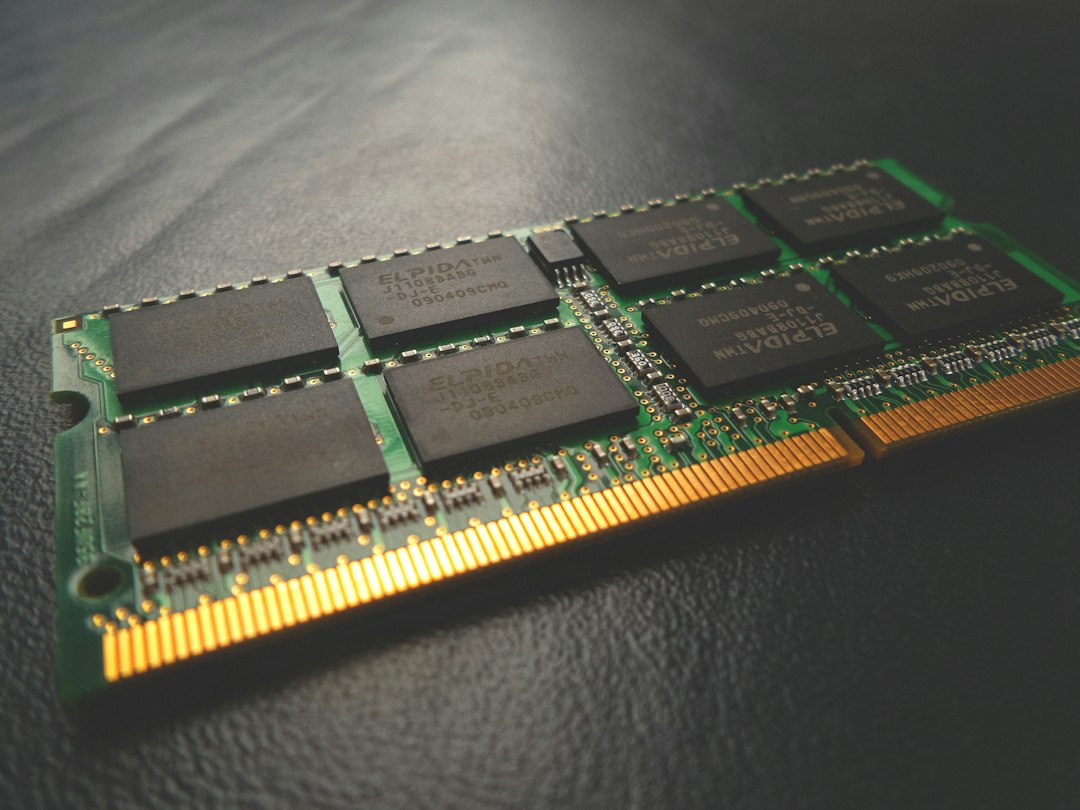
Faulty RAM is less common than people think, but it’s worth ruling out when crashes happen in random programs:
- Save your work and press Win + R, type
mdsched.exeand press Enter. - Select Restart now and check for problems (recommended).
- The PC restarts and tests memory, which takes several minutes. Windows shows the result after you sign in. If you miss it, look in Event Viewer under Windows Logs > System for the source MemoryDiagnostics-Results.
If errors are found, and you’ve recently added RAM or changed memory settings (such as XMP or EXPO in the BIOS), set them back to default or test each module on its own.
Fix 6: Let Windows manage virtual memory
If someone turned off or shrank the page file, programs can fail when memory runs short. To reset it:
- Press Win + R, type
sysdm.cpland press Enter. - On the Advanced tab, under Performance, select Settings.
- Open the Advanced tab and, under Virtual memory, select Change.
- Tick Automatically manage paging file size for all drives, select OK and restart.
Fix 7: Scan for malware
Malware that injects itself into other programs can cause access violations in apps that normally work. Run a full scan with Microsoft Defender and an offline scan if needed; see how to scan for malware.
Fixes to avoid
- Turning off Data Execution Prevention (DEP) for the whole system. Some guides suggest it, but DEP protects you from a whole class of attacks. If an old program really needs it, add an exception just for that program instead.
- Registry cleaners and “memory optimizers”. They don’t fix this error and can cause new problems.
- Downloading DLL files from DLL websites. Get missing files by reinstalling the program or repairing Windows.
Related guides
- Error 0xc0000005: the application was unable to start correctly
- Windows Resource Protection could not perform the requested operation (SFC and DISM)
- DPC watchdog violation: how to fix it
- How to scan for malware in Windows
- WHEA_UNCORRECTABLE_ERROR (0x124): how to fix it
- STATUS_ACCESS_VIOLATION in Chrome and Edge: 7 ways to fix it
- How to check your RAM manufacturer in Windows 11 and 10 (without opening the PC)
Official sources: for more detail, see Microsoft’s own documentation:
- Microsoft Support: Use the System File Checker tool to repair missing or corrupted system files
- The Old New Thing (Microsoft): Why the access violation message says read or written
Frequently asked questions
Does “the memory could not be read” mean my RAM is bad?
Usually not. “Memory” here means the program’s own memory addresses, not a physical fault. Bad RAM is only likely if many unrelated programs crash and Windows Memory Diagnostic finds errors.
What’s the difference between “could not be read” and “could not be written”?
It’s the kind of access that failed: reading from an address or writing to it. Either way it’s the same type of crash, and the fixes are the same.
Why does the error appear when I shut down?
A background program crashes while Windows closes it. Use Event Viewer or a clean boot (Fix 2) to find it, then update or remove it.
Is it safe to just click OK?
Yes. Clicking OK closes the crashed program. Any unsaved work in that program is lost, but the rest of Windows is unaffected.
Leave a Reply