Quick answer: Error 0x8007001f means “a device attached to the system is not functioning”. During a Windows update or upgrade it usually points to a driver (often the audio driver), a third-party antivirus, or damaged update files rather than broken hardware. Run the Windows Update troubleshooter, unplug extra USB devices, temporarily uninstall third-party antivirus, update or remove the audio driver, then reset the Windows Update components and try again. If a feature update still fails, upgrade with Microsoft’s installation assistant or an ISO instead.
Applies to: Windows 11 and Windows 10, when Windows Update, a feature update or an upgrade fails with 0x8007001f, and when copying files to an external drive fails with the same code.
In this guide
- What error 0x8007001f means
- Fix 1: Run the Windows Update troubleshooter
- Fix 2: Unplug extra devices and check free space
- Fix 3: Turn off third-party antivirus for the update
- Fix 4: Update or remove the audio and other drivers
- Fix 5: Reset Windows Update components
- Fix 6: Repair system files with SFC and DISM
- Fix 7: Try a clean boot
- Fix 8: Upgrade with the installation assistant or ISO
- 0x8007001f when copying files to a USB drive
- Related guides
- Frequently asked questions
What error 0x8007001f means
0x8007001F is the Windows error ERROR_GEN_FAILURE, shown as “A device attached to the system is not functioning”. It’s a general failure: some component Windows was talking to stopped responding or returned an error.
In Windows Update that component is rarely failing hardware. The most common causes are:
- A driver that blocks or breaks the update, very often an older audio driver.
- Third-party antivirus or security software interfering with the install.
- Damaged files in the Windows Update download cache.
- Damaged Windows system files.
- An external device, such as a USB drive or dock, confusing setup.
- Not enough free space for a feature update.
Work through the fixes in order and try the update again after each one.
Fix 1: Run the Windows Update troubleshooter
Microsoft’s own troubleshooter checks the update service and its settings and fixes common problems automatically.
- Windows 11: go to Settings > System > Troubleshoot > Other troubleshooters and select Run next to Windows Update. On recent builds this opens the Get Help app, which runs the same checks.
- Windows 10: go to Settings > Update & Security > Troubleshoot > Additional troubleshooters, select Windows Update, then Run the troubleshooter.
Restart the PC when it finishes, then go to Settings > Windows Update and select Check for updates.
Fix 2: Unplug extra devices and check free space
Since the error is about a device, disconnect everything you don’t need: USB drives, SD cards, external hard drives, printers, docks and game controllers. Leave just the keyboard and mouse (and the network cable if you use one), restart, and run the update again.
Feature updates also need plenty of free space. Check Settings > System > Storage. If your system drive has only a few gigabytes free, use Cleanup recommendations or Temporary files to clear space first.
Fix 3: Turn off third-party antivirus for the update
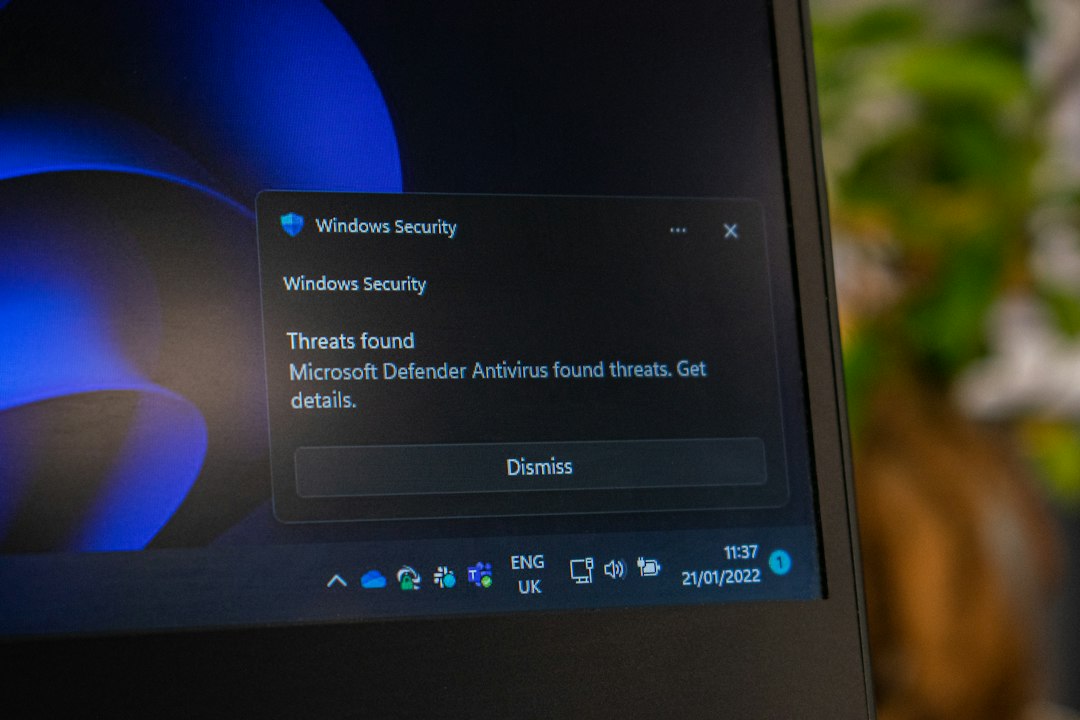
Third-party security suites (anything other than the built-in Microsoft Defender) can lock files that setup needs. Disabling them from the tray icon isn’t always enough, so the reliable test is to uninstall them temporarily:
- Go to Settings > Apps > Installed apps (in Windows 10, Settings > Apps > Apps & features).
- Find your antivirus, select it and choose Uninstall. Some vendors also offer a removal tool on their website for a complete uninstall.
- Restart. Microsoft Defender switches on automatically, so you stay protected.
- Run the update. When it succeeds, reinstall your antivirus if you want it.
Fix 4: Update or remove the audio and other drivers
0x8007001f during an upgrade has often been traced to an outdated audio driver. To deal with it:
- Press Win + X and select Device Manager.
- Expand Sound, video and game controllers. Look for your sound device, for example Realtek, Conexant or IDT.
- First get the newest driver for it from your PC or motherboard maker’s support page and install it.
- If the update still fails, right-click the sound device, select Uninstall device and restart. Windows uses a basic driver until you reinstall the full one after the update.
Also look for any device with a yellow warning icon in Device Manager, and install the latest chipset, storage and graphics drivers from your PC maker. If driver problems also cause blue screens, see DPC watchdog violation for more driver checks.
Fix 5: Reset Windows Update components
If the files Windows Update already downloaded are damaged, it keeps failing on them. Clearing its cache makes it download fresh copies. In an administrator Command Prompt, run:
net stop wuauserv
net stop cryptsvc
net stop bits
net stop msiserver
ren C:\Windows\SoftwareDistribution SoftwareDistribution.old
ren C:\Windows\System32\catroot2 catroot2.old
net start wuauserv
net start cryptsvc
net start bits
net start msiserver
Renaming instead of deleting keeps the old folders as a backup. Restart and check for updates again. Our guide to running Windows Update from the command line explains these commands and other ways to install updates without the Settings app.
Fix 6: Repair system files with SFC and DISM
Damaged Windows files can make the update stop partway. In an administrator Command Prompt, run these two commands, one after the other:
DISM /Online /Cleanup-Image /RestoreHealth
sfc /scannow
Each can take a while. If SFC reports that it couldn’t fix something, see “Windows Resource Protection could not perform the requested operation”.
Fix 7: Try a clean boot
A clean boot starts Windows with only Microsoft services, which rules out other background software:
- Press Win + R, type
msconfigand press Enter. - On the Services tab, tick Hide all Microsoft services, then select Disable all.
- On the Startup tab, select Open Task Manager and disable each startup app.
- Select OK in System Configuration and restart. Run the update.
- Afterwards, open
msconfigagain, select Normal startup on the General tab and restart.
Fix 8: Upgrade with the installation assistant or ISO
If a big feature update (for example a new yearly Windows 11 version) keeps failing through Windows Update, install it another way. Microsoft’s Windows 11 Installation Assistant and the Windows 11 ISO are both on Microsoft’s official Download Windows 11 page.
With the ISO, double-click it to mount it, run setup.exe and choose to keep your personal files and apps. This in-place upgrade also repairs Windows without erasing your files, but back up anything important first, as with any major update.
0x8007001f when copying files to a USB drive
The same code can appear when copying to or from an external drive. Here the “device” usually is the drive or its connection:
- Try a different USB port (directly on the PC, not through a hub) and a different cable.
- Check the drive for errors: in File Explorer, right-click the drive, select Properties, open the Tools tab and select Check.
- Try the drive on another PC. If it fails there too, copy off what you can and replace it.
- Very large single files (over 4 GB) can’t be stored on drives formatted as FAT32; that gives a different error, so check the drive’s file system in Properties if the failure only happens with big files.
Related guides
- Windows Update from the command line
- Windows Resource Protection could not perform the requested operation (SFC and DISM)
- DPC watchdog violation: how to fix it
- “Windows RE image was not found”: how to fix it
- “We couldn’t update the system reserved partition”: how to fix it
- Stuck on “Getting Windows ready”: how to fix it
- “We couldn’t connect to the update service”: 7 fixes
- Error 0x800f081f: how to fix it in Windows 11 and 10
Official sources: for more detail, see Microsoft’s own documentation:
- Microsoft Support: Windows Update Troubleshooter
- Microsoft Support: How to perform a clean boot in Windows
Frequently asked questions
Does 0x8007001f mean my hardware is broken?
Usually not. During updates it’s almost always a driver, security software or damaged update files. Only suspect hardware if the same device also fails outside of updates, such as a USB drive that errors on every PC.
Will resetting Windows Update delete my files?
No. It only clears the update download cache. Your documents, apps and settings aren’t touched.
Can I just skip the update?
You can pause updates for a while in Settings > Windows Update, but security updates matter. Fix the error, or install the update with the installation assistant, rather than skipping it for long.
The update fails at the same percentage every time. Why?
That usually means setup hits the same driver or app each time. Fix 4 (drivers), Fix 3 (antivirus) and Fix 7 (clean boot) are the most likely to help.
Leave a Reply