Quick answer: DPC_WATCHDOG_VIOLATION (stop code 0x00000133) almost always means a driver took too long to finish its work, most often a storage (SSD or SATA), network, Bluetooth or graphics driver. Unplug any new hardware, then update or roll back the driver for the device that changed most recently. Check SSD firmware too. If you’re not sure which driver it is, look up the crash in Reliability Monitor (perfmon /rel) first.
Applies to: Windows 11 and Windows 10, desktops and laptops.
In this guide
- What DPC_WATCHDOG_VIOLATION means
- If Windows won’t stay on long enough
- Fix 1: Find the driver behind the crash
- Fix 2: Unplug new hardware
- Fix 3: Update or roll back the driver
- Fix 4: Switch the storage controller driver
- Fix 5: Update SSD firmware and BIOS
- Fix 6: Repair system files and check the disk
- Related guides
- Frequently asked questions
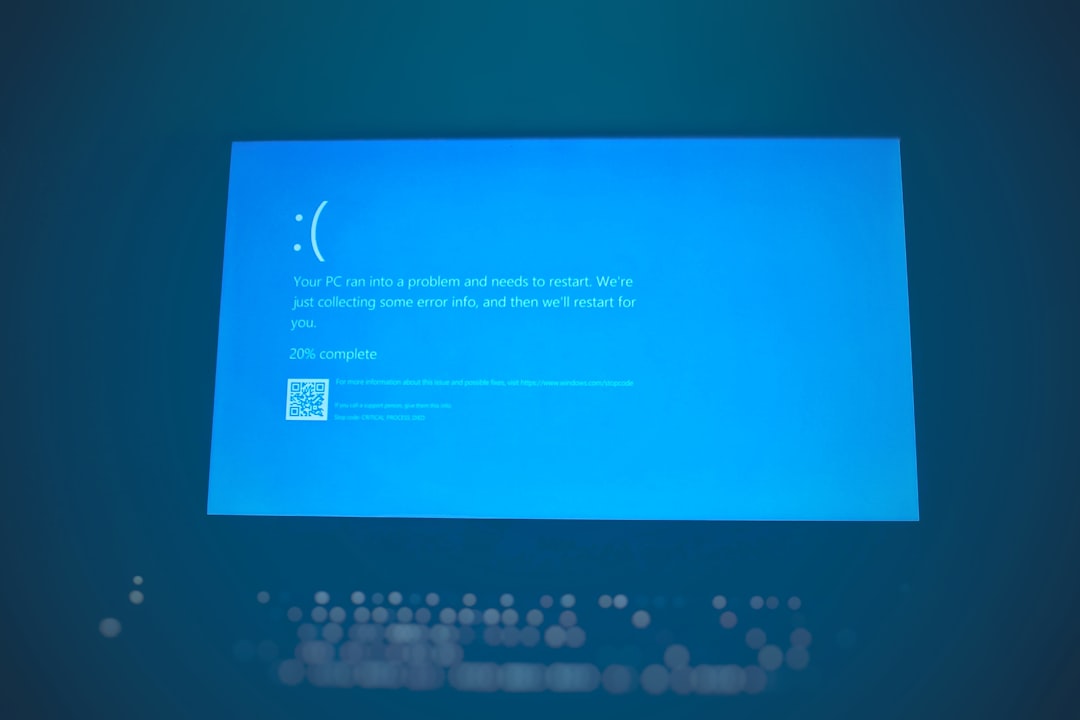
What DPC_WATCHDOG_VIOLATION means
Drivers handle hardware events in short bursts called deferred procedure calls (DPCs). Windows runs a watchdog timer that checks these finish quickly. If one driver’s work runs far too long, or the processor stays busy at that level for too long overall, Windows stops with a blue screen to protect your data.
Microsoft’s own documentation says the cause is in general faulty driver code that doesn’t finish in time. So the goal is to find which driver, then update, roll back or replace it. The patterns below help narrow it down:
| When it happens | Likely culprit | Start with |
|---|---|---|
| After a new SSD, or during heavy disk use | Storage controller driver or SSD firmware | Fix 4 and Fix 5 |
| When Wi-Fi, Ethernet or Bluetooth connects | Network or Bluetooth driver | Fix 3 |
| During games or video | Graphics driver | Fix 3 |
| After plugging in a dock, hub or other USB device | That device or its driver | Fix 2 |
| Right after a Windows or driver update | The newly updated driver | Fix 3 (roll back) |
If Windows won’t stay on long enough
If the PC crashes again within minutes, start in Safe Mode, which loads only basic drivers:
- Hold Shift while you select Restart (or let Windows fail to start twice to open the recovery screen).
- Select Troubleshoot > Advanced options > Startup Settings > Restart.
- Press 4 or F4 for Safe Mode.
If the crashes started after a recent change, System Restore from the same Advanced options menu can roll it back without touching your files. If the recovery screen itself is missing, see “The Windows RE image was not found”.
Fix 1: Find the driver behind the crash
Windows records every blue screen. Looking it up first saves guessing:
- Press Win + R, type
perfmon /reland press Enter to open Reliability Monitor. - Select the day of the crash. Under Windows failures, double-click the Shut down unexpectedly entry (shown with a red X).
- The details show the stop code (
133) and, often, a driver file name ending in.sys. That driver is the one to focus on.
You can also open Event Viewer, go to Windows Logs > System and look for an event from source BugCheck (ID 1001) at the time of the crash. If the blue screen itself named a file, write it down. Search the file name to find which device it belongs to; for example storahci.sys or iaStorAC.sys is the storage controller, and nvlddmkm.sys is the NVIDIA graphics driver.
Fix 2: Unplug new hardware
Shut down and disconnect everything you don’t need to start the PC: USB hubs and docks, external drives, printers, game controllers and adapters. Start Windows and use it normally. If the crashes stop, plug devices back one at a time to find the one that brings them back, then look for an updated driver or firmware for it.
If you’ve recently installed new hardware inside the PC, check the manufacturer lists it as compatible with your version of Windows.
Fix 3: Update or roll back the driver
If the crashes started after an update, roll it back:
- Right-click Start and select Device Manager.
- Expand the category (for example Display adapters, Network adapters or Bluetooth) and double-click the device.
- On the Driver tab, select Roll Back Driver. If it’s greyed out, there’s no older driver saved.
Otherwise, update it: get the latest driver from the PC or device maker’s support page (laptop makers often have tested versions), or from Windows: Settings > Windows Update > Advanced options > Optional updates > Driver updates. For graphics cards, use the driver from NVIDIA, AMD or Intel.
Restart after each change and test for a day before changing something else, so you know which change helped.
Fix 4: Switch the storage controller driver
On many PCs with SATA SSDs, DPC watchdog crashes come from a third-party storage controller driver. Switching to Microsoft’s built-in driver often stops them:
- In Device Manager, expand IDE ATA/ATAPI controllers.
- If you see a controller with SATA AHCI in its name from Intel, AMD or another vendor, right-click it and select Update driver.
- Choose Browse my computer for drivers > Let me pick from a list of available drivers on my computer.
- Select Standard SATA AHCI Controller, select Next, and restart.
Careful: only do this when the controller is listed under IDE ATA/ATAPI controllers as a SATA AHCI controller. Don’t change the driver on PCs set up for RAID or Intel VMD (often shown under Storage controllers as Intel RST or VMD), because Windows may not start. If it doesn’t start, use Safe Mode and Roll Back Driver.
Fix 5: Update SSD firmware and BIOS
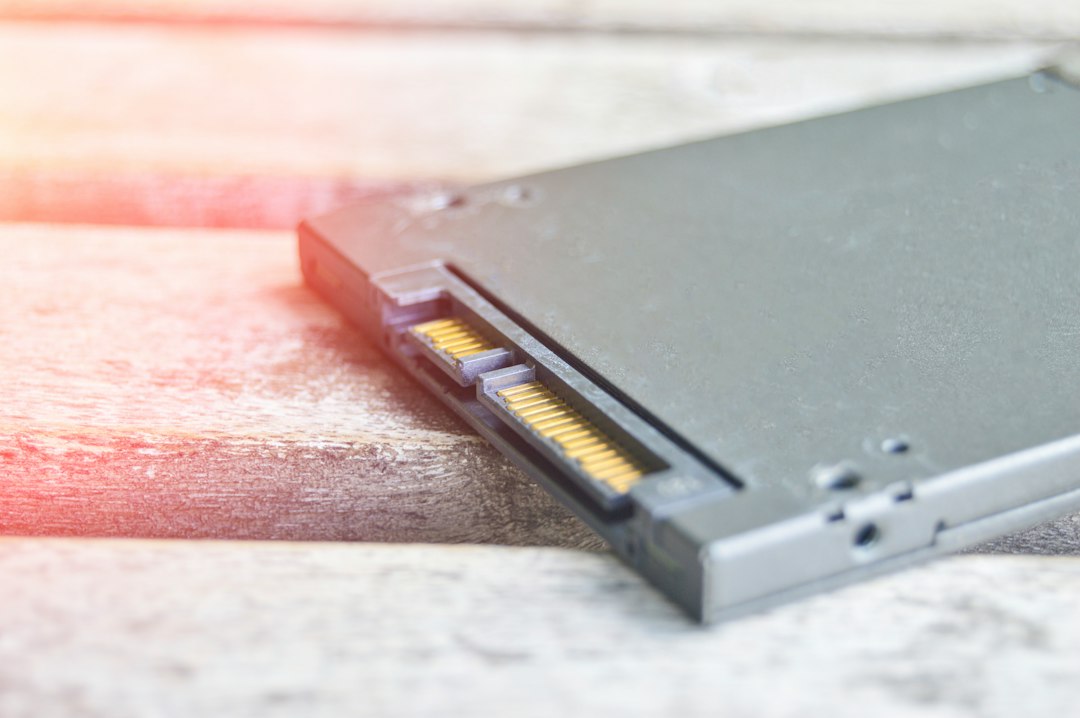
Old SSD firmware is a known trigger for this crash. Find the drive’s model in Device Manager > Disk drives, then use the maker’s tool (for example Samsung Magician, Crucial Storage Executive or WD Dashboard) to check for firmware updates. Back up first, and keep the PC on mains power during the update.
Also check your PC or motherboard maker’s support page for a BIOS or UEFI update, especially if it mentions stability or storage fixes. Follow their instructions exactly.
Fix 6: Repair system files and check the disk
Damaged system files or disk errors can make drivers misbehave. Open Terminal (Admin) or an administrator Command Prompt and run:
sfc /scannow
DISM /Online /Cleanup-Image /RestoreHealth
chkdsk C: /scan
If SFC reports it couldn’t fix files, see Windows Resource Protection could not perform the requested operation. If the crash leaves the screen black instead of blue, our black screen guide covers getting the display back first.
Still crashing after all of this? The fault may be in hardware, such as a failing SSD. Test with the drive maker’s diagnostics, and if the PC is under warranty, contact the manufacturer with the crash dates from Reliability Monitor.
Related guides
- Windows Resource Protection could not perform the requested operation
- “The Windows RE image was not found” (fix WinRE)
- Windows black screen fix
- Error 0xc0000005: application unable to start
- Mouse cursor disappears: reinstall the mouse or touchpad driver
- WHEA_UNCORRECTABLE_ERROR (0x124): how to fix it
- BAD_POOL_CALLER (0xC2): how to fix it
- Your PC ran into a problem and needs to restart: how to fix any stop code
Official sources: for more detail, see Microsoft’s own documentation:
- Microsoft Learn: Bug Check 0x133 DPC_WATCHDOG_VIOLATION
- Microsoft Support: Troubleshooting Windows unexpected restarts and stop code errors
- Microsoft Learn: Analyze bug check blue screen data
Frequently asked questions
Is DPC watchdog violation a hardware problem?
Usually it’s a driver problem, not broken hardware. Hardware becomes the suspect when crashes continue after drivers and firmware are up to date, or the same drive keeps showing up in the crash details.
Can a DPC watchdog violation damage my PC?
The crash itself doesn’t damage hardware, but you can lose unsaved work, and repeated crashes during disk writes can corrupt files. Fix it soon and keep backups.
Why does it happen when I’m doing nothing?
Drivers keep working in the background, for example when Wi-Fi reconnects, a Bluetooth device wakes up or the SSD does maintenance. That’s why idle crashes often point to network, Bluetooth or storage drivers.
Should I reinstall Windows?
Only as a last resort. A clean install brings back the same driver problem if the faulty driver or firmware gets installed again. Work through the fixes above first.
Leave a Reply