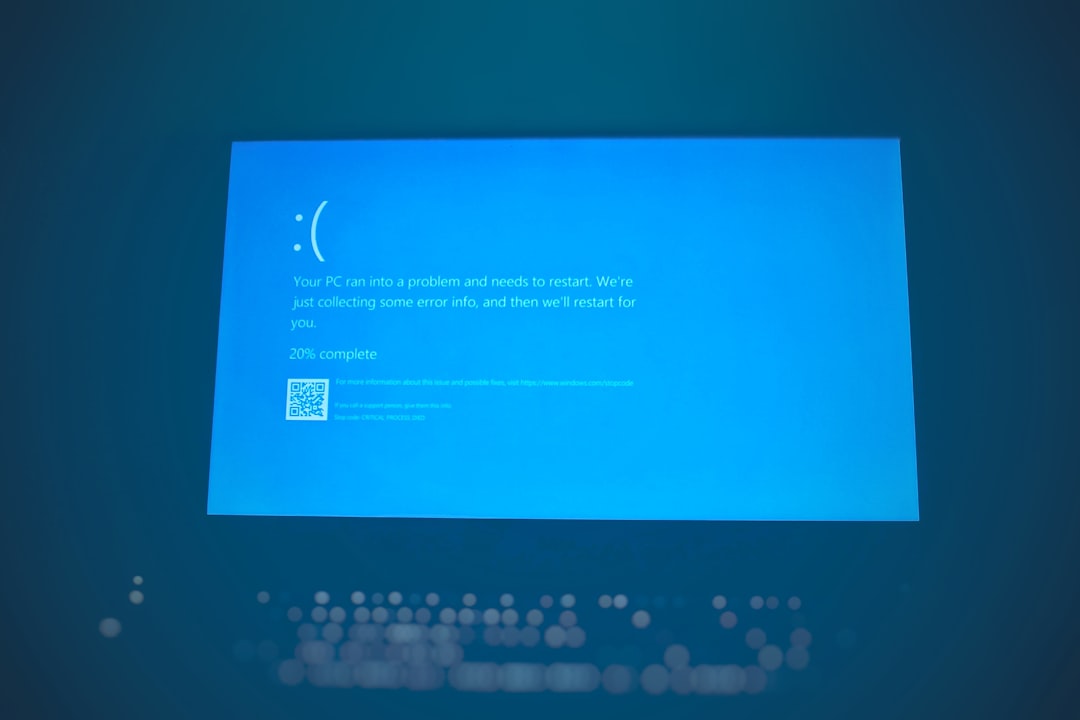
Quick answer: “Your PC ran into a problem and needs to restart” is Windows’ blue screen (a stop error). Windows hit a problem it couldn’t recover from, usually a faulty driver, a bad update, failing memory or disk, or corrupted system files. One crash isn’t a reason to worry. If it keeps happening, note the stop code on the screen, undo whatever changed recently (new hardware, driver or update), then update drivers, run sfc /scannow and test your RAM. If Windows won’t start, use Safe Mode or System Restore from the recovery screen.
Applies to: Windows 11 and Windows 10. On Windows 11 version 24H2 and later, Microsoft has replaced the classic blue screen with a simpler black “unexpected restart” screen, and the wording may say device instead of PC. The causes and fixes are the same.
In this guide
- What the message means
- Step 1: Find the stop code
- Common stop codes and where to start
- If the PC keeps crashing on startup
- Fix 1: Remove new hardware and devices
- Fix 2: Undo or install updates
- Fix 3: Update or roll back drivers
- Fix 4: Free up disk space
- Fix 5: Repair system files with SFC and DISM
- Fix 6: Test your memory (RAM)
- Fix 7: System Restore or reset
- Related guides
- Frequently asked questions
What the message means
When something running at the core of Windows (the kernel or a driver) does something that could damage your data, Windows stops everything, saves crash details to a dump file and restarts. That’s the screen you saw. It’s a symptom, not the problem itself: the stop code underneath the message tells you which area failed.
A single crash after a game, a power blip or a big update can be a one-off. Start troubleshooting if it happens again, happens at the same moment each time (when you plug something in, open an app or wake the PC), or stops Windows starting at all.
Step 1: Find the stop code
The stop code is shown near the bottom of the crash screen, for example DPC_WATCHDOG_VIOLATION or IRQL_NOT_LESS_OR_EQUAL. Some screens also name the file that failed, such as nvlddmkm.sys (an NVIDIA graphics driver) or ntoskrnl.exe. Take a photo with your phone if you can.
If the PC restarted before you could read it, find it after signing in:
- Press Windows + R, type
perfmon /reland press Enter to open Reliability Monitor. Red X entries labelled Shut down unexpectedly (problem event name BlueScreen) mark the crashes; select one and choose View technical details. The BCCode value there is the stop code in hexadecimal (for example133is DPC_WATCHDOG_VIOLATION). - Or open Event Viewer, go to Windows Logs > System and look for an event from the source BugCheck (usually event ID 1001) at the time of the crash.
- Windows also saves crash dumps to
C:\Windows\Minidump(small dumps) orC:\Windows\MEMORY.DMP. Tools such as WinDbg can read them if you want to go deeper or send them to a technician.
Common stop codes and where to start
These are the codes people see most. The “likely cause” column is a starting point, not a diagnosis:
| Stop code | Likely cause | Start with |
|---|---|---|
DPC_WATCHDOG_VIOLATION | Storage or chipset driver, SSD firmware | DPC Watchdog Violation guide |
WHEA_UNCORRECTABLE_ERROR | Hardware: CPU, RAM, overclock, power | WHEA_UNCORRECTABLE_ERROR guide |
IRQL_NOT_LESS_OR_EQUAL | A driver, sometimes RAM | Fix 3 and Fix 6 |
PAGE_FAULT_IN_NONPAGED_AREA | RAM, a driver or antivirus, disk errors | Fix 6 and Fix 3 |
SYSTEM_SERVICE_EXCEPTION | A driver or corrupted system files | Fix 3 and Fix 5 |
CRITICAL_PROCESS_DIED | Corrupted system files, a bad update or driver | Fix 5 and Fix 2 |
MEMORY_MANAGEMENT | RAM or the page file | Fix 6 |
KERNEL_SECURITY_CHECK_FAILURE | A driver or memory | Fix 3 and Fix 6 |
INACCESSIBLE_BOOT_DEVICE | Storage driver, disk, or a changed BIOS storage setting | Recovery options and Fix 7 |
If the screen names a .sys file, search for that file name: it usually tells you exactly which driver or program to update or remove.
If the PC keeps crashing on startup
If Windows crashes before you can sign in, it normally opens the recovery screen (Choose an option) after two or three failed starts. If it doesn’t, you can force it: turn the PC on, and as soon as the Windows logo appears hold the power button until it switches off. Do this twice, and on the third start Windows should show Preparing Automatic Repair; choose Advanced options.
From there, go to Troubleshoot > Advanced options and use:
- Startup Settings > Restart, then press 4 or F4 for Safe Mode (5 or F5 for Safe Mode with Networking). Safe Mode loads only basic drivers, so you can do the fixes below from there.
- Uninstall Updates to remove the latest quality or feature update (see Fix 2).
- System Restore to go back to a restore point from before the crashes started (see Fix 7).
If you see BitLocker recovery on the way, you’ll need your recovery key; see where to find your BitLocker recovery key (the steps apply to any brand).
Fix 1: Remove new hardware and devices
Microsoft’s first suggestion is to remove anything you added just before the crashes began: a new RAM stick, graphics card, docking station, USB hub, external drive or webcam. Shut down, disconnect it, and use the PC for a while. If the crashes stop, update that device’s driver or firmware before reconnecting it, or return the device if it’s faulty. Also undo any overclock or XMP/EXPO memory profile in the BIOS if you set one recently.
Fix 2: Undo or install updates
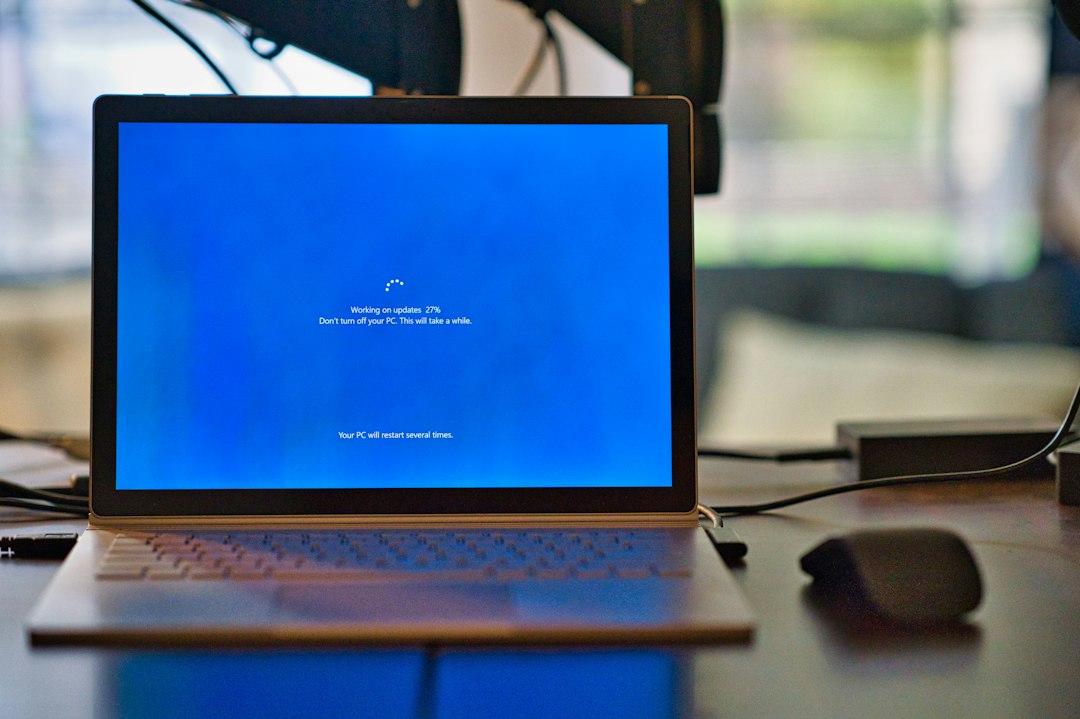
Updates cut both ways. If crashes started right after an update, remove it; if your system is behind, update it, because Microsoft and hardware makers often fix known crash bugs in updates.
- To remove a recent update on Windows 11: Settings > Windows Update > Update history, scroll down and select Uninstall updates. On Windows 10: Settings > Update & Security > Windows Update > View update history > Uninstall updates.
- If you can’t get to the desktop, use Troubleshoot > Advanced options > Uninstall Updates from the recovery screen.
- To install the latest updates, go to Settings > Windows Update and select Check for updates. Include any optional driver updates listed under Advanced options > Optional updates.
Fix 3: Update or roll back drivers
Drivers are the most common cause of stop errors. Focus on graphics, storage (SATA/NVMe), chipset, network and any driver named on the crash screen.
- Right-click Start and open Device Manager. Look for devices with a yellow warning icon.
- If the crashes started after a driver update, right-click the device, choose Properties > Driver and select Roll Back Driver (if available).
- Otherwise, install the latest driver from the PC or motherboard maker’s support page, or from the graphics card maker (NVIDIA, AMD, Intel). The maker’s driver is often newer than the one Windows Update offers.
- If a device still causes trouble and you don’t need it, right-click it and choose Disable device.
Third-party antivirus, VPN clients, RGB lighting utilities, fan controllers and anti-cheat software also install low-level drivers. If you installed one of these recently, uninstall it as a test.
Fix 4: Free up disk space
Windows needs room for its page file and crash dumps. Microsoft recommends keeping at least 10 to 15 percent of the system drive free. Open Settings > System > Storage and use Cleanup recommendations or Temporary files to clear space.
Fix 5: Repair system files with SFC and DISM
Open Terminal (Admin) or Command Prompt as administrator (right-click Start), then run these two commands one after the other. DISM repairs the Windows image first, and SFC then repairs individual system files:
DISM /Online /Cleanup-Image /RestoreHealth
sfc /scannow
Each can take several minutes. Restart when both finish. If SFC reports that it could not perform the operation, see Windows Resource Protection could not perform the requested operation. It’s also worth checking the drive for errors with chkdsk C: /scan.
Fix 6: Test your memory (RAM)
Faulty or badly seated RAM causes crashes with changing stop codes, which is a useful clue. To test it with the built-in tool:
- Save your work, press Windows + R, type
mdsched.exeand press Enter. - Choose Restart now and check for problems. The test runs before Windows starts.
- After Windows starts again, the result appears as a notification. If you miss it, open Event Viewer, go to Windows Logs > System and look for the source MemoryDiagnostics-Results.
If errors are found, or you suspect memory despite a clean result, reseat the RAM sticks or test them one at a time. A longer test with a third-party tool such as MemTest86 is more thorough.
Fix 7: System Restore or reset
If nothing else works, put Windows back to a time before the crashes:
- Press Windows + R, type
rstruiand press Enter, then pick a restore point from before the problem. Your documents aren’t affected, but apps and drivers installed after that point are removed. From the recovery screen, use Troubleshoot > Advanced options > System Restore. - If there are no restore points, reset or reinstall Windows. Settings > System > Recovery > Reset this PC can keep your files. For other options, see How to reinstall Windows 10: reset, repair install or clean install.
If the PC still crashes after a clean reinstall with no extra software, the cause is almost certainly hardware (RAM, storage, power supply, overheating or the motherboard). At that point contact the manufacturer or a repair shop, especially if the PC is under warranty.
Related guides
- DPC Watchdog Violation on Windows 11 and 10: how to fix it
- WHEA_UNCORRECTABLE_ERROR (0x124): how to fix it on Windows 11/10
- Black screen on Windows 11 or 10? How to fix it
- Windows Resource Protection could not perform the requested operation: 7 fixes
- How to reinstall Windows 10: reset, repair install or clean install
- Error 1001 in Windows and Office: what it means and how to fix it
- Stop code 0x1000007E (SYSTEM_THREAD_EXCEPTION_NOT_HANDLED): how to fix it
- PROCESS1_INITIALIZATION_FAILED (0x6B): how to fix it
- CRITICAL_PROCESS_DIED on Windows 10 and 11: how to fix it
- Your PC couldn’t start properly: 7 fixes for the Automatic Repair screen
Official sources: for more detail, see Microsoft’s own documentation:
- Microsoft Support: Troubleshooting Windows unexpected restarts and stop code errors
- Microsoft Learn: Advanced troubleshooting for stop code errors
Frequently asked questions
Is “Your PC ran into a problem” a virus?
Almost never. It’s a stop error caused by drivers, updates, hardware or corrupted files. Malware can occasionally cause crashes, so a scan doesn’t hurt, but look at drivers and recent changes first.
Why does it get stuck at 0% or 100%?
Windows is writing the crash dump. If it stays stuck for several minutes, hold the power button to turn the PC off and start it again. You may lose the dump file, but nothing else.
Will I lose my files?
A crash can lose unsaved work in open apps, but your saved files are normally fine. System Restore and Reset this PC with Keep my files also keep your documents. Back up important files before deeper repairs, just in case.
Can overheating cause this blue screen?
Yes. If crashes happen during gaming or heavy work, clean the vents and fans, make sure a laptop isn’t on a soft surface, and check temperatures with a monitoring tool.
Leave a Reply