Quick answer: CRITICAL_PROCESS_DIED (stop code 0x000000EF) means a process Windows can’t run without, such as csrss.exe or wininit.exe, stopped unexpectedly, so Windows halted to protect your data. The usual causes are damaged system files, a failing or full system drive, a bad driver or a recent update or program. Undo the last change, run DISM /Online /Cleanup-Image /RestoreHealth and sfc /scannow, check the drive, and update or roll back drivers. If Windows won’t start, do these from Safe Mode or the recovery screen.
Applies to: Windows 10 and Windows 11, when the PC restarts with a blue screen that says Stop code: CRITICAL_PROCESS_DIED or shows bug check 0x000000EF.
In this guide
- What CRITICAL_PROCESS_DIED means
- If Windows crashes before you can sign in
- Fix 1: Undo what changed just before the crashes
- Fix 2: Repair system files with DISM and SFC
- Fix 3: Check the drive
- Fix 4: Update or roll back drivers
- Fix 5: Scan for malware
- Fix 6: Use System Restore
- If nothing works
- Related guides
- Frequently asked questions
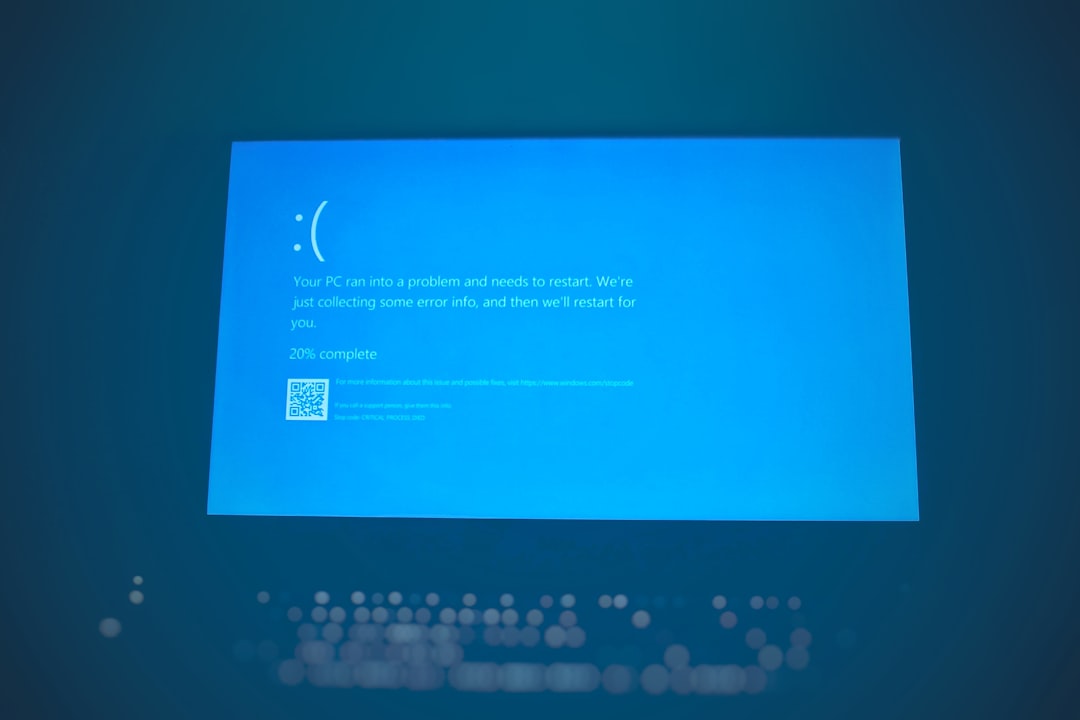
What CRITICAL_PROCESS_DIED means
A handful of Windows processes are marked as critical: if one of them ends, Windows can’t keep running safely. Microsoft’s documentation describes bug check 0xEF simply as a critical system process having died. The process itself is rarely the real culprit; something made it fail. In practice that is usually one of these:
- Damaged system files, often after an interrupted update, a sudden power loss or a failing drive.
- A problem with the system drive: bad sectors, a failing SSD, a loose cable, or a drive so full that Windows can’t write what it needs.
- A faulty driver, commonly storage, graphics, network or third-party antivirus drivers.
- A recent Windows update, driver update or program that doesn’t work properly on your PC.
- Malware that tampers with system processes, less often.
- Faulty RAM, occasionally.
If the crashes started right after a specific change, start with that change.
If Windows crashes before you can sign in
When the error appears during startup, Windows should open the recovery screen by itself after two or three failed starts. You can also hold Shift and select Power > Restart from the sign-in screen if you can get that far. Then:
- Select Troubleshoot > Advanced options > Startup Settings and then Restart.
- Press 4 or F4 for Safe Mode, or 5 or F5 for Safe Mode with Networking.
- Do the fixes below from Safe Mode. If Safe Mode also crashes, use Uninstall Updates, System Restore or Command Prompt from the same Advanced options screen.
If the recovery screen never appears, see Your PC ran into a problem and needs to restart for more ways to get in, including from a USB installation drive.
Fix 1: Undo what changed just before the crashes
- A Windows update: go to Settings > Update & Security > Windows Update > View update history > Uninstall updates on Windows 10, or Settings > Windows Update > Update history > Uninstall updates on Windows 11, and remove the latest update. From the recovery screen, use Troubleshoot > Advanced options > Uninstall Updates instead.
- A program: uninstall anything installed shortly before the crashes started, in Settings > Apps > Apps & features on Windows 10 or Settings > Apps > Installed apps on Windows 11. Third-party antivirus, VPN, tune-up and disk tools are frequent suspects.
- New hardware: unplug anything you added recently, such as a USB drive, dock or second SSD, and test again.
Fix 2: Repair system files with DISM and SFC
Damaged system files are the most common cause. Open Command Prompt as administrator (search for cmd, right-click it and choose Run as administrator) and run these one at a time, waiting for each to finish:
DISM /Online /Cleanup-Image /RestoreHealth
sfc /scannow
DISM repairs the Windows component store that SFC uses as its source, so run it first. Restart afterwards. If SFC reports that it couldn’t perform the operation, see Windows Resource Protection could not perform the requested operation.
If you can only reach Command Prompt from the recovery screen, the system drive may have a different letter there. Run dir C:\ and dir D:\ to find the drive with the Windows folder, then use an offline scan such as sfc /scannow /offbootdir=D:\ /offwindir=D:\Windows, replacing D: with the correct letter.
Fix 3: Check the drive

- Free space: make sure the system drive has at least several gigabytes free. A nearly full drive can stop Windows writing files it needs.
- Scan for errors: in an administrator Command Prompt run
chkdsk C: /scan. If it reports problems, runchkdsk C: /fand allow it to run at the next restart. - Drive health: in PowerShell run
Get-PhysicalDiskand look at the HealthStatus column, or use your SSD maker’s own tool. Anything other than Healthy means you should back up your files now. - Connections: on a desktop, reseat the SATA or NVMe connection and power cable of the system drive.
Fix 4: Update or roll back drivers
- Right-click Start and open Device Manager. Look for devices with a yellow warning sign, especially under Disk drives, Storage controllers, Display adapters and Network adapters.
- Roll back: if the crashes started after a driver update, right-click the device, choose Properties and select Roll Back Driver on the Driver tab.
- Update: otherwise install the latest drivers from your PC or motherboard maker, or from Intel, AMD, NVIDIA and similar, and check Optional updates in Windows Update.
- A BIOS or SSD firmware update from the maker can also fix stability problems; follow their instructions exactly.
Driver problems can also cause DPC_WATCHDOG_VIOLATION and BAD_POOL_CALLER, so the same checks help there.
Fix 5: Scan for malware
Open Windows Security, go to Virus & threat protection > Scan options and run a Full scan. If you suspect deeply hidden malware, choose Microsoft Defender Offline scan, which restarts the PC and scans before Windows loads.
Fix 6: Use System Restore
If System Restore is turned on, you can return Windows to a point before the crashes started without affecting your personal files. Press Win + R, type rstrui, press Enter and pick a restore point dated before the problem. From the recovery screen, use Troubleshoot > Advanced options > System Restore. Programs and drivers installed after that point are removed.
If nothing works
Test your memory with Windows Memory Diagnostic (press Win + R, type mdsched.exe) to rule out faulty RAM, as covered in our WHEA_UNCORRECTABLE_ERROR guide. If the crashes continue, back up your files and reinstall Windows with Reset this PC (choose Keep my files first) or a clean install; our guide on how to reinstall Windows 10 explains each option. If the error appears even on a fresh installation, the cause is almost certainly hardware, most often the drive or RAM.
Related guides
- Your PC ran into a problem and needs to restart: how to fix it
- Windows Resource Protection could not perform the requested operation: 7 fixes
- DPC Watchdog Violation on Windows 11 and 10: how to fix it
- BAD_POOL_CALLER on Windows 11/10: what it means and how to fix it
- How to reinstall Windows 10: reset, repair install or clean install
- Stop code 0x1000007E (SYSTEM_THREAD_EXCEPTION_NOT_HANDLED): how to fix it
Official sources: for more detail, see Microsoft’s own documentation:
- Microsoft Learn: Bug check 0xEF CRITICAL_PROCESS_DIED
- Microsoft Support: Troubleshooting Windows unexpected restarts and stop code errors
Frequently asked questions
Is CRITICAL_PROCESS_DIED a hardware or software problem?
Most often software: damaged system files, a driver or a recent update. A failing system drive is the main hardware cause, with RAM less common. If a fresh Windows installation still crashes, suspect hardware.
Will I lose my files?
Not from the error itself, though unsaved work is lost when the PC crashes. Repeated crashes on a failing drive can put files at risk, so back up as soon as Windows starts, from Safe Mode if necessary.
Why does it happen only when the PC wakes from sleep?
That usually points to a storage, graphics or chipset driver that doesn’t handle sleep correctly. Update those drivers and the BIOS. Turning off Fast Startup can also help when the crash happens at power-on.
Is it the same error on Windows 11?
Yes. The stop code and the fixes are the same on Windows 10 and Windows 11; only some Settings menu names differ, as noted in each step.
Leave a Reply