Quick answer: Error 0x800f081f means Windows couldn’t find the source files it needs (CBS_E_SOURCE_MISSING). You usually see it when turning on .NET Framework 3.5, when DISM /RestoreHealth says the source files could not be found, or when a Windows update fails. Give Windows a working source: let it download from Windows Update, or mount a Windows ISO that matches your installed version and point DISM at it with /Source and /LimitAccess.
Applies to: Windows 11 and Windows 10, in Windows Features, DISM and Windows Update.
In this guide
- What error 0x800f081f means
- Fix 1: Let Windows download the files from Windows Update
- Fix 2: Change the optional component policy (Pro and work PCs)
- Fix 3: Install .NET Framework 3.5 from a Windows ISO
- Fix 4: Run DISM with a repair source
- Fix 5: Reset Windows Update components
- Fix 6: Install the update manually
- Fix 7: Repair Windows with an in-place upgrade
- Related guides
- Frequently asked questions
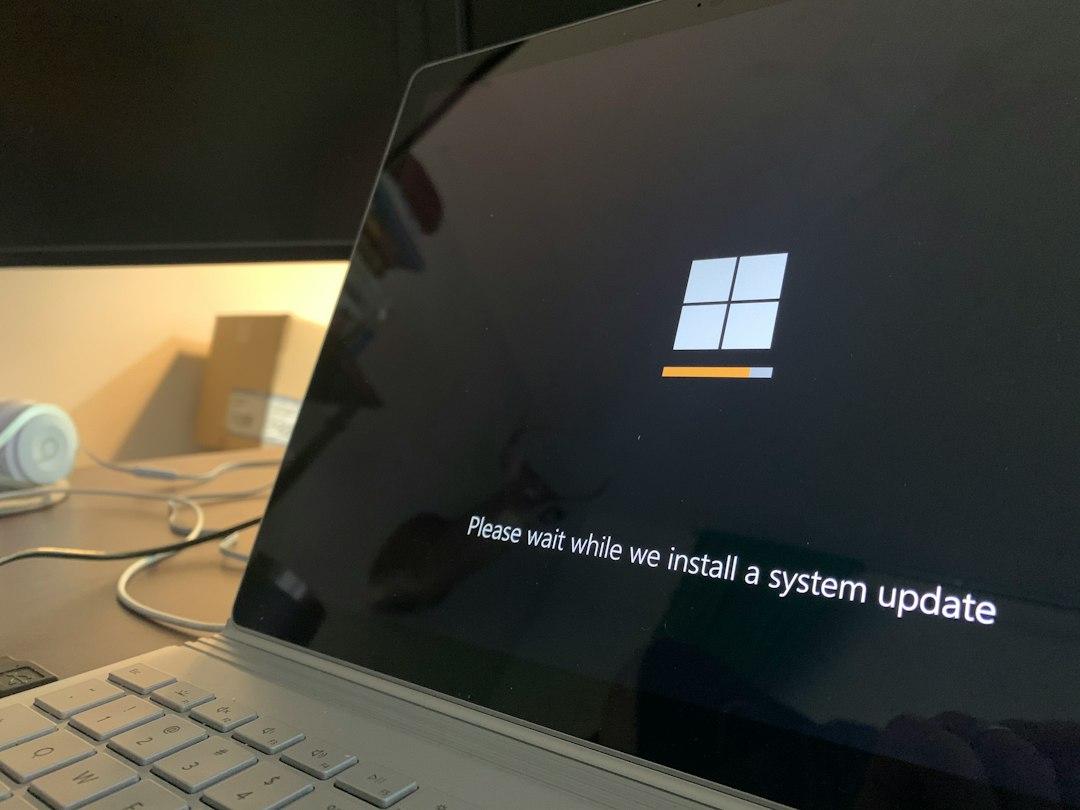
What error 0x800f081f means
Windows keeps the files for optional features and repairs in its component store (C:\Windows\WinSxS). When a feature or repair needs files that aren’t there, Windows tries to fetch them, normally from Windows Update. Error 0x800f081f appears when that fails. Typical reasons:
- The PC is managed by WSUS or a policy that blocks it from downloading features from Windows Update.
- You pointed DISM or the feature installer at a source that doesn’t match your Windows version, edition or language.
- The component store or Windows Update cache is damaged.
- There’s no internet connection while installing a feature such as .NET Framework 3.5.
The same family of codes includes 0x800f0906, 0x800f0907 and 0x800f0922, and the fixes below cover them too. The related error 0x800f0831 is a different problem, usually caused by a missing or damaged earlier update package.
Fix 1: Let Windows download the files from Windows Update
- Check that you’re online, and pause any metered connection or VPN for now.
- Open Settings > Windows Update and install everything that’s pending, then restart.
- Press Win + R, type
optionalfeaturesand press Enter. - Tick .NET Framework 3.5 (includes .NET 2.0 and 3.0), select OK and choose Let Windows Update download the files for you.
If Windows Update itself can’t be reached, fix that first with our guide to “We couldn’t connect to the update service”.
Fix 2: Change the optional component policy (Pro and work PCs)
On PCs that get updates from WSUS, Windows looks for feature files on the WSUS server, which usually doesn’t have them. A Group Policy setting sends it to Windows Update instead. This needs Windows Pro, Enterprise or Education; on a work PC, ask your IT team first, because they may set this centrally.
- Press Win + R, type
gpedit.mscand press Enter. - Go to Computer Configuration > Administrative Templates > System.
- Open Specify settings for optional component installation and component repair and set it to Enabled.
- Tick Download repair content and optional features directly from Windows Update instead of Windows Server Update Services (WSUS) and select OK.
- Run
gpupdate /forcein Command Prompt, then try the feature or repair again.
Fix 3: Install .NET Framework 3.5 from a Windows ISO
The Windows installation media carries the .NET Framework 3.5 files in its sources\sxs folder, so you can install it without Windows Update.
- Download the Windows ISO for your version from Microsoft. It must match the Windows version you run (for example Windows 11 24H2); check yours with
winver. - Right-click the ISO and choose Mount. Note the drive letter it gets, for example D:.
- Open Command Prompt as administrator and run the command below, replacing
D:with your drive letter.
DISM /Online /Enable-Feature /FeatureName:NetFx3 /All /LimitAccess /Source:D:\sources\sxs/LimitAccess stops DISM from trying Windows Update, so it uses only the ISO. When it reports The operation completed successfully, restart the PC.
Fix 4: Run DISM with a repair source
If DISM /Online /Cleanup-Image /RestoreHealth fails with 0x800f081f, give it the install.wim or install.esd file from the same matching ISO.
- Mount the ISO and look in its sources folder to see whether it has install.wim or install.esd.
- Find the index of your edition (Home, Pro and so on):
DISM /Get-WimInfo /WimFile:D:\sources\install.wimThen run the repair with that index number. This example uses index 6; use the number your edition showed:
DISM /Online /Cleanup-Image /RestoreHealth /Source:WIM:D:\sources\install.wim:6 /LimitAccessIf the ISO has install.esd, use /WimFile:D:\sources\install.esd in the first command and /Source:ESD:D:\sources\install.esd:6 in the second. When DISM succeeds, run sfc /scannow and restart.
Fix 5: Reset Windows Update components
If the error comes from a failing update, clear Windows Update’s cache. In an administrator Command Prompt, run:
net stop wuauserv
net stop cryptSvc
net stop bits
net stop msiserver
ren C:\Windows\SoftwareDistribution SoftwareDistribution.old
ren C:\Windows\System32\catroot2 catroot2.old
net start wuauserv
net start cryptSvc
net start bits
net start msiserver
Restart and check for updates again. Our guide to Windows Update from the command line has more commands for checking and installing updates.
Fix 6: Install the update manually
Note the KB number of the failed update in Settings > Windows Update > Update history. Search for it on the Microsoft Update Catalog (catalog.update.microsoft.com), download the package that matches your Windows version and architecture (usually x64), and run it. A standalone package often installs when Windows Update fails.
Fix 7: Repair Windows with an in-place upgrade
If nothing else works, the component store is probably too damaged to repair in place. Mount the matching Windows ISO, run setup.exe, and choose to keep your personal files and apps. This reinstalls Windows over itself and rebuilds the component store. Back up important files first, as you would before any major change.
Similar update codes have their own guides, such as error 0x8007001f.
Related guides
- Windows Update error 0x800f0831: how to fix it
- Error 0x8007001f in Windows Update: 8 ways to fix it
- Windows Update from the command line: CMD and PowerShell commands
- “We couldn’t connect to the update service”: 7 fixes for Windows 11/10
Official sources: for more detail, see Microsoft’s own pages:
- Microsoft Learn: .NET Framework 3.5 installation errors
- Microsoft Learn: Configure a Windows repair source
Frequently asked questions
What does 0x800f081f mean?
It’s the code for CBS_E_SOURCE_MISSING: Windows couldn’t find the source files it needed for a feature, an update or a repair.
Can I use any Windows ISO as the source?
No. The ISO should match your installed Windows version, edition and language. A mismatched source is one of the most common reasons DISM still fails with 0x800f081f.
Do I need .NET Framework 3.5 on Windows 11?
Only if an app asks for it. Many older programs and games need it, and Windows installs it on demand. Newer apps use .NET Framework 4.8 or later, which Windows already includes.
Is it safe to rename SoftwareDistribution?
Yes. It only holds Windows Update’s downloads and history, and Windows creates a new folder automatically. You can delete the .old folder once updates work again.
Leave a Reply