Quick answer: 100% disk usage in Task Manager means the drive is busy all the time, so Windows 11 feels slow. Open Task Manager, sort by the Disk column to see which process is responsible, and act on that: let updates and scans finish, turn off unneeded startup apps, pause OneDrive, reduce search indexing and check RAM. If the PC still has a hard disk (HDD) rather than an SSD, upgrading to an SSD is by far the most effective fix.
Applies to: Windows 11, and Windows 10 with slightly different menu names, when Task Manager shows the disk at or near 100% for long periods.
In this guide
- What 100% disk usage means
- Step 1: Find what’s using the disk
- Fix 1: Give Windows time after startup and updates
- Fix 2: Cut startup apps and pause syncing
- Fix 3: Turn down search indexing
- Fix 4: Stop SysMain as a test
- Fix 5: Check memory and the page file
- Fix 6: Scan for malware and repair Windows
- Fix 7: Check the drive, or move to an SSD
- Related guides
- Frequently asked questions

What 100% disk usage means
The Disk percentage in Task Manager is how much of the time the drive is busy, not how full it is. Short spikes to 100% are normal, for example right after you sign in. It’s a problem when it stays there for minutes, because every app then waits for the drive. The usual causes are:
- A hard disk drive (HDD), which is far slower than an SSD and easily overwhelmed by Windows 11’s background work.
- Background tasks: Windows Update, Microsoft Defender scans, search indexing, OneDrive or other cloud syncing.
- Too many apps launching at startup.
- Not enough RAM, so Windows constantly swaps data to the page file on the disk.
- Malware, damaged system files, or a failing drive.
Step 1: Find what’s using the disk

- Press Ctrl + Shift + Esc to open Task Manager. On the Processes page, select the Disk column header to sort the busiest processes to the top.
- On the Performance page, select the disk. The top right shows whether it’s an SSD or HDD, and Active time shows how busy it is.
- For more detail, type
resmonin Start and open Resource Monitor. The Disk tab lists the exact files being read and written.
Names such as Antimalware Service Executable, Windows Update or Service Host: Windows Search point to the matching fix below. If one third-party app is responsible, update, reconfigure or uninstall it.
Fix 1: Give Windows time after startup and updates
For the first 10 to 20 minutes after you start the PC, or after a big update, Windows catches up on scans, updates and indexing. Leave the PC plugged in and idle for a while, then restart. Also open Settings > Windows Update and let any pending updates install, so they stop downloading in the background.
Fix 2: Cut startup apps and pause syncing
- Open Settings > Apps > Startup and turn off apps you don’t need straight away. Those with High impact matter most.
- If OneDrive or another cloud app is near the top of the Disk column, pause it from its icon in the notification area while you work. Our guide on how to stop OneDrive from syncing explains the options without losing files.
Fix 3: Turn down search indexing
Windows Search builds an index of your files, which can keep a slow drive busy. Go to Settings > Privacy & security > Searching Windows. If Find my files is set to Enhanced, switch it to Classic so only your libraries and desktop are indexed. Indexing usually calms down once it has finished a first full pass.
If search itself is broken after changes like this, see can’t type in the Windows search bar.
Fix 4: Stop SysMain as a test
SysMain (formerly Superfetch) preloads apps you use often. On fast drives it helps, but on some HDD-based PCs it adds to the load. To test:
- Press Win + R, type
services.mscand press Enter. - Double-click SysMain, select Stop, set Startup type to Disabled and select OK.
- Use the PC for a day. If nothing improves, set it back to Automatic and start it again.
Don’t disable other services at random; most of them are needed.
Fix 5: Check memory and the page file
In Task Manager’s Performance page, select Memory. If it’s regularly above 80 to 90% in use, Windows moves data to the page file on the disk, which keeps it busy. Close browser tabs and heavy apps you’re not using. On a PC with 4 GB or 8 GB of RAM, adding more memory makes a real difference. Leave the page file set to Automatically manage paging file size for all drives unless you have a specific reason to change it.
Fix 6: Scan for malware and repair Windows
- Open Windows Security and run a Full scan under Virus & threat protection > Scan options. If unknown programs are present, our adware removal guide shows how to clean them out.
- Repair system files from an administrator Command Prompt:
DISM /Online /Cleanup-Image /RestoreHealth
sfc /scannow
If SFC can’t finish, see Windows Resource Protection could not perform the requested operation.
Fix 7: Check the drive, or move to an SSD
- Drive health: in PowerShell run
Get-PhysicalDiskand look at HealthStatus, and runchkdsk C: /scanfrom an administrator Command Prompt. A failing drive is often slow before it fails completely, so back up your files if either reports problems. - Free space: keep at least 10 to 15% of the system drive free. Use Settings > System > Storage and Cleanup recommendations to clear space.
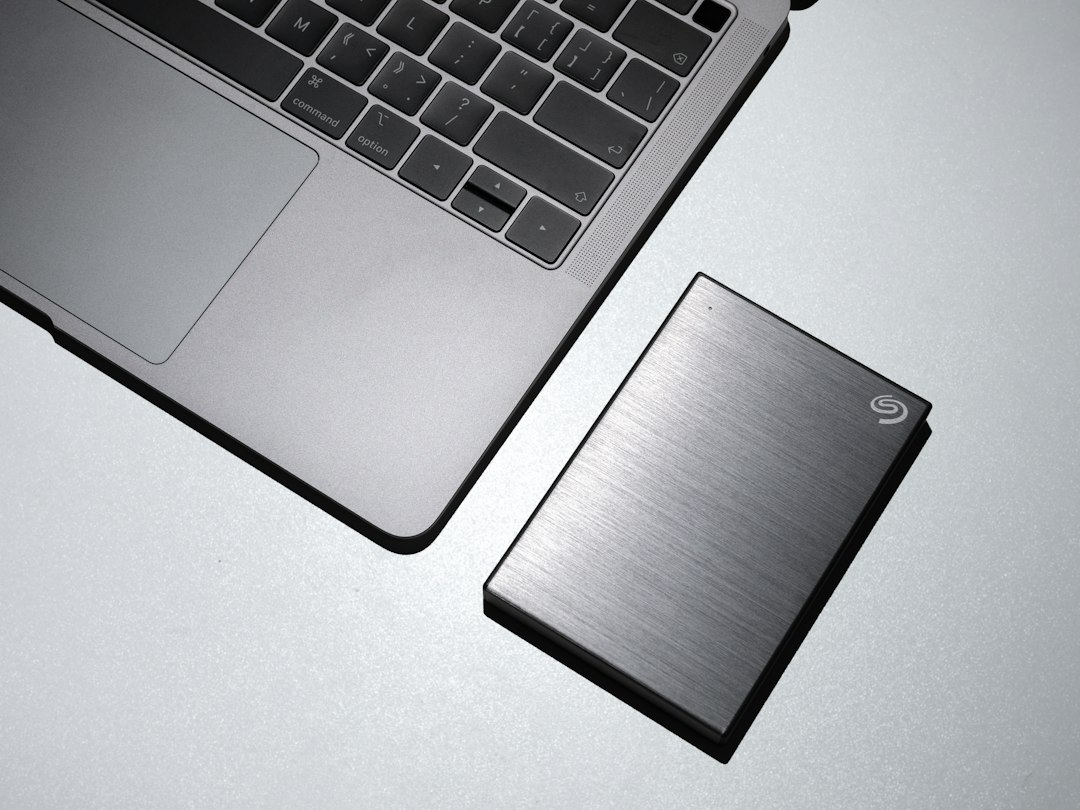
- Upgrade to an SSD: if Task Manager shows HDD, this is the fix that solves 100% disk usage for good. Windows 11 is designed around SSD speeds, and even an inexpensive SATA SSD is many times faster at the small reads and writes Windows does constantly. Most drive makers include free cloning software to copy your existing installation.
Related guides
- How to stop OneDrive from syncing (without losing files)
- Can’t type in the Windows search bar? 7 fixes for Windows 11/10
- Windows Resource Protection could not perform the requested operation: 7 fixes
- Adware removal: how to get rid of adware on Windows 11 and 10
- CPU not running at full speed in Windows 11/10: how to fix it
- CRITICAL_PROCESS_DIED on Windows 10 and 11: how to fix it
- How to delete Windows.old in Windows 11 and 10
- Windows 10 slow boot: how to find the cause and fix it
- SQL database Recovery Pending: causes and how to fix it
- wsappx high disk or CPU usage in Windows 11 and 10: what it is and how to fix it
- Where are startup programs in Windows 11 and 10? Every location
- Software Reporter Tool in Chrome: what it was and why it’s gone
Official sources: for more detail, see Microsoft’s own pages:
- Microsoft Support: Tips to improve PC performance in Windows
- Microsoft Learn: chkdsk command reference
Frequently asked questions
Is 100% disk usage bad for the drive?
It doesn’t damage a healthy drive by itself; drives are built to work hard. The problem is that the PC becomes slow. If the usage comes with clicking noises, errors or crashes, check the drive’s health and back up.
Why is my disk at 100% when I’m doing nothing?
Windows does maintenance when the PC is idle: updates, Defender scans, indexing and storage optimisation. On an HDD this can keep the disk busy for a while. If it never settles, use Task Manager to find the process responsible.
Can an SSD show 100% disk usage?
Yes, briefly, during big copies or installs. If an SSD sits at 100% for long periods, suspect a specific app, malware, an outdated storage driver or SSD firmware, or a drive that’s nearly full.
Should I disable Windows Search or Windows Update to fix it?
No. Turning off Windows Update leaves the PC unprotected, and disabling search breaks Start and File Explorer search. Reducing indexing to Classic and letting updates finish are safer ways to lower disk use.
Leave a Reply