Quick answer: WHEA_UNCORRECTABLE_ERROR (stop code 0x124) means the processor or another hardware component reported an error Windows couldn’t recover from. Microsoft says it’s usually caused by hardware: heat, overclocking, faulty memory or a failing component. Turn off any overclocking, XMP/EXPO memory profiles and undervolting, check temperatures and clean the fans, update the BIOS and chipset drivers, then test your RAM. If it continues with everything at default settings, the hardware probably needs service.
Applies to: Windows 11 and Windows 10 desktops and laptops that crash with a blue screen showing WHEA_UNCORRECTABLE_ERROR or stop code 0x00000124.
In this guide
- What WHEA_UNCORRECTABLE_ERROR means
- Step 1: Find out what the error points to
- Fix 1: Turn off overclocking, XMP/EXPO and undervolting
- Fix 2: Check temperatures and cooling
- Fix 3: Update the BIOS and chipset drivers
- Fix 4: Test your memory
- Fix 5: Check the drive, cables and power supply
- Fix 6: Rule out Windows and driver problems
- When it’s a hardware fault
- Related guides
- Frequently asked questions
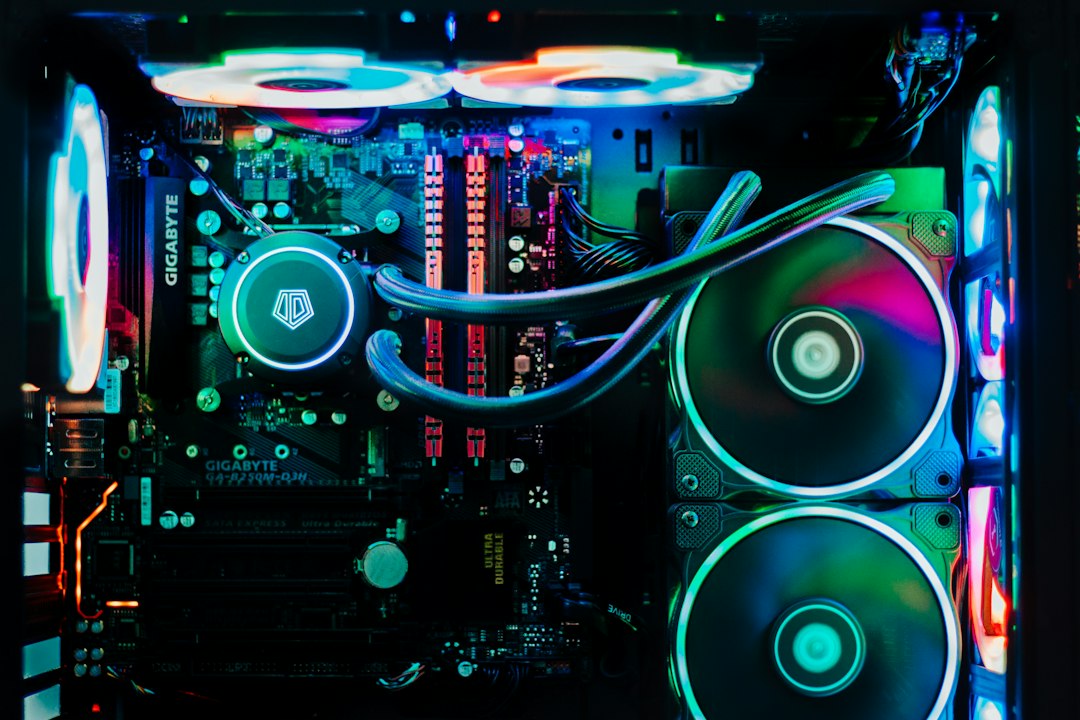
What WHEA_UNCORRECTABLE_ERROR means
WHEA stands for Windows Hardware Error Architecture, the part of Windows that receives error reports from the hardware itself. When the processor, memory controller or a PCI Express device reports a fatal error, Windows stops with this blue screen to avoid corrupting data.
Microsoft’s documentation lists the typical causes as physical hardware problems: overheating, defective hardware or memory, or a failing processor, often triggered by overclocking. A driver causing it is possible but less likely, so start with the hardware checks below.
Step 1: Find out what the error points to
Windows records each hardware error in the event log, which can tell you which component reported it.
- Press Win + X and select Event Viewer.
- Go to Windows Logs > System, then select Filter Current Log on the right.
- In Event sources, tick WHEA-Logger and select OK.
- Open the errors around the time of the crash. The details often name the component type, such as Processor Core, Cache Hierarchy, Memory or PCI Express Root Port.
You can also type reliability in Start and open View reliability history to see when crashes happen and what happened just before them. A processor or cache error points to overclocking, heat or the CPU; a PCI Express error points to the graphics card, an NVMe drive or another expansion card.
Fix 1: Turn off overclocking, XMP/EXPO and undervolting
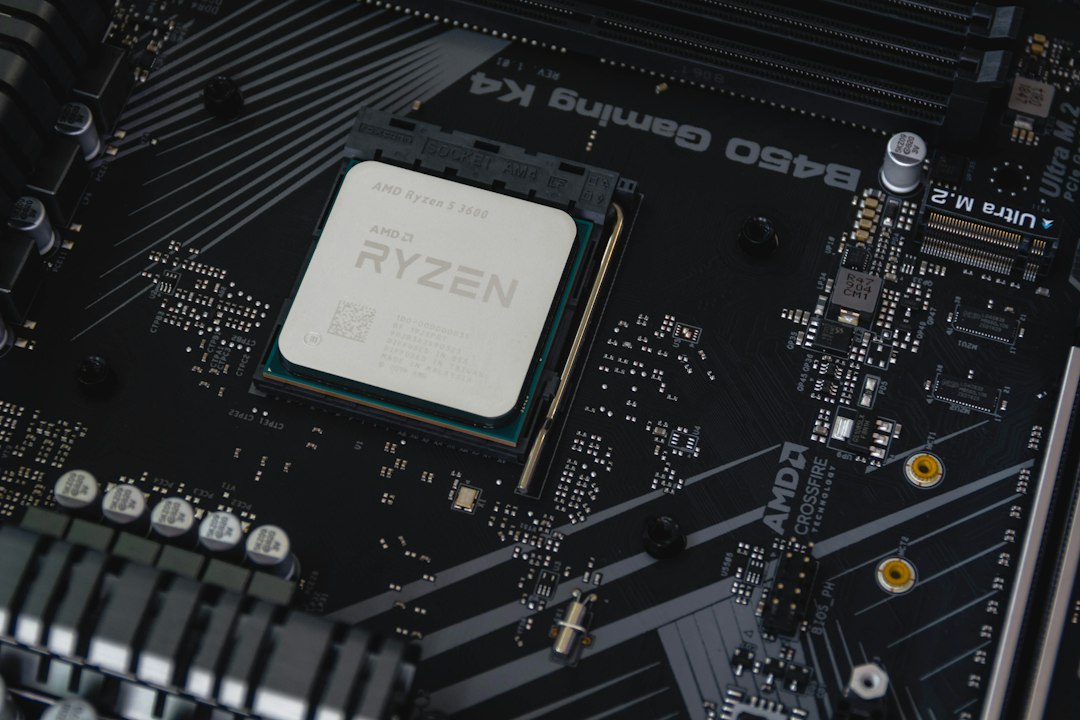
Running the processor or memory beyond its default settings is one of the most common causes of 0x124.
- Restart and open the BIOS/UEFI setup (often Del, F2 or F10 at power-on, or Settings > System > Recovery > Advanced startup > Restart now, then Troubleshoot > Advanced options > UEFI Firmware Settings).
- Choose the option to load optimized or default settings, or turn off overclocking, XMP (Intel) or EXPO (AMD) memory profiles and any CPU “boost” or auto-overclock features.
- Undo undervolting or curve tweaks made in tools such as the BIOS or vendor utilities.
- Save, restart and use the PC normally for a few days.
If the crashes stop, the PC wasn’t stable at those settings. You can re-enable XMP/EXPO later, but if the error returns, leave it off or use a lower memory speed.
Fix 2: Check temperatures and cooling
- Make sure all fans spin, including the CPU cooler and graphics card fans.
- Clean dust from vents, filters and heatsinks with compressed air (power off and unplug first).
- On laptops, use the PC on a hard surface so the vents aren’t blocked.
- Use your PC maker’s utility or the BIOS hardware monitor to check CPU temperatures under load. Very high temperatures that cause throttling or shutdowns mean cooling needs attention, such as new thermal paste or a better cooler.
Fix 3: Update the BIOS and chipset drivers
Processor makers and PC makers regularly release BIOS (firmware) updates that fix stability problems, including WHEA errors on newer CPUs.
- Find your exact PC or motherboard model (type
msinfo32in Start and check System Model or BaseBoard Product). - Download the latest BIOS and chipset drivers from the PC or motherboard maker’s support page.
- Follow their instructions exactly, keep a laptop on AC power and don’t interrupt a BIOS update.
If you recently swapped the processor, also read “New CPU installed: fTPM/PSP NV corrupted”.
Fix 4: Test your memory
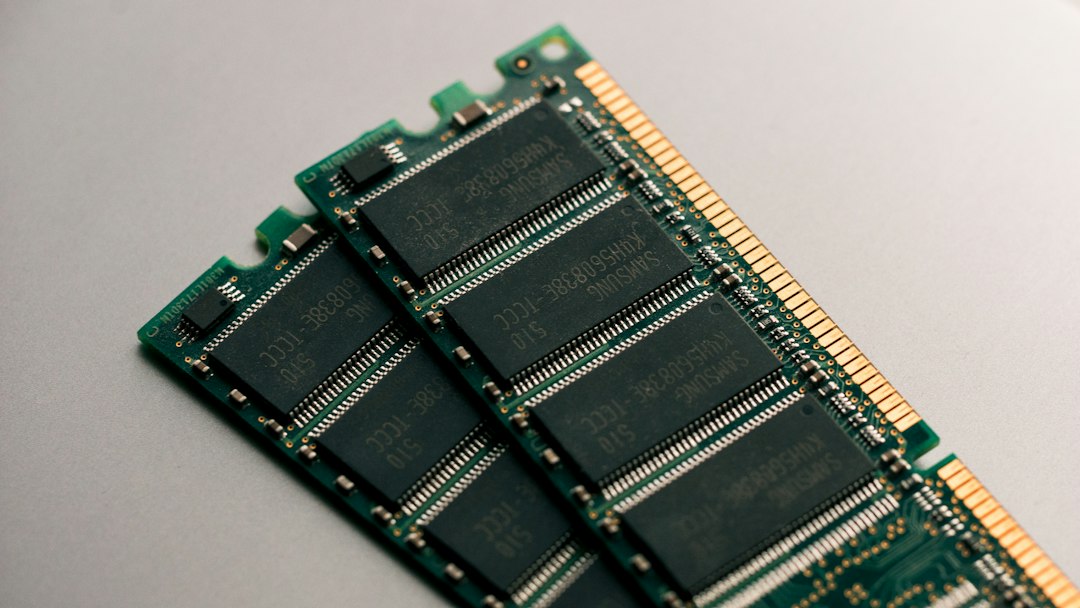
Faulty RAM can cause WHEA errors and many other crashes, including “the instruction referenced memory” errors.
- Save your work, press Win + R, type
mdsched.exeand press Enter. - Choose Restart now and check for problems. The test runs before Windows starts.
- After Windows starts again, the result appears as a notification, or in Event Viewer under Windows Logs > System with source MemoryDiagnostics-Results.
On a desktop with several memory sticks, you can also test one stick at a time to find a bad one. Make sure the sticks are fully seated in their slots.
Fix 5: Check the drive, cables and power supply
- Reseat the graphics card and any NVMe or other expansion cards, especially if the event log mentions PCI Express.
- Update your SSD’s firmware with the maker’s tool.
- On desktops, an old or underpowered power supply can cause hardware errors under load, for example when gaming. Check that its rating suits your graphics card.
- If you’re comfortable doing so, check that power cables to the motherboard and graphics card are firmly connected.
Fix 6: Rule out Windows and driver problems
Drivers are a less common cause, but worth checking once the hardware is at default settings:
- Install all updates from Settings > Windows Update, including optional driver updates.
- Update the graphics driver from NVIDIA, AMD or Intel.
- Repair Windows files with
DISM /Online /Cleanup-Image /RestoreHealthandsfc /scannowin an administrator Command Prompt; see this guide if SFC reports a problem.
For other driver-related blue screens, see DPC watchdog violation.
When it’s a hardware fault
If WHEA_UNCORRECTABLE_ERROR keeps happening with everything at default settings, normal temperatures, up-to-date firmware and a clean memory test, a component is probably failing. If the PC is under warranty, contact the maker and mention the stop code and the WHEA-Logger component from Step 1. A processor that has degraded can need replacing; some CPU makers have extended warranties for known instability issues, so check their support site too.
Back up your files now, since repeated crashes can corrupt data.
Related guides
- DPC watchdog violation on Windows 11 and 10: how to fix it
- “The instruction at 0x00007ff… referenced memory”: how to fix it
- “New CPU installed: fTPM/PSP NV corrupted”: press Y or N?
- Windows Resource Protection could not perform the requested operation (SFC and DISM)
Official sources: for more detail, see Microsoft’s own documentation:
- Microsoft Learn: Bug Check 0x124 WHEA_UNCORRECTABLE_ERROR
- Microsoft Support: Troubleshooting Windows unexpected restarts and stop code errors
Frequently asked questions
Is WHEA_UNCORRECTABLE_ERROR always hardware?
Nearly always it involves hardware or hardware settings: overclocking, heat, memory or a failing part. Drivers can cause it but that’s less common, which is why the hardware fixes come first.
Can a Windows update cause it?
An update can change drivers or power behaviour and expose an unstable setting, but it rarely causes the error by itself. Check overclocking and BIOS updates before blaming the update.
Will reinstalling Windows fix it?
Usually not. If the cause is hardware or BIOS settings, the crashes return on a fresh installation.
Is it safe to keep using the PC?
Short term, yes, but back up your files. Frequent crashes can corrupt open files, and a failing component can get worse.
Leave a Reply