Quick answer: Your new AMD processor can’t read the security keys the old one stored in its firmware TPM (fTPM). Press Y to reset the fTPM and continue, but first make sure you have your BitLocker recovery key if the drive is encrypted, because Windows will ask for it. Afterwards, set up your Windows Hello PIN and fingerprint again. Press N only if you plan to put the old CPU back.
Applies to: AMD Ryzen desktops and laptops using the firmware TPM (fTPM), after a CPU upgrade, a CPU swap or sometimes a BIOS update, running Windows 11 or Windows 10.
In this guide
What the message means
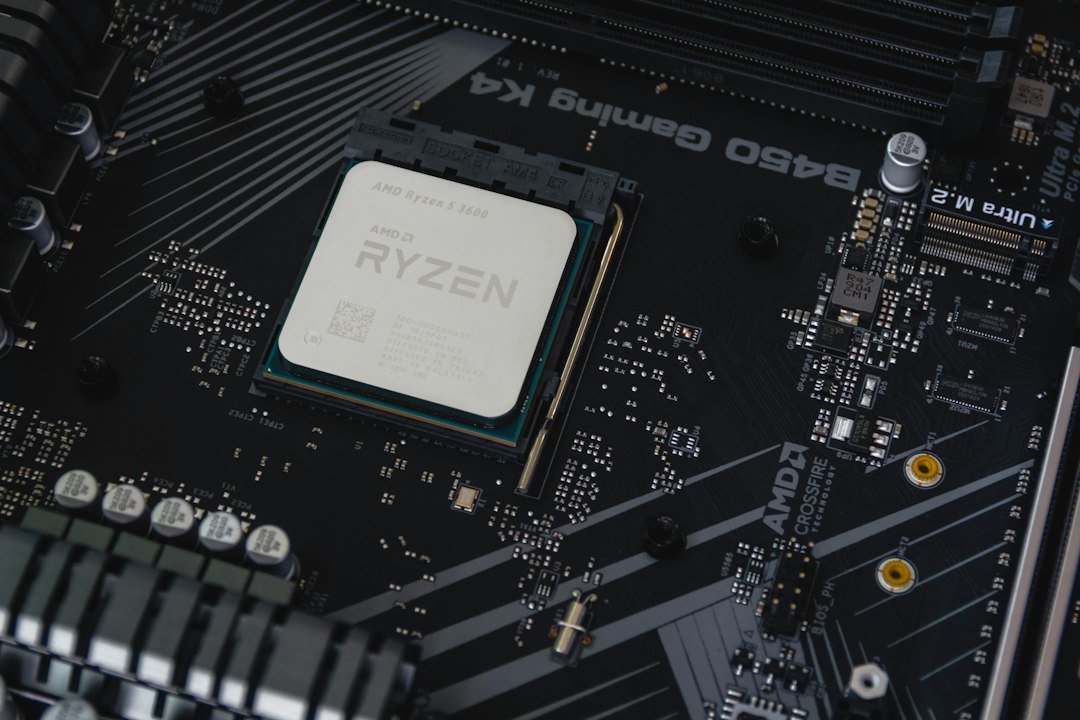
On AMD systems the TPM (the security chip Windows 11 requires) usually isn’t a separate chip. It runs as firmware inside the processor’s Platform Security Processor (PSP), which is why it’s called fTPM. Its saved data (“NV”, for non-volatile storage) sits in the motherboard’s firmware chip, but it’s protected with keys that belong to the CPU.
When you fit a different CPU, the new processor can’t unlock that saved data, so the BIOS reports it as corrupted or changed. Nothing is broken. The BIOS is asking what to do with TPM data that only the old CPU could use.
TPM data is used for:
- BitLocker and device encryption (the key that unlocks your drive at startup).
- Windows Hello PIN, fingerprint and face sign-in.
- Some work or school certificates, VPN logins and virtual smart cards.
Should you press Y or N?
| Choice | What happens | Pick it when |
|---|---|---|
| Y (reset fTPM) | The old TPM data is erased and the new CPU creates a fresh fTPM. Windows asks for the BitLocker recovery key once if the drive is encrypted, and Windows Hello needs setting up again. | You’re keeping the new CPU. This is the right choice for almost everyone. |
| N (keep old record) | The old TPM data is kept but the fTPM stays off with the new CPU. Windows sees no TPM, so BitLocker asks for the recovery key and Windows 11 features that need a TPM stop working. | You plan to put the old CPU back, for example to get at data or suspend BitLocker first. |
Pressing N doesn’t avoid the BitLocker recovery screen, because without a working TPM BitLocker can’t unlock the drive by itself either. It only keeps the door open to going back to the old CPU.
Before you press Y: get your BitLocker recovery key
If BitLocker or device encryption is on and you don’t have the recovery key, resetting the fTPM can lock you out of your files. Get the key before you continue:
- On another phone or PC, sign in at
account.microsoft.com/devices/recoverykeywith the Microsoft account you use on this PC. Find the key whose Key ID matches the one on the blue recovery screen. - Work or school PC: the key is usually saved to your organisation’s account. Ask your IT team.
- Check for a printout or a
BitLocker Recovery Keytext file you saved on a USB stick or in cloud storage.
Not sure whether the drive is encrypted? If you can’t find a key anywhere and the PC never asked you to set up BitLocker, it may not be on. Many laptops turn on device encryption automatically when you sign in with a Microsoft account, though, so check your account page anyway.
Still have the old CPU and no key? Press N, shut down, refit the old CPU, start Windows, and in an administrator Command Prompt run the command below. It turns off BitLocker protection for one restart, so you can swap to the new CPU, press Y and start Windows without the key:
manage-bde -protectors -disable C: -RebootCount 1While you’re signed in on the old CPU, also back up the recovery key: manage-bde -protectors -get C: shows it.
After pressing Y: set Windows back up
- If the BitLocker recovery screen appears, type the 48-digit key. Windows then seals BitLocker to the new fTPM, so you won’t be asked again.
- Sign in with your password (the PIN won’t work yet). Go to Settings > Accounts > Sign-in options and set up your PIN, then fingerprint or face again.
- Press Win + R, type
tpm.mscand press Enter. Status should say “The TPM is ready for use”. - Re-install any work certificates or VPN profiles that stop working. Your IT team can push them again.
Files, apps and settings aren’t touched. Only things locked to the TPM need redoing.
Message appears on every boot
If you keep pressing N, many boards show the prompt at every startup. Pressing Y once usually ends it. If it still comes back:
- Enter the BIOS (usually Del or F2 at power-on) and look under Advanced or Security for an option to reset or erase the fTPM. On some ASUS boards it’s called Erase fTPM NV for factory reset; other makers use similar names. Set it, save and restart.
- Update the motherboard BIOS to the latest version from the board maker’s support page. Newer CPUs often need it anyway, and updates fix fTPM prompts that repeat.
- If you don’t need the TPM (for example on Windows 10 without BitLocker), you can turn AMD fTPM off in the BIOS. Windows 11 needs it, so leave it on there.
Some boards also show the prompt after a BIOS update, even with the same CPU. The same Y-or-N advice applies. Get your recovery key before updating the BIOS on an encrypted PC.
How to avoid it next time
- Before swapping a CPU or updating the BIOS, save your BitLocker recovery key and suspend BitLocker with
manage-bde -protectors -disable C: -RebootCount 1(or Suspend protection in Control Panel > BitLocker Drive Encryption). - If your board has a header for a plug-in TPM module, a discrete TPM keeps its keys on the module, so CPU swaps don’t affect it.
- Keep the recovery key somewhere you can reach from another device.
If the PC won’t start at all after the swap, the CPU or BIOS support is usually the issue, not the fTPM. Our guide to fixing a black screen at startup covers display and boot checks.
Related guides
- “The Windows RE image was not found” (fix WinRE)
- Windows black screen: how to get your display back
- “The referenced account is currently locked out”
- Windows Hello PIN “This option is currently unavailable”
- Not in a hypervisor partition (HVP=0): how to fix the VirtualBox error
- PIN no longer available after a TPM or BIOS change? How to fix it
- Asked for a BitLocker recovery key after a BIOS change? Where to find it
- BitLocker suspended: what it means and how to resume protection
- SYSTEM_PTE_MISUSE blue screen in Windows: causes and fixes
Official sources: for more detail, see Microsoft’s own documentation:
- Microsoft Support: Find your BitLocker recovery key
- Microsoft Learn: Trusted Platform Module technology overview
Frequently asked questions
Will pressing Y delete my files?
No. It erases only the TPM’s stored keys. Your drive, files and apps are untouched. The only risk is being unable to unlock an encrypted drive if you don’t have the BitLocker recovery key.
Does this happen with Intel CPUs?
Not with this message. Intel’s firmware TPM (PTT) lives in the chipset rather than the CPU, so a CPU swap doesn’t reset it. Replacing the motherboard does reset it on any platform.
I put the same CPU back in. Why did I get the message?
A BIOS update, clearing the CMOS or a firmware glitch can make the BIOS think the fTPM data changed. If it’s the same CPU, choosing N keeps the existing keys. If Windows then starts normally, you’re fine.
Is it safe to turn off fTPM?
On Windows 11 it isn’t a good idea. Windows 11 requires a TPM, and BitLocker, Windows Hello and some updates rely on it. On Windows 10 without BitLocker you can, but most users are better off leaving it on and pressing Y once.
Leave a Reply