Quick answer: To cancel a disk check that’s waiting for the next restart, open Command Prompt as administrator and run chkntfs /x C: (use your drive letter). If a countdown appears at startup, press any key before it ends to skip the check. A check that has already started is best left to finish; Microsoft doesn’t recommend interrupting it. Run chkntfs /d later to switch automatic checks back on.
Applies to: Windows 11 and Windows 10. The startup check is what you see as Scanning and repairing drive or a CHKDSK countdown; it’s run by autochk, the startup version of chkdsk.
In this guide
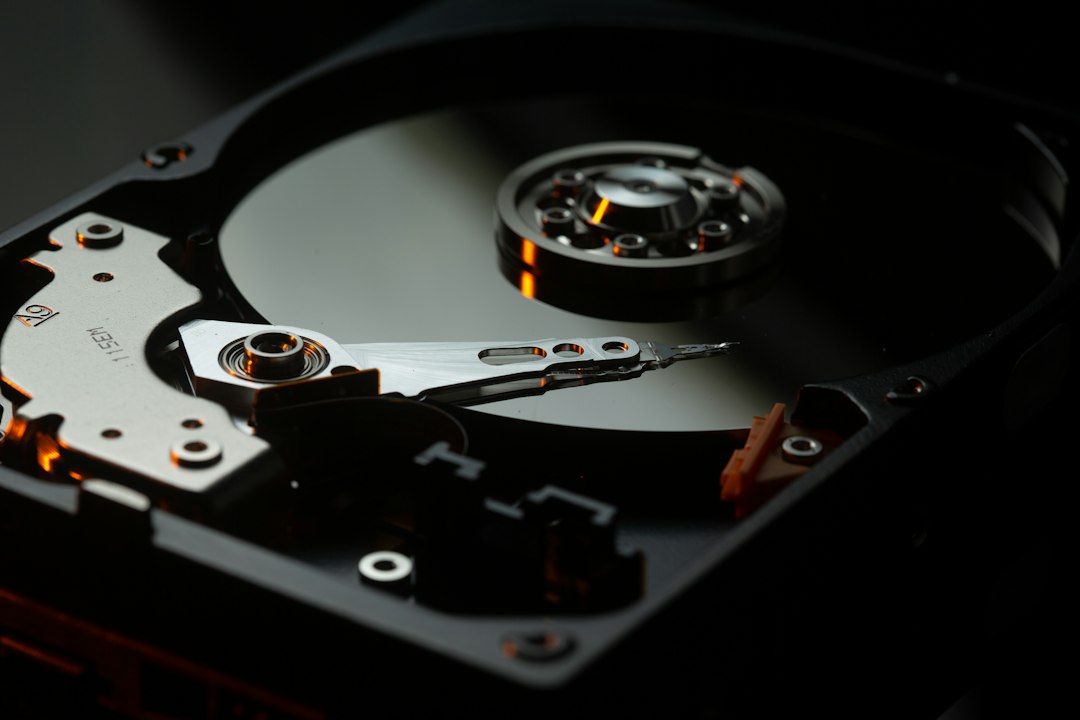
Windows checks a drive at startup for two reasons: someone scheduled it (for example with chkdsk C: /f, which asks to run at the next restart when the drive is in use), or the drive’s dirty bit is set. Windows sets that bit when a drive has changes that weren’t written, when the PC shut down before they were committed, or when it detects corruption. Knowing which one you have tells you whether stopping the check is safe.
See whether a check is scheduled
Open Command Prompt as administrator and run both commands, changing the drive letter if needed:
chkntfs C:
fsutil dirty query C:
chkntfs reports whether the drive is dirty or scheduled to be checked at the next restart. fsutil dirty query tells you whether the volume is dirty or not. A dirty drive means Windows has found a reason to check it; skipping that check once is fine, skipping it forever is not.
Skip the check at the countdown
When Windows shows a countdown before the check, press any key before it reaches zero and Windows starts normally. The check will come back at the next restart if the drive is still dirty.
You can change the length of that countdown with chkntfs /t:30 (seconds); chkntfs /t on its own shows the current value. Don’t set it to 0: Microsoft warns that this removes your chance to cancel a long check. If your PC starts the check without a countdown you can see, use the next section before you restart.
Cancel a scheduled check before you restart
In an elevated Command Prompt, exclude the drive from the startup check:
chkntfs /x C:To exclude more than one drive, list them all in the same command, for example chkntfs /x C: D:. Microsoft notes that /x is not cumulative: each new /x replaces the previous list, so running it twice with different letters leaves only the last one excluded. The exclusion applies even when the drive is marked dirty, which is why you should undo it once you’ve dealt with the cause (see the last section).
If you want to scan the drive without a restart at all, chkdsk C: /scan runs an online scan on NTFS drives while Windows keeps working. It reports problems without locking the drive.
Stop a check that is already running
A startup check has no cancel button. Microsoft’s guidance is that interrupting chkdsk isn’t recommended, but that cancelling it shouldn’t leave the volume more corrupt than it was before, and that running chkdsk again should repair what remains.
- If the percentage is still moving, wait.
chkdsk /fcan take a long time on a large drive, and Microsoft says a/rscan on a hard disk reads every sector, so runs of several hours aren’t unusual. - If it has been stuck on the same number for hours with no disk activity, holding the power button is the only way out. Afterwards, back up important files first, then run
chkdsk C: /scanfrom Windows, or let the next startup check finish. - Never cut power during a check on a drive you can’t afford to lose without a backup.
A long wait at startup isn’t always a disk check; Getting Windows ready, don’t turn off your computer covers the update screen that looks similar.
CHKDSK runs at every startup
If the check returns on every boot, the dirty bit keeps being set, and hiding it with chkntfs /x only hides the symptom. Work through the likely causes:
- Let one check finish. Allow a full
chkdsk C: /fto complete once. If startup checks keep stopping partway, run it from the recovery environment: hold Shift while you click Restart, then Troubleshoot > Advanced options > Command Prompt. - Fast Startup or dual boot. Fast Startup leaves the drive in a saved state, and another operating system that mounts the same drive can leave it marked dirty. Turning Fast Startup off (see how to disable Fast Startup) is a common fix for repeat checks on dual-boot PCs.
- A failing drive. Repeated checks can be the first sign of a disk problem. In PowerShell,
Get-PhysicalDisk | Select-Object FriendlyName, HealthStatusgives a quick health reading. Anything other than Healthy means back up now. - Unexpected shutdowns. Power cuts or forced shutdowns can leave changes unwritten and the drive marked dirty each time.
Avoid editing the BootExecute value in the registry, which some guides suggest. Microsoft’s reference for that value (an older document) says to use chkntfs to exclude drives instead of changing it.
Turn automatic checks back on
When the cause is fixed, restore the default so Windows can check drives again when it needs to:
chkntfs /dThis resets every chkntfs setting except the countdown time, so all drives are checked at startup again when they’re marked dirty. If slow startups were the reason you wanted to stop chkdsk, our slow boot guide covers other causes.
Related guides
- How to disable Fast Startup in Windows 11 and 10
- Windows 10 slow boot: how to fix it
- 100% disk usage on Windows 11: how to find the cause and fix it
- Getting Windows ready, don’t turn off your computer
Official sources:
Leave a Reply