Quick answer: Most slow boots in Windows 10 come from too many startup apps, a slow or failing hard drive, or one service or driver that holds up sign-in. Open Task Manager with Ctrl + Shift + Esc, disable high-impact apps on the Startup tab, and check Last BIOS time to see whether the delay is before or after Windows loads. If the PC still uses a hard disk drive, moving Windows to an SSD is the single biggest improvement.
Applies to: Windows 10 PCs that take a minute or more to reach a usable desktop. Most steps also work on Windows 11.
In this guide
- First, find out where the time goes
- Fix 1: Turn off startup apps you don’t need
- Fix 2: Toggle Fast Startup
- Fix 3: Check the drive
- Fix 4: Find a slow service or driver with a clean boot
- Fix 5: Repair Windows files and scan for malware
- Fix 6: Shorten the firmware (BIOS) stage
- A note on Windows 10 support
- Related guides
- Frequently asked questions
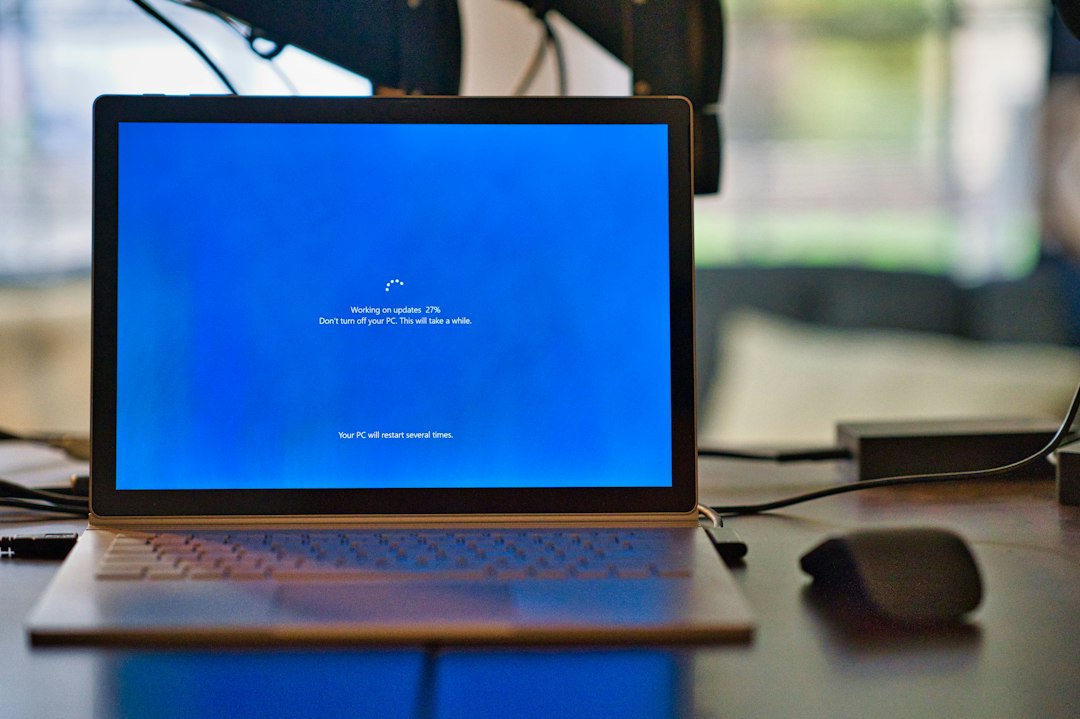
First, find out where the time goes
A boot has two parts: the firmware stage before the Windows logo, and Windows loading your drivers, services and apps. Two built-in tools tell you which part is slow.
- Task Manager: press Ctrl + Shift + Esc, select More details if needed, and open the Startup tab. Last BIOS time at the top right is the firmware stage. Under about 10 seconds is normal; much more points to Fix 6.
- Event Viewer: right-click Start, select Event Viewer and go to Applications and Services Logs > Microsoft > Windows > Diagnostics-Performance > Operational. Event ID 100 shows each boot’s total time in milliseconds. Events 101, 102 and 103 name an app, driver or service that made a boot slower than usual.
| What you find | Likely cause | Go to |
|---|---|---|
| High Last BIOS time | Firmware settings, USB devices, boot order | Fix 6 |
| Many apps marked High startup impact | Startup apps | Fix 1 |
| Events 102 or 103 name a driver or service | One slow component | Fix 4 |
| Disk at 100% for minutes after sign-in | Hard drive or something hammering it | Fix 3 |
| Slow only after Shut down, not after Restart (or the other way round) | Fast Startup | Fix 2 |
Fix 1: Turn off startup apps you don’t need

- In Task Manager, open the Startup tab and select the Startup impact column to sort by it.
- Right-click any app you don’t need the moment you sign in, such as chat apps, game launchers, updaters and cloud sync for services you rarely use, and select Disable.
- Leave your antivirus, touchpad, audio and graphics utilities enabled.
- Restart and compare. You can also manage the same list in Settings > Apps > Startup.
Disabling an app only stops it starting automatically; you can still open it from the Start menu.
Fix 2: Toggle Fast Startup
Fast Startup saves part of Windows to disk when you select Shut down, so the next start is quicker. A Restart always does a full boot, so it’s normally slower than shutting down and switching on again. That difference is expected.
Fast Startup can also cause slow or stuck starts after driver or update problems. To switch it off (or back on), open Control Panel > Hardware and Sound > Power Options, select Choose what the power buttons do, then Change settings that are currently unavailable, and change Turn on fast startup (recommended). Test a few starts each way. The full steps are in how to disable Fast Startup.
Fix 3: Check the drive
Select Start, type Defragment and Optimize Drives and open it. The Media type column shows whether Windows is on a Hard disk drive or a Solid state drive.
- On a hard disk drive: Windows 10 can take several minutes to settle. Replacing it with an SSD and cloning Windows across usually cuts boot time to well under a minute, and is the most effective fix on older PCs.
- Check for errors: in an administrator Command Prompt, run
chkdsk C: /fand answer Y to check the drive at the next restart. - Check free space: keep at least 10 to 15% of the Windows drive free so updates and the page file have room.
- Disk at 100% after sign-in: see 100% disk usage: how to find the cause; the steps are the same on Windows 10.
Fix 4: Find a slow service or driver with a clean boot
If Event Viewer named a service or driver, update or uninstall the software it belongs to. If it didn’t, a clean boot narrows it down:
- Press Win + R, type
msconfigand press Enter. - On the Services tab, tick Hide all Microsoft services, then select Disable all.
- On the Startup tab, select Open Task Manager and disable every startup item.
- Restart. If the boot is now fast, turn the services back on in small groups and restart each time until the slow one shows up.
- When you’re done, go back to
msconfig, choose Normal startup on the General tab, and restart.
Also update the graphics, chipset and storage drivers from your PC maker’s support page. Outdated drivers are a common cause of event 102. If the PC hangs on a message like “Please wait for the System Event Notification Service”, see that guide instead.
Fix 5: Repair Windows files and scan for malware
In an administrator Command Prompt, run these one at a time:
DISM /Online /Cleanup-Image /RestoreHealth
sfc /scannow
Then run a full antivirus scan. Malware that loads at startup can add a lot of time; how to scan for malware covers the free built-in options.
Fix 6: Shorten the firmware (BIOS) stage
- Unplug USB drives, card readers and docks you don’t need at startup, then test again. The firmware may be trying to boot from them first.
- Open your UEFI settings (usually F2, Del or F10 at power-on) and put Windows Boot Manager first in the boot order.
- If there’s a Fast Boot option, turn it on. Names and menus vary by maker.
- Install the latest BIOS or UEFI update from your PC maker if one is offered for your model.
A note on Windows 10 support
Windows 10 reached end of support on October 14, 2025. Home PCs can still get security fixes until October 12, 2027 through the consumer Extended Security Updates (ESU) program, which you can join from Windows Update in Settings. If your PC meets the requirements, upgrading to Windows 11 is still worth planning; see your version of Windows has reached the end of service for the options.
Related guides
- How to disable Fast Startup in Windows 11 and 10
- 100% disk usage on Windows 11: how to find the cause and fix it
- Please wait for the System Event Notification Service: how to fix it
- How to scan for malware on Windows 11 and 10 (free, built-in tools)
- Black screen on Windows 11 or 10? How to fix it
Official sources: for more detail, see Microsoft’s own pages:
- Microsoft Support: Configure startup applications in Windows
- Microsoft Support: How to perform a clean boot in Windows
Frequently asked questions
How long should Windows 10 take to boot?
On an SSD, usually 10 to 30 seconds to the sign-in screen. On a hard disk drive, a minute or more is common, and the desktop can stay sluggish for a while after sign-in.
Why is my PC slow to boot only after updates?
Windows finishes installing some updates during the next start, which can take several minutes once. If every start stays slow afterwards, check Event Viewer for a driver or service named in events 101 to 103.
Does adding RAM speed up boot?
Only a little, and mostly when the PC has 4 GB or less. A move from a hard disk drive to an SSD makes a much bigger difference.
Should I disable services to make Windows boot faster?
Not Microsoft services. Use the clean boot test to find a slow third-party service, and update or remove the software it belongs to instead of turning off core Windows services.
Leave a Reply