Quick answer: The SSID (Service Set Identifier) is simply your Wi-Fi network’s name, the one you pick from the list when you connect. In Windows, the SSID of the network you’re on is the name shown under the Wi-Fi icon in the taskbar, and netsh wlan show interfaces prints it next to SSID. On a new router, the default SSID and password are usually printed on the label underneath.
Applies to: Windows 11 and Windows 10, plus any home router and phone.
In this guide
What an SSID is
Every Wi-Fi network broadcasts a name so devices can tell networks apart. That name is the SSID. It can be up to 32 characters, it’s case-sensitive, and it’s chosen by whoever set up the router. A few things are useful to know:
- One router can have several SSIDs: many routers show separate names for the 2.4 GHz and 5 GHz bands (for example
HomeandHome-5G), or a separate guest network. - SSID is not the password: the password (security key) is a separate setting. Knowing the SSID doesn’t let anyone join a protected network.
- BSSID is different: the BSSID is the hardware (MAC) address of the specific access point, which Windows also shows in the command below. It matters mainly when several access points share one SSID.
Find the SSID in Windows 11 and 10
- Windows 11: select the network icon at the right of the taskbar. The name of the connected Wi-Fi network is your SSID; select the arrow next to the Wi-Fi button to see nearby SSIDs. For more detail, open Settings > Network & internet > Wi-Fi and select [your network] properties, which lists the SSID, protocol and network band.
- Windows 10: select the Wi-Fi icon in the taskbar; the network marked Connected is your SSID. Or open Settings > Network & Internet > Wi-Fi and select the connected network to see its properties.
Find the SSID with a command
Open Command Prompt or Terminal and run:
netsh wlan show interfacesLook for the SSID line (the network name) and BSSID (the access point’s address). To list every network in range, run:
netsh wlan show networks mode=bssidIf you need the password for a network this PC has already joined, netsh wlan show profile name="YourSSID" key=clear shows it under Key Content when run from an administrator prompt. Only do this for your own networks.
Find the SSID on the router or a phone
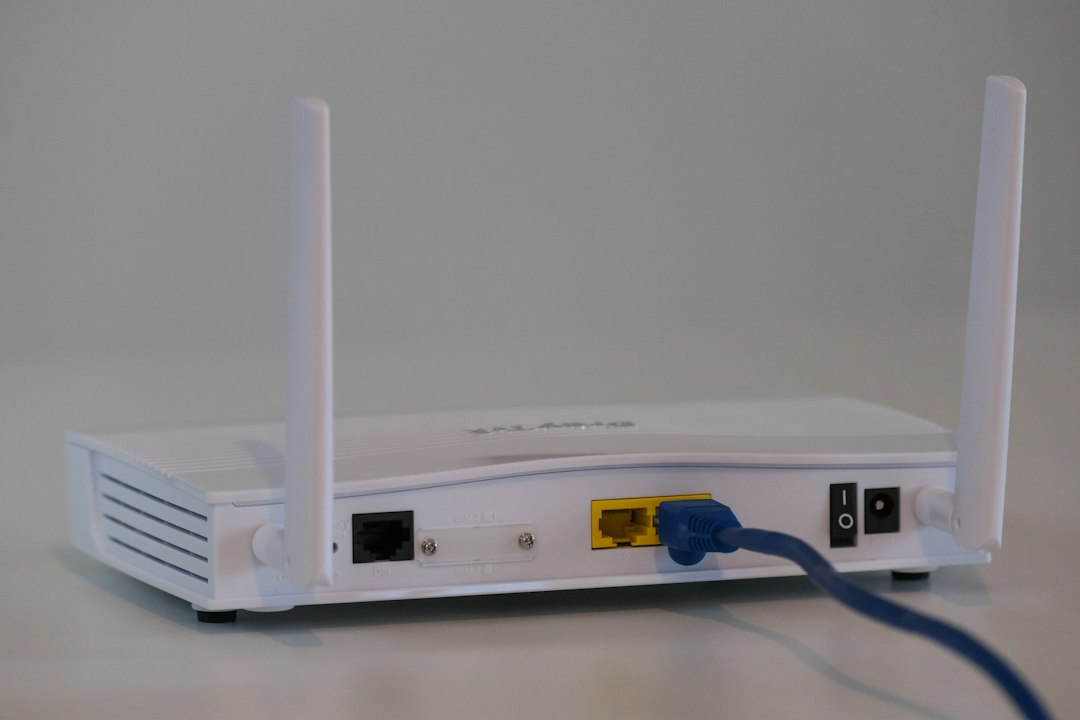
- Router label: most routers and ISP hubs print the default network name and password on a sticker on the bottom or back, often labelled SSID, Network name or Wi-Fi name.
- Router admin page or app: the current SSID is shown on the wireless settings page. The address is usually printed on the label, commonly something like
192.168.0.1or192.168.1.1. - Phone: on Android, open Settings > Network & internet (or Connections) and look at the Wi-Fi network you’re connected to; on iPhone, open Settings > Wi-Fi. The name with a tick is the SSID.
Change or hide your SSID
You change the SSID on the router, not in Windows. Sign in to the router’s admin page or app, open the wireless (Wi-Fi) settings, edit the Network name (SSID), and save. Every device then needs to reconnect to the new name with the same password.
- Avoid putting your name, address or flat number in the SSID; neighbours can see it.
- Use WPA2 or WPA3 security with a strong password. That, not the name, is what protects the network.
- Most routers can also hide the SSID (stop broadcasting it). This only keeps it off casual network lists; it doesn’t make the network secure, and it can make connecting less reliable for some devices.
Connect to a hidden SSID
A hidden network doesn’t appear by name, so you type it in:
- Windows 11: go to Settings > Network & internet > Wi-Fi > Manage known networks and select Add network. Enter the exact SSID, choose the security type, enter the password, and tick Connect even if this network is not broadcasting.
- Windows 10: go to Settings > Network & Internet > Wi-Fi > Manage known networks and select Add a new network, then fill in the same details. You can also select Hidden Network in the taskbar list and type the SSID when asked.
SSID not showing up? Quick fixes
- Check the band: older or cheaper adapters can’t see 5 GHz networks. If only the 5 GHz SSID is missing, connect to the 2.4 GHz one or check the adapter’s specifications.
- Turn Wi-Fi and the router off and on: toggle Wi-Fi off and on in the taskbar, and restart the router.
- Forget and rejoin: in Manage known networks, select the network and choose Forget, then connect again with the password.
- Update or reinstall the Wi-Fi driver: in Device Manager under Network adapters, or from the PC maker’s support site.
- Run the network troubleshooter: see Microsoft’s guide in the sources below.
If Wi-Fi connects but there’s no internet, the cause is usually IP or DNS settings rather than the SSID; our guide to “doesn’t have a valid IP configuration” covers those fixes. For problems reaching shared folders on the network, see error 0x80070035.
Related guides
- Ethernet doesn’t have a valid IP configuration: 7 fixes
- Error 0x80070035 “The network path was not found”: how to fix it
- The local device name is already in use: how to fix it
Official sources: for more detail, see Microsoft’s own pages:
Frequently asked questions
Is the SSID the same as the Wi-Fi name?
Yes. SSID is the technical term; Windows, phones and routers usually just call it the network name or Wi-Fi name.
Can two networks have the same SSID?
Yes. Mesh systems and offices deliberately use one SSID across many access points so devices roam between them. Two unrelated networks with the same name can confuse devices, though, so give yours a distinctive name.
Does hiding my SSID make my Wi-Fi safer?
Not really. The name can still be discovered with ordinary tools. A strong WPA2 or WPA3 password and up-to-date router firmware matter far more.
What characters can I use in an SSID?
Up to 32 characters. Letters, numbers, spaces and hyphens work everywhere; some older devices struggle with emoji or unusual symbols, so keep it simple.
Leave a Reply