Quick answer: “Ethernet doesn’t have a valid IP configuration” means your PC didn’t get a working IP address from the router (DHCP). Restart the router and the PC first. If that doesn’t help, open Command Prompt as administrator and run ipconfig /release, ipconfig /renew, netsh winsock reset and netsh int ip reset, then restart. Also check that IPv4 is set to Obtain an IP address automatically.
Applies to: Windows 11 and Windows 10, wired (Ethernet) connections. Most steps also help with the Wi-Fi version of the message.
In this guide
- What the error means
- Fix 1: Restart the router and PC, check the cable
- Fix 2: Release and renew the IP address
- Fix 3: Reset Winsock and TCP/IP
- Fix 4: Set IPv4 to obtain an address automatically
- Fix 5: Check the DHCP Client service
- Fix 6: Restart, update or reinstall the adapter driver
- Fix 7: Use Network reset
- If it still doesn’t work
- Related guides
- Frequently asked questions
What the error means
You usually see this message in the Network troubleshooter when the network icon shows no internet access. Your PC asks the router for an address, and the request fails or comes back unusable. Windows then falls back to an automatic private address starting with 169.254, which can’t reach the internet.
To confirm it, open Command Prompt and run ipconfig. If the Ethernet adapter shows an IPv4 address starting with 169.254, or no default gateway, you have this problem. Common causes are a router that needs a restart, a bad cable or port, a static IP set by mistake, a stuck DHCP Client service, a corrupted network stack, or a faulty adapter driver.
Fix 1: Restart the router and PC, check the cable
- Turn off the PC.
- Unplug the router (and modem, if separate) from power, wait about 30 seconds, then plug it back in and wait until its lights are steady.
- Turn the PC back on.
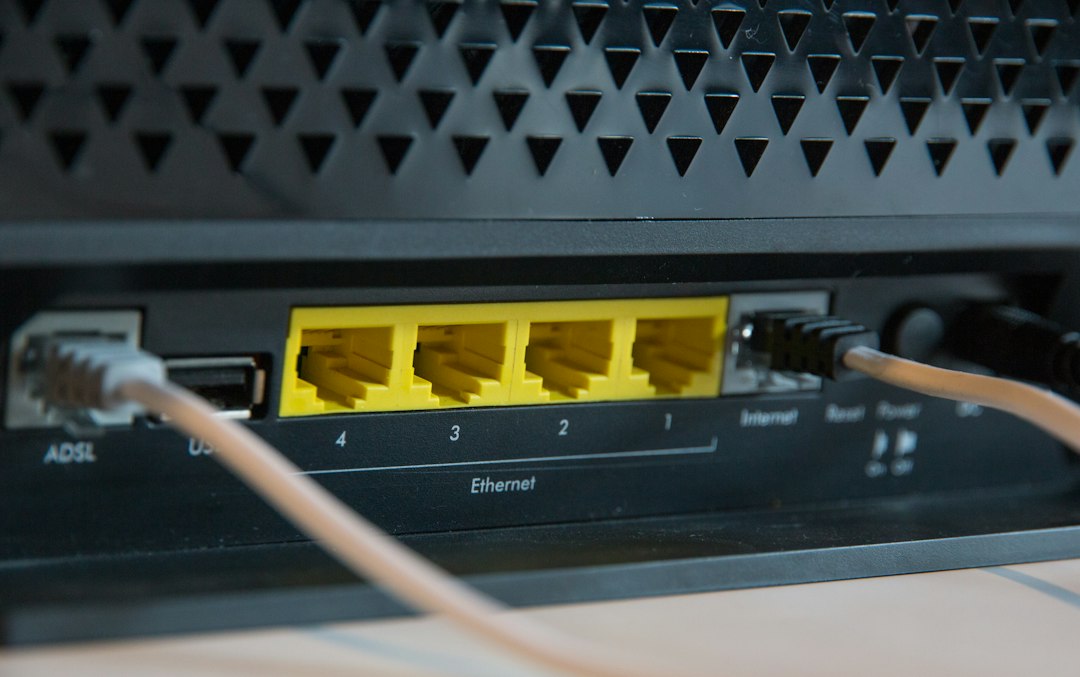
- Check that the Ethernet cable clicks into place at both ends. Try another port on the router, and another cable if you have one.
- If the PC is connected through a switch, wall socket or powerline adapter, try connecting it straight to the router to rule those out.
If other devices on the same router also have no internet, the problem is the router or your internet service, not Windows.
Fix 2: Release and renew the IP address
Search for cmd, right-click Command Prompt and choose Run as administrator. Then run these commands one at a time:
ipconfig /release
ipconfig /flushdns
ipconfig /renew
/release drops the current address, /flushdns clears cached DNS entries, and /renew asks the router for a fresh address. Run ipconfig again afterwards: a normal home address usually starts with 192.168. or 10.. If /renew times out, carry on with the next fix.
Fix 3: Reset Winsock and TCP/IP
A damaged network stack can stop Windows from accepting an address. In an administrator Command Prompt, run:
netsh winsock reset
netsh int ip reset
Restart the PC when both commands finish; the reset only takes effect after a restart. These commands return network settings to defaults, so if you use a VPN or special network software, you may need to set it up again afterwards.
Fix 4: Set IPv4 to obtain an address automatically
A static IP address left over from another network, or typed in wrongly, is a common cause of this error on home networks.
- Press Win + R, type
ncpa.cpland press Enter. - Right-click your Ethernet adapter and choose Properties.
- Select Internet Protocol Version 4 (TCP/IPv4) and click Properties.
- Choose Obtain an IP address automatically and Obtain DNS server address automatically.
- Click OK, close the window and run
ipconfig /renewagain.
Only keep a static address if your network administrator gave you one. In that case, double-check the address, subnet mask, gateway and DNS with them.
Fix 5: Check the DHCP Client service
- Press Win + R, type
services.mscand press Enter. - Find DHCP Client and double-click it.
- Make sure Startup type is Automatic and the service is Running. If it’s stopped, click Start.
If the service won’t start, or other network services are also stopped, see the Diagnostics Policy Service is not running for how to check related services.
Fix 6: Restart, update or reinstall the adapter driver
- Right-click Start and choose Device Manager.
- Expand Network adapters and right-click your Ethernet adapter (often Realtek, Intel or Killer).
- Choose Disable device, wait a few seconds, then right-click it again and choose Enable device.
- If that doesn’t help, choose Update driver > Search automatically for drivers, or download the latest LAN driver from your PC or motherboard maker’s support page (on another device if needed).
- As a last driver step, choose Uninstall device and restart. Windows reinstalls the adapter with a default driver.
Fix 7: Use Network reset
Network reset removes and reinstalls all network adapters and sets networking components back to their defaults.
- Windows 11: Settings > Network & internet > Advanced network settings > Network reset, then Reset now.
- Windows 10: Settings > Network & Internet > Status > Network reset, then Reset now.
The PC restarts. Afterwards you’ll need to reconnect to Wi-Fi networks and reinstall or set up VPN and virtual switch software again.
If it still doesn’t work
- Turn off Fast Startup: on some PCs a fast-startup boot keeps the adapter in a bad state. Go to Control Panel > Power Options > Choose what the power buttons do, click Change settings that are currently unavailable, untick Turn on fast startup and do a full restart.
- Temporarily disable third-party security software: some firewalls and VPN clients block DHCP. Test with them turned off, then turn them back on.
- Check the router: make sure DHCP is enabled and its address pool isn’t full. Restarting the router usually frees old leases; a router firmware update can also help.
- Test with another device: if a laptop also fails on the same cable and port, the fault is the cable, port or router. If it works, the problem is on the PC, possibly its network port.
Once you’re back online, other network errors may need their own fixes, such as network path not found (0x80070035) or we couldn’t connect to the update service.
Related guides
- Error 0x80070035: the network path was not found
- Discord No Route error: how to fix it
- We couldn’t connect to the update service
- The Diagnostics Policy Service is not running
- OneDrive error code 0x8004de40: how to fix it
- How to turn off Fast Startup (and when it helps)
- SSID: what your Wi-Fi network name is and how to find it
- DNS_PROBE_FINISHED_BAD_CONFIG: 7 ways to fix it on Windows
- Telnet on Windows 11 and 10: how to enable it, use it and test a port
- WAN Miniport adapters: what they are and how to fix them
- ipconfig Media disconnected in Windows 11: what it means and how to fix it
- Microsoft Teredo Tunneling Adapter Code 10: what it means and how to fix it
Official sources: for more detail, see Microsoft’s own documentation:
- Microsoft Support: Fix Ethernet connection problems in Windows
- Microsoft Learn: ipconfig command reference
Frequently asked questions
What causes “Ethernet doesn’t have a valid IP configuration”?
Your PC didn’t receive a usable IP address from the router’s DHCP server. Usual causes are a router that needs restarting, a bad cable or port, a wrong static IP, a stopped DHCP Client service or a broken adapter driver.
Does netsh winsock reset delete my files?
No. It only resets network settings to their defaults. You may need to set up VPN or proxy settings again afterwards.
Why does my IP address start with 169.254?
That’s an automatic private address Windows assigns when it can’t reach a DHCP server. It means the PC isn’t getting an address from the router.
Can a bad Ethernet cable cause this error?
Yes. A damaged cable or loose connector can let the link light come on while data still fails. Swapping the cable or router port is a quick test.
Leave a Reply