Quick answer: STATUS_ACCESS_VIOLATION is the “Aw, Snap!” (Chrome) or “This page is having a problem” (Edge) error you get when the process drawing a web page crashes because something tried to use memory it wasn’t allowed to. Reload the page, then update the browser and restart it. If it keeps happening, turn off extensions, turn off graphics acceleration, and update or remove security software that injects into the browser. If other apps crash too, test your RAM and repair Windows system files.
Applies to: Google Chrome and Microsoft Edge (and other Chromium browsers such as Brave and Opera) on Windows 11 and Windows 10.
In this guide
- What STATUS_ACCESS_VIOLATION means
- Fix 1: Reload, restart and update the browser
- Fix 2: Turn off extensions
- Fix 3: Turn off graphics acceleration
- Fix 4: Check security software that injects into the browser
- Fix 5: Turn off web accessibility mode in Edge
- Fix 6: Try a new profile or reset the browser
- Fix 7: Test memory and repair Windows
- Related guides
- Frequently asked questions

What STATUS_ACCESS_VIOLATION means
Chromium browsers run each tab in its own sandboxed “renderer” process. When that process reads or writes memory it doesn’t own, Windows stops it with the status code 0xC0000005, which the browser shows as STATUS_ACCESS_VIOLATION. It’s the same code behind the Windows 0xc0000005 application error.
The crash is usually caused by one of these:
- a bug in the browser version you’re running, often fixed by the next update;
- an extension, or security, VPN or overlay software that loads its own code into the browser;
- a graphics driver problem when the page uses hardware acceleration;
- a damaged browser profile;
- less often, faulty RAM or damaged Windows files, which usually make other apps crash too.
If only one site crashes, the problem is likely that site or a browser bug it triggers. If every tab crashes, look at extensions and security software first.
Fix 1: Reload, restart and update the browser
- Select Reload on the error page, or press Ctrl + Shift + R to reload without the cache.
- Close the browser completely, including any icon in the system tray, and open it again.
- Edge: go to
edge://settings/help. Chrome: go tochrome://settings/help. The browser checks for an update and installs it. Select Restart when asked.
Crash bugs are fixed often. For example, Microsoft fixed a STATUS_ACCESS_VIOLATION renderer crash on some sites in Edge 126.0.2592.113, so being one version behind can matter.
Fix 2: Turn off extensions

Open the same page in an InPrivate window in Edge (Ctrl + Shift + N) or an Incognito window in Chrome (same shortcut). Extensions are off there by default. If the page works, an extension is the likely cause.
- Go to
edge://extensionsorchrome://extensions. - Turn every extension off, then reload the page.
- Turn extensions back on one at a time until the crash returns. Update or remove that one.
Ad blockers, script blockers, password managers and download helpers are common suspects simply because they touch every page.
Fix 3: Turn off graphics acceleration
Video, maps and games use the graphics card. A buggy driver can crash the page.
- Edge: Settings > System and performance, turn off Use graphics acceleration when available, then select Restart.
- Chrome: Settings > System, turn off Use graphics acceleration when available, then select Relaunch.
If that stops the crashes, install the latest graphics driver from Intel, AMD or NVIDIA (or your laptop maker), then turn acceleration back on, since it makes browsing smoother.
Fix 4: Check security software that injects into the browser
Some antivirus, endpoint protection, VPN, screen-reader and overlay programs load their own DLLs into browser processes. When their code doesn’t match the browser version, tabs crash, sometimes every tab at once.
- Chrome: open
chrome://conflictsto see the third-party modules loaded into Chrome. Note anything that isn’t from Microsoft or Google. - Event Viewer: go to Applications and Services Logs > Microsoft > Windows > CodeIntegrity > Operational and look for event ID 3033. It names DLLs Windows blocked from loading into a protected process, such as the browser.
- Update that program to its latest version. If the crashes continue, temporarily turn off its web or browser protection feature, or uninstall it as a test, and contact the vendor.
Older guides suggest turning off Renderer Code Integrity with the RendererCodeIntegrityEnabled policy. Microsoft’s documentation says that policy stopped working after Edge 118 and was removed in Edge 119, so it isn’t a fix for current versions. Updating the conflicting software is.
Don’t disable your antivirus for long. If you’re worried that unknown software is injecting into the browser, scan for malware.
Fix 5: Turn off web accessibility mode in Edge
Some crashes only happen when Edge’s accessibility support is switched on, for example by a screen reader, a password manager or remote-control software. Microsoft admins hit this in the Intune and Entra portals in mid-2024.
- Go to
edge://accessibility. - If Web accessibility is on and you don’t use assistive technology, turn it off and reload the page.
Leave it on if you use a screen reader or other assistive tool, and update Edge instead.
Fix 6: Try a new profile or reset the browser
A damaged profile can crash pages even with extensions off. Create a test profile: in Edge, select your profile picture and Add profile; in Chrome, select your profile picture and Add Chrome profile. If the page works there, move to the new profile or reset the old one:
- Edge: Settings > Reset settings > Restore settings to their default values.
- Chrome: Settings > Reset settings > Restore settings to their original defaults.
Resetting turns off extensions and clears the startup page, new tab page, pinned tabs and temporary data, but keeps bookmarks, history and saved passwords.
Fix 7: Test memory and repair Windows
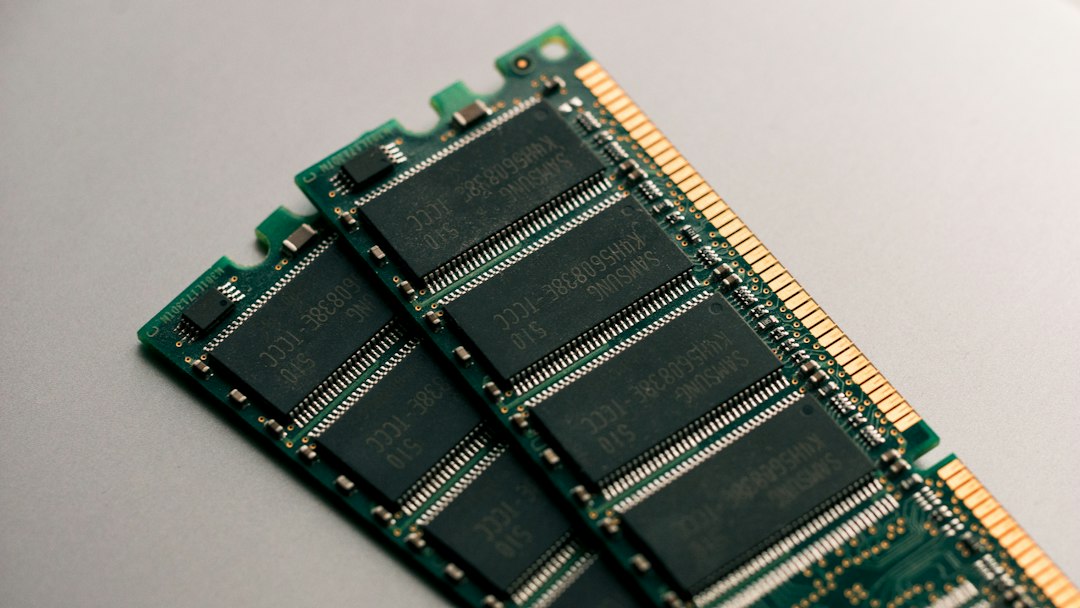
If other programs also crash, or you see errors such as the instruction at referenced memory could not be read, check the PC itself:
- Press Win + R, run
mdschedand choose Restart now and check for problems. Windows Memory Diagnostic runs before Windows starts and shows the result after you sign in. Any memory errors mean a RAM module needs reseating or replacing. - If you’ve overclocked the PC or turned on an XMP/EXPO memory profile, set the memory back to default speed in the BIOS and test again.
- Repair system files from Command Prompt as administrator:
DISM /Online /Cleanup-Image /RestoreHealth
sfc /scannow
If SFC can’t run or can’t repair files, see Windows Resource Protection could not perform the requested operation. As a last step, uninstall the browser, restart, and install a fresh copy from the official site.
Related guides
- Error 0xc0000005: how to fix the application error
- The instruction at referenced memory could not be read
- How to scan for malware on Windows
- Windows Resource Protection could not perform the requested operation
Official sources: for more detail, see the browser makers’ documentation:
- Google Chrome Help: Fix “Aw, Snap!” page crashes and other page loading errors
- Microsoft Learn: RendererCodeIntegrityEnabled policy (obsolete after Edge 118)
Frequently asked questions
Is STATUS_ACCESS_VIOLATION a virus?
Usually not. It’s a crash code, most often caused by a browser bug, an extension or security software. Malware that injects into the browser can cause it, so run a scan if the crashes started with unexplained pop-ups or new extensions.
Why does it only happen on one website?
That site uses something, such as a video player, WebGL or a heavy script, that triggers a bug in your browser, driver or an extension. Try Fixes 1 to 3. If it still crashes on an up-to-date browser with extensions and graphics acceleration off, try another browser and report it to the site.
Does renaming msedge.exe or chrome.exe fix it?
Some forums suggest it, but it’s a workaround that can break updates and shortcuts. Don’t do it; update the browser and the conflicting software instead.
Is it the same as STATUS_BREAKPOINT or STATUS_INVALID_IMAGE_HASH?
No, but they look similar and the first fixes are the same. STATUS_INVALID_IMAGE_HASH specifically means Windows blocked an unsigned DLL, so Fix 4 is the place to start.
Leave a Reply