Quick answer: UsoClient StartScan tells Windows 10 or 11 to check for updates in the background, the same as selecting Check for updates in Settings. Run it in an administrator Command Prompt or Terminal. It prints nothing, so look at Settings > Windows Update to see the result. UsoClient is not officially documented by Microsoft, so for a check you can watch, use start ms-settings:windowsupdate-action instead.
Applies to: Windows 11 and Windows 10.
In this guide
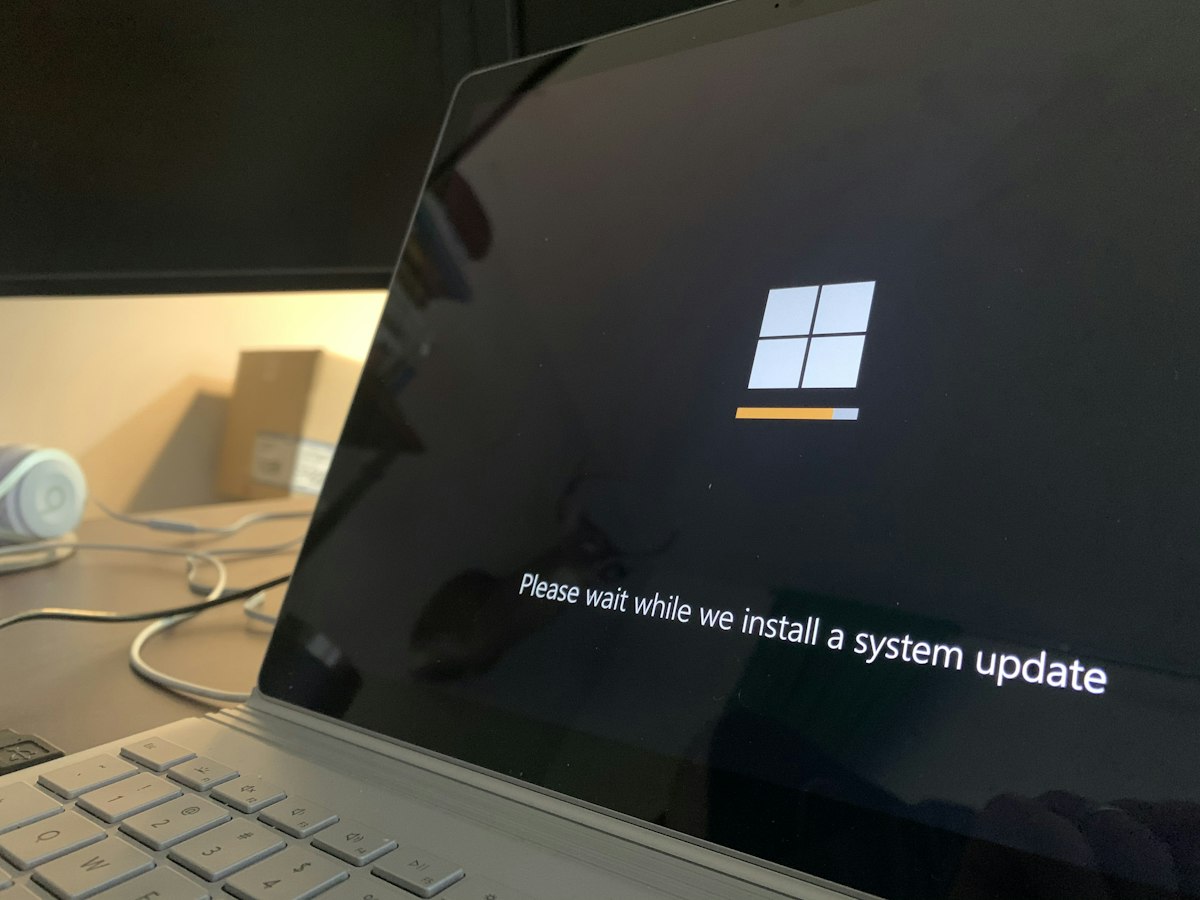
What UsoClient is
UsoClient.exe is the command-line front end of the Update Session Orchestrator (USO), the part of Windows 10 and 11 that schedules and runs Windows Update scans, downloads and installs. The genuine file lives in C:\Windows\System32. It replaced the old wuauclt /detectnow command, which does nothing on current Windows versions.
Windows runs UsoClient itself through scheduled tasks under Task Scheduler Library > Microsoft > Windows > UpdateOrchestrator. That’s why you may occasionally see a console window flash on screen and close: it’s usually Windows starting an update check. If you find a file called usoclient.exe anywhere other than System32, scan it with Windows Security.
How to run UsoClient StartScan
- Right-click Start and select Terminal (Admin) (Windows 10: Windows PowerShell (Admin)), or search for cmd, right-click Command Prompt and choose Run as administrator.
- Type the command below and press Enter:
UsoClient StartScanThe prompt returns straight away with no message. That’s normal: the scan runs in the background. Wait a minute or two, then open Windows Update to see what it found.
If you see ‘UsoClient’ is not recognized, type the full path instead: C:\Windows\System32\UsoClient.exe StartScan. If that also fails, the file may be damaged; run the system file checks in our Windows Update service missing guide.
UsoClient commands

These are the switches people use most. Because Microsoft doesn’t publish a reference for them, this list comes from how they behave in practice, and some may do nothing on your version of Windows.
| Command | What it does |
|---|---|
UsoClient StartScan | Checks for updates in the background. |
UsoClient StartInteractiveScan | Checks for updates as if you selected Check for updates. On some versions it opens or refreshes the Windows Update page. |
UsoClient StartDownload | Downloads updates that a scan has found. |
UsoClient StartInstall | Installs downloaded updates. |
UsoClient ScanInstallWait | Scans, downloads and installs in one go. |
UsoClient RefreshSettings | Reloads update settings, for example after a policy change. |
UsoClient RestartDevice | Restarts the PC to finish installing updates. Save your work first. |
UsoClient ResumeUpdate | Resumes an update installation after a restart. |
A typical manual sequence is StartScan, then StartDownload, then StartInstall, waiting a few minutes between each. All of them need an administrator window.
Check whether it worked
Since UsoClient gives no feedback, check the result in one of these places:
- Settings > Windows Update: the Last checked time should update, and new updates appear in the list.
- Settings > Windows Update > Update history: shows what was installed and any failures with their error codes.
- In PowerShell as administrator,
Get-WindowsUpdateLogwrites a readableWindowsUpdate.logto your desktop. Look for entries from the time you ran the command.
UsoClient StartScan does nothing
If the Last checked time doesn’t change:
- Use an administrator window. From a normal window the command can return without doing anything.
- Check the services. Windows Update (
wuauserv) and the Update Orchestrator Service (UsoSvc) must not be disabled. Runsc query wuauservandsc query UsoSvcto check them. If Windows Update is missing from the services list, follow our guide to restoring the Windows Update service. - Check for policies. On work PCs, Group Policy or management software can pause updates or point the PC to a company update server, so a scan finds nothing new.
- Updates are paused. Select Resume updates in Settings > Windows Update first.
- The scan fails with an error. If Windows Update itself shows We couldn’t connect to the update service or an error such as 0x80240034, fix that first; UsoClient uses the same engine and fails the same way.
Better ways to check for updates
For one-off checks, these are easier to trust than UsoClient because you can see what happens:
start ms-settings:windowsupdate-actionopens Windows Update and starts a check.- The free PSWindowsUpdate PowerShell module lists and installs updates with visible output. Our Windows Update command line guide shows how to install and use it.
- In a company, use your management tools (Intune, WSUS or Configuration Manager) rather than UsoClient scripts.
Related guides
- Windows Update from the command line
- Windows Update service missing: how to restore it
- We couldn’t connect to the update service: fixes
- Windows Update error 0x80240034
Official sources: for more detail, see Microsoft’s own documentation:
- Microsoft Learn: How Windows Update works
- Microsoft Learn: Launch the Windows Settings app (ms-settings URIs)
Frequently asked questions
Does UsoClient StartScan work on Windows 11?
It’s still present in Windows 11 and generally still starts a background scan, but because it’s undocumented, Microsoft can change it at any time. Always confirm the result in Settings.
Is UsoClient.exe a virus?
No. The real file is a Windows component in C:\Windows\System32. A copy in any other folder is suspicious and worth scanning.
Why does a black window flash on my screen?
Windows runs UsoClient from scheduled tasks to check for updates, and on some versions a console window briefly appears. On its own it’s normally harmless.
What replaced wuauclt /detectnow?
UsoClient StartScan on Windows 10 and 11. The old wuauclt switches no longer start a scan.
Leave a Reply