Quick answer: Boot into the Windows Recovery Environment, open Command Prompt, find which letter your Windows drive has there (often D:, not C:), then run sfc /scannow /offbootdir=D:\ /offwindir=D:\Windows. This checks and repairs the system files of a Windows installation that isn’t running, which is what you need when Windows won’t start or the normal scan can’t finish.
Applies to: Windows 11 and Windows 10.
In this guide
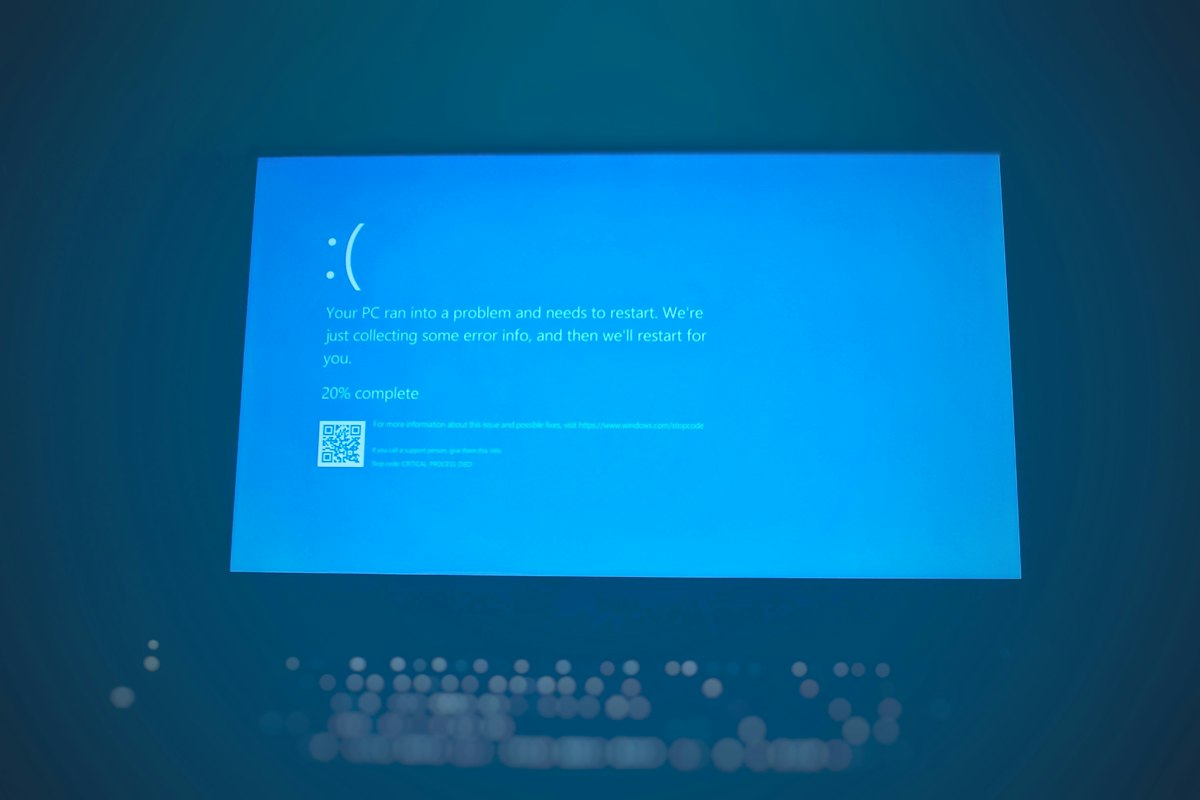
When to run SFC offline
System File Checker normally runs inside Windows with sfc /scannow. Run it offline instead when:
- Windows doesn’t boot, or crashes before you can open a Command Prompt.
- The normal scan stops with Windows Resource Protection could not perform the requested operation or hangs at the same percentage every time.
- A file SFC needs to repair is locked or in use while Windows is running.
Offline, SFC works on the installation on disk rather than the running copy, so nothing is in use and Windows doesn’t have to start first.
Step 1: Open Command Prompt in recovery
If Windows still starts:
- Windows 11: go to Settings > System > Recovery and select Restart now next to Advanced startup.
- Windows 10: go to Settings > Update & Security > Recovery and select Restart now under Advanced startup.
- Or hold Shift while you select Restart on the Start menu power button.
If Windows doesn’t start, it usually opens recovery by itself after two or three failed boots (you’ll see Automatic Repair or Choose an option). If it doesn’t, boot from a Windows installation USB, choose your language, then select Repair your computer. Our Rufus guide shows how to make that USB on another PC.
In recovery, select Troubleshoot > Advanced options > Command Prompt. If the drive is encrypted with BitLocker, you’ll be asked for the recovery key before the Command Prompt opens.
Step 2: Find the Windows drive letter
Drive letters in recovery are often different from the ones you see in Windows. The Windows drive is commonly D:, and C: may be a small system partition. Check before running SFC:
bcdeditLook at the Windows Boot Loader entry: the osdevice line shows the Windows drive, for example partition=D:. You can also confirm it with dir D:\Windows: the right drive lists folders such as System32 and WinSxS.
If bcdedit doesn’t show it, run diskpart, then list volume, and look for the largest NTFS volume. Type exit to leave DiskPart.
Step 3: Run the offline SFC command
Replace D: with the letter you found, and keep the backslashes:
sfc /scannow /offbootdir=D:\ /offwindir=D:\Windows/offwindir points to the Windows folder you want to repair. /offbootdir points to the boot directory; on most PCs the root of the same drive works. To save a log you can read afterwards, add /offlogfile=D:\sfc-offline.log to the end.
The scan takes 10 to 30 minutes and can sit at one percentage for a while. Let it finish, then close the window and select Continue to start Windows.
What the results mean
| Message | What it means |
|---|---|
| Windows Resource Protection did not find any integrity violations | System files are fine. The problem is somewhere else, such as a driver or the boot configuration. |
| Windows Resource Protection found corrupt files and successfully repaired them | Restart and check whether the problem is gone. |
| Windows Resource Protection found corrupt files but was unable to fix some of them | Repair the component store with DISM (below), then run SFC again. |
| Windows Resource Protection could not perform the requested operation | Check the drive letters and paths, then see the next section. |
If SFC offline fails
There is a system repair pending which requires reboot to complete. An unfinished update is blocking the scan. Clear it, then run SFC again:
dism /image:D:\ /cleanup-image /revertpendingactionsThis rolls back the pending changes, so updates that were installing may have to install again later.
Could not perform the requested operation. The most common cause is a wrong drive letter or a missing backslash, so recheck Step 2. If the paths are right, check the disk for file system errors first:
chkdsk D: /fThen run the SFC command again. If chkdsk reports many bad sectors, back up your files soon; the drive may be failing.
Repair the image with DISM offline
SFC repairs files from a local store called the component store. If that store is damaged too, SFC can’t fix everything, and DISM has to repair it first. Offline, DISM can’t download files from Windows Update, so point it at a Windows installation USB or a mounted ISO of the same version (here the USB is E:):
DISM /Image:D:\ /Cleanup-Image /RestoreHealth /Source:WIM:E:\sources\install.wim:1 /ScratchDir:D:\ScratchCreate the scratch folder first with mkdir D:\Scratch. If the media has install.esd, use /Source:ESD:E:\sources\install.esd:1 instead. The :1 is the edition index; DISM /Get-WimInfo /WimFile:E:\sources\install.wim lists them so you can pick yours (Home, Pro). If DISM says the source files could not be found, see our 0x800f081f guide. When DISM finishes, run the SFC command from Step 3 once more.
If Windows still won’t start after a clean SFC and DISM, the cause is probably not system files. Look at the specific startup error, such as error 0xc0000428 or operating system loader failed signature verification.
Related guides
- Error 0x800f081f: source files could not be found
- Windows Update service missing: how to restore it
- Error code 0xc0000428: how to fix it
- How to make a Windows 10 USB with Rufus
Official sources: for more detail, see these pages:
- Microsoft Learn: sfc command reference
- Microsoft Support: Use Windows Recovery Environment to troubleshoot startup issues
- Microsoft Learn: Repair a Windows image with DISM
Frequently asked questions
Can I run SFC offline from inside Windows?
Yes, if you want to check a second Windows installation, for example a drive from another PC connected by USB. Point /offbootdir and /offwindir at that drive. You can’t use it on the copy of Windows that’s currently running.
Why does SFC say I must be an administrator?
Inside Windows, open Command Prompt with Run as administrator. The Command Prompt in the recovery environment already runs with full rights.
Will SFC offline delete my files?
No. SFC only replaces protected Windows system files. Your documents, photos and apps aren’t touched.
Do I need a USB drive?
Only if the built-in recovery won’t open, or if DISM needs a source. SFC itself runs fine from the recovery that’s already on your PC.
Leave a Reply