Quick answer: “A required device isn’t connected or can’t be accessed” (error code 0xc000000e) means Windows Boot Manager can’t reach the drive or partition its boot configuration points to. Unplug USB drives and memory cards, then check in your BIOS or UEFI settings that the Windows drive is detected and Windows Boot Manager is first in the boot order. If you recently changed the SATA mode, change it back. If the drive is detected, run Startup Repair from the recovery options or rebuild the boot files with bcdboot.
Applies to: Windows 11 and Windows 10 PCs that stop at a blue Your PC/Device needs to be repaired or Recovery screen with error code 0xc000000e.
In this guide
- What the error means
- Quick checks first
- How to open the recovery options
- Fix 1: Check that the firmware sees the drive
- Fix 2: Undo a SATA or storage mode change
- Fix 3: Run Startup Repair
- Fix 4: Rebuild the boot configuration
- If the drive isn’t detected at all
- Related guides
- Frequently asked questions

What the error means
Before Windows starts, Boot Manager reads the boot configuration data (BCD). The BCD says which disk and partition hold Windows. If that device is missing, has changed, or can’t be read, Boot Manager stops with a screen like this:
Your PC/Device needs to be repaired
A required device isn't connected or can't be accessed.
Error code: 0xc000000e
Older PCs may show the same code as The boot selection failed because a required device is inaccessible, sometimes naming \Windows\system32\winload.exe. The causes are the same:
| What changed | Why it breaks booting | Best fix |
|---|---|---|
| A USB drive, SD card or external disk is plugged in | The PC tries to boot from it, or drive numbering shifts | Quick checks |
| Boot order or SATA mode changed in BIOS/UEFI (for example after a BIOS update or reset) | Windows can’t load the storage driver it expects | Fixes 1 and 2 |
| The drive was cloned, replaced or moved to another PC | The BCD still points to the old disk | Fix 4 |
| A loose cable or a failing drive | The disk drops out or can’t be read | Fix 1 and the last section |
| Power loss or a failed update | The BCD or boot partition is damaged | Fixes 3 and 4 |
Quick checks first
- Shut the PC down and remove every USB drive, memory card, phone and external disk. Leave only the keyboard and mouse, then start it again.
- On a desktop, check that the drive’s data and power cables are firmly attached. If you added a second drive recently, unplug it and try again.
- If the screen offers Enter to try again, press it once. If the PC then starts, the fault is intermittent, so back up your files and check the drive’s health.
How to open the recovery options
Fixes 3 and 4 start in the Windows Recovery Environment (WinRE). With this error, the automatic repair loop often can’t load WinRE from the disk, so you’ll usually need a USB installer:
- On another PC, create a Windows 11 or 10 installation USB with Microsoft’s Media Creation Tool.
- Boot the broken PC from it (use the one-time boot menu, often F12, F11, F9 or Esc).
- Choose your language, select Next, then Repair your computer at the bottom left.
- Go to Troubleshoot > Advanced options.
If the drive uses BitLocker, WinRE may ask for the recovery key before it can open the drive. See where to find your BitLocker recovery key (the steps apply to any brand).
Fix 1: Check that the firmware sees the drive
- Restart and enter BIOS or UEFI setup. The key is usually F2, Del, F10 or Esc, shown briefly at power on.
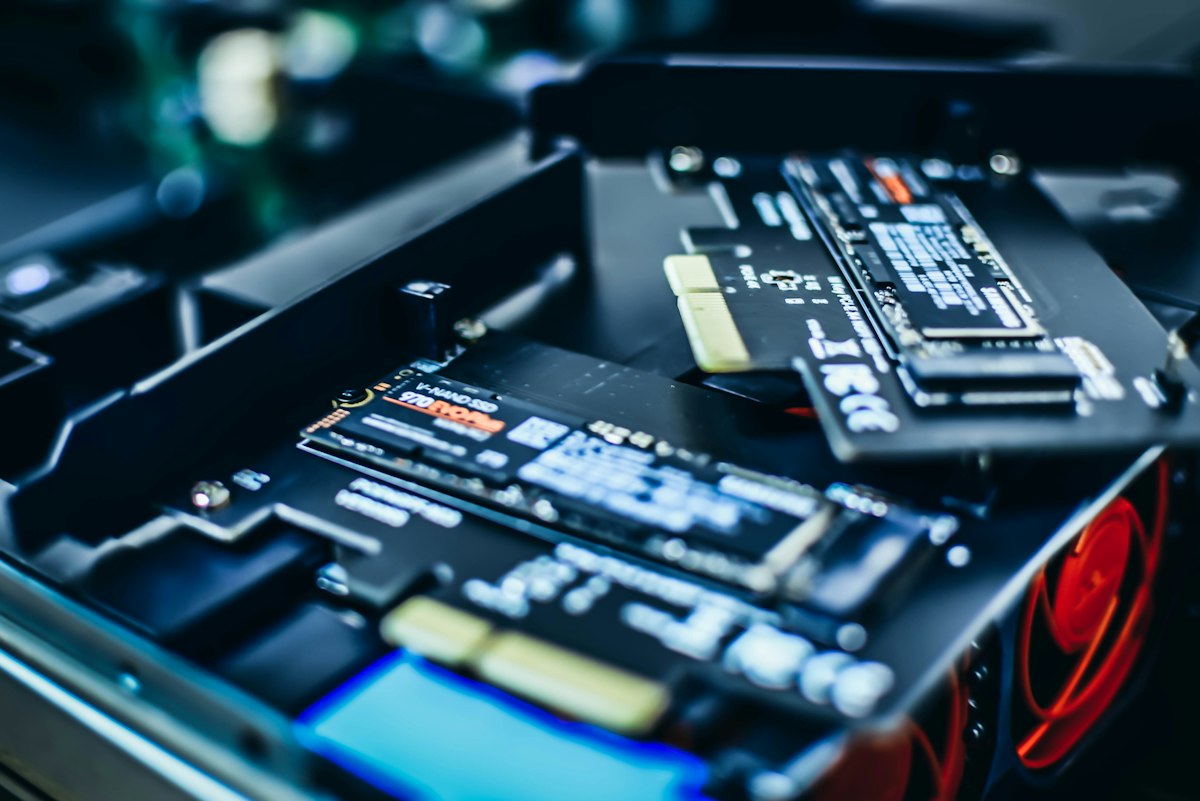
- Find the storage or boot information page and confirm your SSD or hard drive is listed by its model name.
- In the boot order, put Windows Boot Manager first. On UEFI PCs, choose that entry rather than the raw drive name.
- Save and exit (often F10).
If the drive isn’t listed at all, skip to If the drive isn’t detected at all. No Windows repair can fix a disk the firmware can’t see.
Fix 2: Undo a SATA or storage mode change
Windows installs only the storage driver it needs for the current mode. If the setting switches between AHCI, RAID or Intel RST/VMD, for example after a BIOS reset or update, Windows can’t reach its own drive.
- In BIOS/UEFI, find the SATA, storage or VMD setting.
- Set it back to what it was before the error started. On many laptops with Intel 11th-generation or newer chips that’s VMD or RAID/RST; on most desktops it’s AHCI.
- If you don’t know the original value, try the other option once. Changing the mode doesn’t touch your files, so it’s safe to switch back.
Also check that CSM or Legacy boot hasn’t been turned on if Windows was installed in UEFI mode. Windows 11 needs UEFI with Secure Boot available.
Fix 3: Run Startup Repair
In WinRE, select Troubleshoot > Advanced options > Startup Repair. It checks the boot configuration and repairs what it can. If it reports that it couldn’t repair the PC, continue with Fix 4. For a PC that keeps looping into this screen, Your PC didn’t start correctly covers the other WinRE tools.
Fix 4: Rebuild the boot configuration
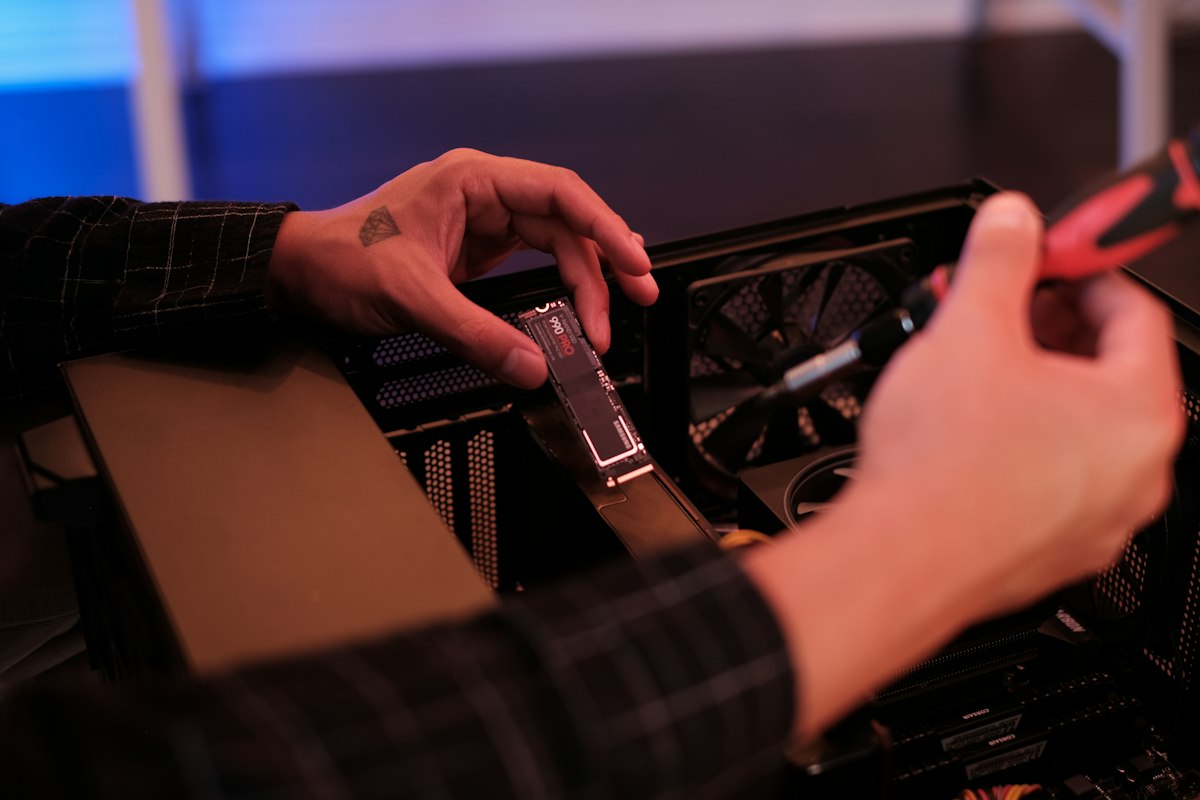
This recreates Boot Manager and the BCD so they point to the right disk. It fixes most 0xc000000e errors after cloning or replacing a drive. Open Troubleshoot > Advanced options > Command Prompt, then find the drive letter of your Windows folder, because WinRE often uses a different letter:
diskpart
list volume
exit
Look for the large NTFS volume (your Windows drive) and the small FAT32 volume of about 100 to 300 MB (the EFI system partition). Then run, replacing C: with your Windows drive letter:
bcdboot C:\WindowsIf it reports Boot files successfully created, close the window and select Continue.
If bcdboot fails on a UEFI PC, give the EFI partition a letter and target it directly. In diskpart, type select volume N using the number of the FAT32 volume, then assign letter=S and exit. Then run:
bcdboot C:\Windows /s S: /f UEFIOn an older PC that boots in Legacy BIOS mode, you can also try the bootrec commands:
bootrec /fixmbr
bootrec /fixboot
bootrec /rebuildbcd
bootrec /fixboot often shows Access is denied on UEFI PCs. That’s expected there; use bcdboot instead.
If the drive isn’t detected at all
- Reseat the drive. On a desktop, try another SATA cable and port. On a laptop, an NVMe SSD can work loose after a drop; a repair shop can reseat it if you’re not comfortable opening the case.
- Connect the drive to another PC with a USB adapter. If it isn’t detected there either, the drive has likely failed. Recover what you can first, then replace it. See free file recovery tools.
- If the Windows installer can’t see the drive either, see We couldn’t find any drives. That fix (loading the Intel RST/VMD driver) also explains Fix 2.
- If the drive works but nothing repairs the boot files, back up from WinRE and reinstall Windows.
Related guides
- Your PC didn’t start correctly: how to fix the Automatic Repair loop
- Error code 0xc0000428: Windows cannot verify the digital signature
- We couldn’t find any drives: how to fix it during Windows setup
- The Windows RE image was not found: how to fix and re-enable WinRE
Official sources: for more detail, see Microsoft’s own pages:
- Microsoft Learn: BCDBoot command-line options
- Microsoft Learn: Advanced troubleshooting for Windows boot problems
Frequently asked questions
Will fixing 0xc000000e delete my files?
No. Checking BIOS settings, Startup Repair and bcdboot don’t touch your personal files. Only a reset or clean install can, so back up first if it comes to that.
Why did this start after a BIOS update?
A BIOS update often resets settings to defaults, which can change the SATA or VMD mode and the boot order. Set them back as in Fixes 1 and 2.
I cloned my drive to a new SSD and now get 0xc000000e. What should I do?
Make sure the new SSD is first in the boot order and the old drive is unplugged, then run bcdboot as in Fix 4 so the boot configuration points to the new disk.
Is error 0xc000000e a sign of a failing drive?
Sometimes. If the drive disappears from BIOS now and then, or the error comes back after a repair, check its health and back up your files soon.
Leave a Reply