Quick answer: On Windows 11 and up-to-date Windows 10, press Win + Shift + R to open Snipping Tool’s video recorder, drag over the area you want, click Start, and click Stop when you’re done. To record a single app or game, press Win + Alt + R to start and stop Xbox Game Bar; the video is saved in Videos > Captures. Both tools are built in and free.
Applies to: Windows 11 and Windows 10, plus quick steps for Mac, iPhone and Android.
In this guide
- Which tool should you use?
- Method 1: Snipping Tool (any part of the screen)
- Method 2: Xbox Game Bar (one app or game)
- Method 3: PowerPoint screen recording
- Method 4: OBS Studio (free, full control)
- On a Mac, iPhone or Android
- If the recording has no sound or won’t start
- Related guides
- Frequently asked questions
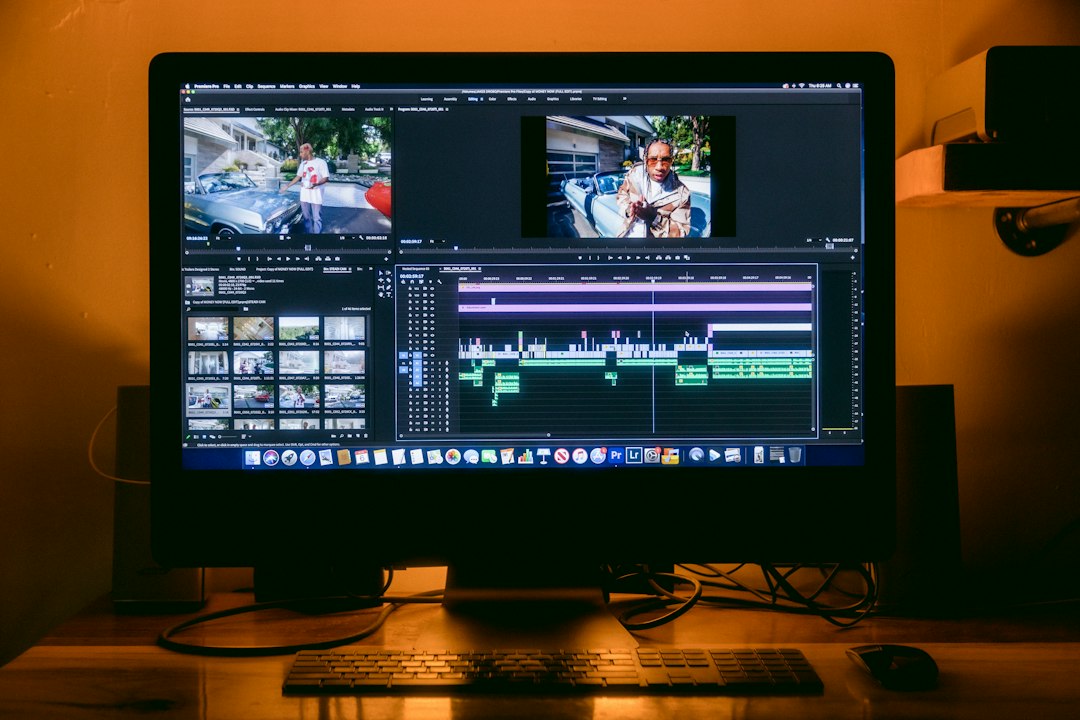
Which tool should you use?
| You want to record | Best tool | Cost |
|---|---|---|
| Any area of the screen, quickly | Snipping Tool | Free, built in |
| A game or one app window, with system sound | Xbox Game Bar | Free, built in |
| A clip to drop into a presentation | PowerPoint | Needs Microsoft 365 or Office |
| Long tutorials, webcam overlay, several sources | OBS Studio | Free download |
Method 1: Snipping Tool (any part of the screen)
- Press Win + Shift + R. Or open Snipping Tool from Start, select the Record button, then New.
- Drag to select the part of the screen you want. To capture everything, drag across the whole screen.
- Click Start. A short countdown runs, then recording begins.
- Click Stop when you’re finished. The clip opens in Snipping Tool.
- Click Save as to save the MP4 where you want, or choose Edit in Clipchamp to trim it.
Recent versions of Snipping Tool include buttons on the recording toolbar to switch the microphone and system sound on or off; if you don’t see them, update the app from the Microsoft Store. If the Store itself is missing, see Microsoft Store missing in Windows.
On Windows 10, video recording needs a current version of Snipping Tool. If Win + Shift + R does nothing, use Game Bar instead.
Method 2: Xbox Game Bar (one app or game)
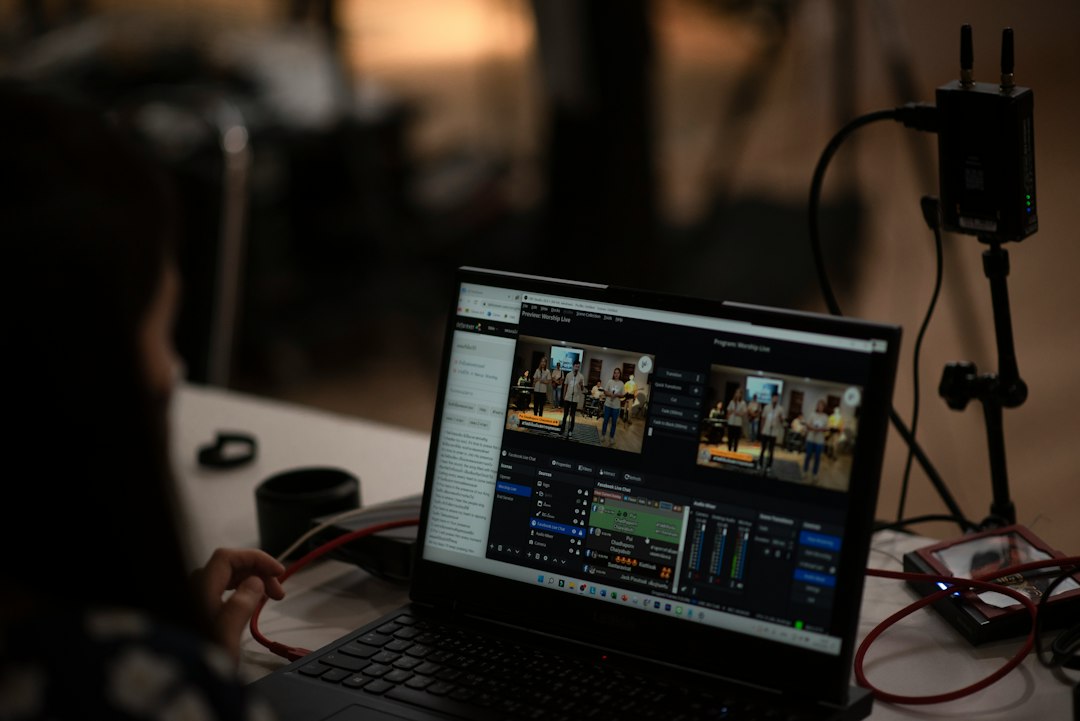
- Make sure it’s on: press Win + I, search for Xbox and turn on Enable Xbox Game Bar.
- Open the app or game you want to record and click inside it.
- Press Win + Alt + R to start recording. A small timer appears.
- Press Win + Alt + M to turn your microphone on or off while recording.
- Press Win + Alt + R again to stop. The MP4 file is saved in Videos > Captures, named after the app with the date and time.
You can also press Win + G to open the Game Bar overlay and use the Capture widget’s record button. To choose which sounds are recorded, open the overlay, select Settings and go to Capturing.
Limits: Game Bar records one app window at a time and generally won’t record the desktop or File Explorer. For those, use Snipping Tool or OBS.
Method 3: PowerPoint screen recording
If you have PowerPoint for Windows, it has a simple recorder that’s handy for presentations:
- Open a presentation and go to Insert > Screen Recording.
- Click Select Area and drag over the part of the screen to record. Audio and Record Pointer are on by default.
- Click Record. Press Win + Shift + Q to stop.
- The video is placed on the slide. To keep it as a file, right-click it and choose Save Media as.
Method 4: OBS Studio (free, full control)
OBS Studio is a free, open-source recorder from obsproject.com. It suits longer recordings, webcam overlays and recording several sources at once.
- Install and open OBS Studio. You can skip the auto-configuration wizard.
- Under Sources, click + and add Display Capture for the whole screen, or Window Capture for one app.
- Check the Audio Mixer shows levels for desktop audio and your microphone.
- Click Start Recording, then Stop Recording. Recordings go to the folder set in Settings > Output.
On a Mac, iPhone or Android
- Mac: press Shift + Command + 5, choose to record the entire screen or a selected portion, then click Record. Click the stop button in the menu bar when done.
- iPhone and iPad: add Screen Recording to Control Center in Settings, then open Control Center and tap the record button.
- Android: swipe down twice to open Quick Settings and tap Screen record. The name and location of the tile vary by phone maker.
If the recording has no sound or won’t start
- Check the microphone permission: Settings > Privacy & security > Microphone in Windows 11, or Settings > Privacy > Microphone in Windows 10.
- In Game Bar, check Capturing settings include the audio you want. To record what the PC plays through some older setups, see how to enable Stereo Mix.
- If Game Bar says recording isn’t available, click inside the app window first, or switch to Snipping Tool. Some apps, such as streaming video services, block recording and show a black screen.
- Choppy or laggy video usually means the PC is busy. Close other apps; if the disk is constantly at 100%, see 100% disk usage: how to find the cause.
- Deleted a recording by mistake? Check the Recycle Bin first, then see free file recovery tools for Windows.
Related guides
- How to enable Stereo Mix in Windows
- Microsoft Store missing in Windows: how to get it back
- 100% disk usage: how to find the cause
- Free file recovery for Windows
Official sources: for more detail, see these pages:
- Microsoft Support: Use Snipping Tool to capture screenshots and recordings
- Microsoft Support: Record your screen with Xbox Game Bar
Frequently asked questions
Does Windows have a built-in screen recorder?
Yes, two: Snipping Tool (Win + Shift + R) records any area of the screen, and Xbox Game Bar (Win + Alt + R) records an app or game.
Where are my screen recordings saved?
Game Bar saves to Videos > Captures. Snipping Tool asks where to save when you click Save as; recent versions can also save recordings automatically, which you can set in Snipping Tool’s settings.
Can I record my screen with sound?
Yes. Game Bar records app sound and, if you turn it on, your microphone. Recent versions of Snipping Tool can record system sound and microphone too. OBS gives you separate controls for each.
Is there a time limit?
Game Bar has a maximum recording length you can change in its capture settings. Snipping Tool is meant for shorter clips. For recordings longer than an hour or two, OBS Studio is the most reliable choice.
Leave a Reply