Quick answer: If the battery stops at a round number such as 50%, 60% or 80%, a battery-care setting is probably doing it on purpose. Turn off the charge limit in your laptop maker’s app (for example Conservation mode in Lenovo Vantage). If it’s stuck lower, try another outlet and the original charger, shut down fully, then reinstall the battery driver: in Device Manager expand Batteries, uninstall Microsoft ACPI-Compliant Control Method Battery, choose Action > Scan for hardware changes and restart.
Applies to: Windows 10 laptops and 2-in-1s from any maker. The same steps work on Windows 11.
In this guide
- What “plugged in, not charging” means
- Check 1: Is a charge limit turned on?
- Check 2: The charger, cable and outlet
- Fix 1: Do a full shutdown and power reset
- Fix 2: Reinstall the battery driver
- Fix 3: Update the BIOS and chipset drivers
- Fix 4: Check the battery’s health
- When it’s the battery or charger
- Related guides
- Frequently asked questions
What “plugged in, not charging” means
Hover over the battery icon on the taskbar. Plugged in, not charging means Windows sees the charger, so the laptop is running on mains power, but the battery isn’t taking a charge. There are three broad reasons:
- A charge limit is on. Many laptops stop charging at 50-80% to make the battery last longer. This is the most common cause and it’s not a fault.
- The charger can’t supply enough power. A low-wattage USB-C charger, a dock, a damaged cable or a weak outlet can run the laptop without charging it.
- The battery, its driver or the firmware is confused. A power reset, a driver reinstall or a BIOS update often fixes it. A worn-out battery may refuse to charge at all.
Other status messages point elsewhere. Battery not detected usually means a hardware or connection problem, and Not plugged in while the charger is connected points at the charger, the cable or the laptop’s power port.
Check 1: Is a charge limit turned on?
If the battery always stops at the same round percentage and the laptop otherwise works, look for a battery-care setting before anything else. Lenovo, for example, says a battery that stops at about 55-60% with this message is caused by its conservation setting. Where to look depends on the maker:
| Laptop | Where the setting usually is |
|---|---|
| Lenovo IdeaPad, Yoga, Legion | Lenovo Vantage: Device > My Device Settings > Battery, turn off Conservation mode. |
| Lenovo ThinkPad | Lenovo Vantage: same page, turn off Battery charge threshold (or raise the stop value). |
| Microsoft Surface | Stops at 80% with a heart icon: Smart charging is on. Stops at 50%: Battery Limit is on in the UEFI settings. |
| Dell, HP, ASUS and others | Look in the maker’s power or battery app (for example Dell Power Manager or Dell Optimizer, or MyASUS) or in the BIOS/UEFI setup for a battery health, charge limit or “primarily AC use” option. Names vary by model. |
If you keep the laptop plugged in most of the time, leaving the limit on is good for the battery. Turn it off only when you need a full charge, for example before a trip.
Some laptops also won’t start charging when the battery is already nearly full (around 95% or more), to avoid wearing it with tiny top-ups. Lenovo describes this as normal. Let it drop a little and charging should resume.
Check 2: The charger, cable and outlet
- Plug the charger straight into a different wall outlet, not a power strip or a monitor’s USB-C port.
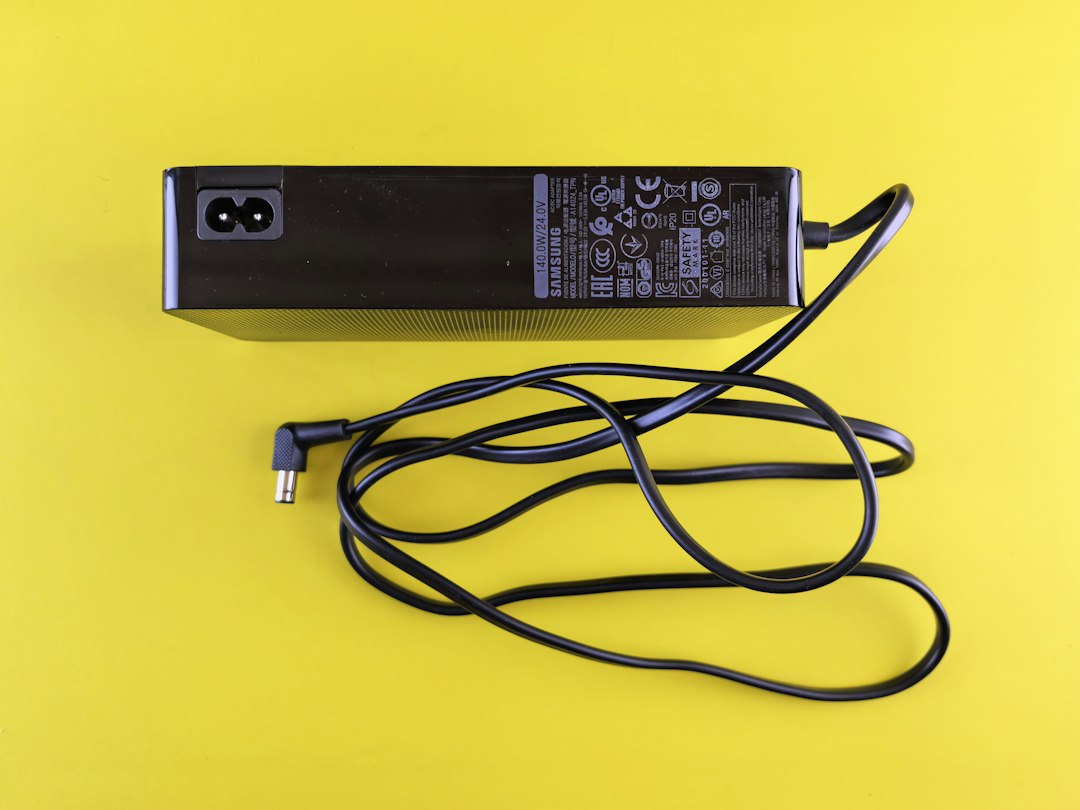
- Use the charger that came with the laptop, or one with at least the same wattage. A phone charger or a small USB-C charger can keep a laptop running but not charge it. Windows may also show a slow charger warning.
- If you charge through a dock or USB-C hub, plug the charger into the laptop directly to test.
- Check both ends of the cable and the laptop’s power port for bends, burns, loose fit or dirt. Many chargers have a light: if it’s off or flickering, suspect the charger.
- Unplug power-hungry accessories, such as external drives, while you test.
- If the laptop has more than one USB-C port, try another one. On some models only certain ports accept charging.
Fix 1: Do a full shutdown and power reset
Windows 10 uses Fast Startup by default, so a normal shutdown doesn’t fully reset the hardware. A full power reset clears a stuck charging controller surprisingly often:
- Save your work. Hold Shift while you select Start > Power > Shut down. This does a full shutdown.
- Unplug the charger and any accessories.
- If the battery is removable, take it out. If not, skip this step.
- Hold the power button for about 15-30 seconds, then let go. Microsoft suggests 20 seconds for Surface devices.
- Put the battery back, plug in the charger and turn the laptop on.
Some laptops have a small reset pinhole or a battery-disconnect option in the BIOS for this. Check your model’s manual or support page.
Fix 2: Reinstall the battery driver
Windows talks to the battery through a generic driver, Microsoft ACPI-Compliant Control Method Battery. Removing it and letting Windows install it again fixes many “not charging” reports. Microsoft gives the same steps for Surface devices.
- Keep the charger plugged in.
- Right-click Start and select Device Manager.
- Expand Batteries. Right-click Microsoft ACPI-Compliant Control Method Battery and select Uninstall device, then confirm. If there are two battery entries, do it for each. Leave Microsoft AC Adapter alone.
- Select Action > Scan for hardware changes to bring the battery back.
- Restart the laptop (use Restart, not Shut down).
If the battery entry has a yellow warning icon or is missing after a restart, see our guide to Device Manager driver errors such as Code 28. Don’t try this on a Surface Pro X: Microsoft warns that a full reset is then the only way to restore its drivers.
Fix 3: Update the BIOS and chipset drivers
Charging is controlled by the laptop’s firmware and its embedded controller, not just by Windows. Makers often fix charging bugs in BIOS or firmware updates.
- Install updates from your maker’s tool, such as Lenovo Vantage, Dell SupportAssist, HP Support Assistant or MyASUS, or from the support page for your exact model.
- Also check Settings > Update & Security > Windows Update > View optional updates > Driver updates. Some makers deliver firmware there. The link appears only when optional updates are waiting.
- Keep the charger plugged in and don’t turn the laptop off while a BIOS update runs.
After a BIOS update, check the battery settings again, because some updates reset the charge limit.
Fix 4: Check the battery’s health
Windows can produce a detailed battery report. Open Command Prompt, run this command, then open the HTML file it saves (the command shows the path, usually in your user folder):
powercfg /batteryreport- Compare DESIGN CAPACITY with FULL CHARGE CAPACITY. If the full charge capacity is far below the design capacity, the battery is worn.
- Check CYCLE COUNT. Hundreds of cycles is normal wear for an older laptop.
- Look at Recent usage and Battery usage to see if the battery charges at all while on AC.
Some makers’ tools also show battery health or warnings, and many laptops have a built-in hardware diagnostic you can run from the startup menu.
Heat matters too. Many laptops pause charging when the battery is too warm, for example during gaming. Let it cool, keep the vents clear and see if charging resumes.
When it’s the battery or charger
If a different, correctly rated charger works, replace the charger. If the battery report shows heavy wear, the battery is swollen (the case or touchpad bulging), or nothing above helps, the battery or the charging circuit needs service. Stop using a swollen battery and contact the maker or a repair shop. Use a genuine or properly rated replacement battery and charger.
Related guides
- How to disable Fast Startup in Windows 11 and 10
- Code 28: “The drivers for this device are not installed” (7 fixes)
- How to turn off Efficiency mode in Windows 11
- How to run Windows Update from the command line
Official sources: for more detail, see these pages:
Frequently asked questions
Is “plugged in, not charging” bad for my laptop?
Not by itself. The laptop runs from the charger, and if a charge limit is causing it, it’s actually protecting the battery. It’s a problem only if the battery is low and won’t charge at all.
Why does my laptop stop charging at 80% or 60%?
That’s almost always a battery-care setting from the laptop maker or, on Surface, Smart charging. Turn it off in the maker’s app or the UEFI settings if you want a full charge.
Will uninstalling the battery driver damage anything?
No. It’s a standard Windows driver and Windows reinstalls it when you scan for hardware changes or restart. Keep the charger connected while you do it.
Can a phone charger charge a laptop over USB-C?
Usually not usefully. Most phone chargers don’t supply enough power, so the laptop may run but show “plugged in, not charging” or charge very slowly. Use a charger with the wattage your laptop needs.
Leave a Reply