Quick answer: If Windows 10 keeps scrolling down by itself, unplug or switch off the mouse first. If the scrolling stops, the scroll wheel is the cause: clean it, replace the batteries, or try another mouse. If it keeps going, check the keyboard for a stuck ↓, Page Down or Space key, then lower the touchpad sensitivity under Settings > Devices > Touchpad. Turning off Scroll inactive windows when I hover over them in Settings > Devices > Mouse stops background windows scrolling unexpectedly.
Applies to: Windows 10. The same fixes work on Windows 11, where the settings are under Settings > Bluetooth & devices instead of Settings > Devices.
In this guide
- First, find what’s doing the scrolling
- Fix 1: Check the mouse and its scroll wheel
- Fix 2: Turn off Scroll inactive windows
- Fix 3: Adjust or turn off the touchpad
- Fix 4: Look for a stuck key
- Fix 5: Check mouse software and drivers
- Fix 6: Autoscroll and Scroll Lock in apps
- Fix 7: Find a program with a clean boot
- Related guides
- Frequently asked questions
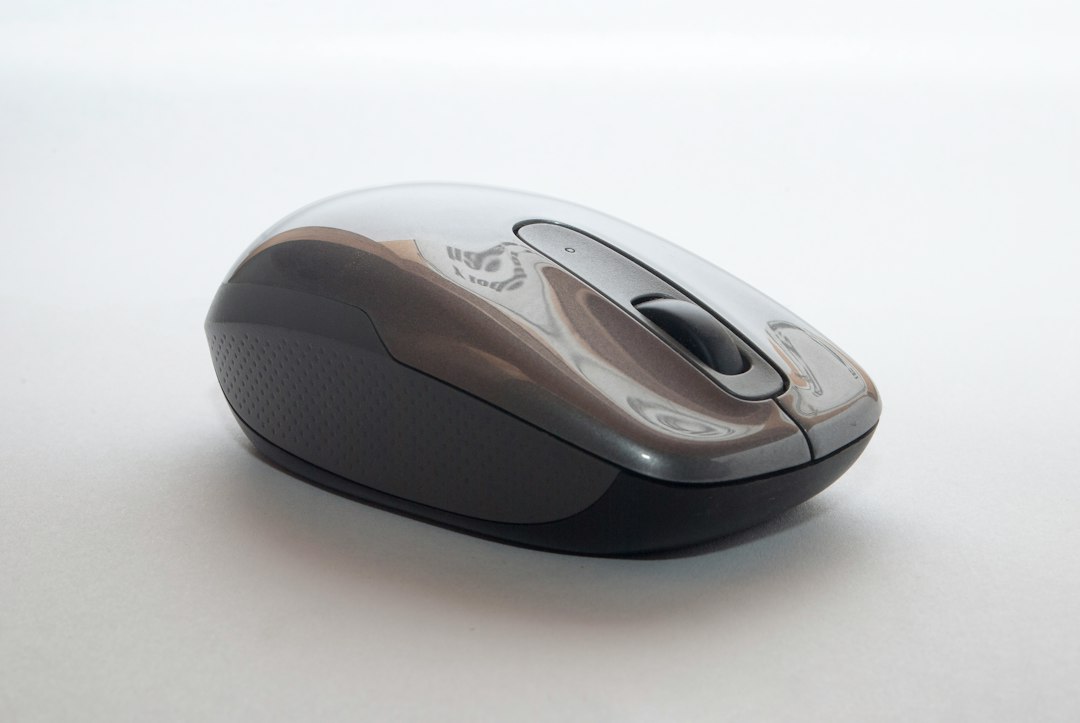
First, find what’s doing the scrolling
Automatic scrolling almost always comes from an input device sending scroll signals you didn’t make. A two-minute test tells you which one:
- Unplug the mouse, or switch it off and remove its USB receiver. If the scrolling stops, go to Fix 1.
- If it continues, disconnect any external keyboard too. If it stops now, go to Fix 4.
- On a laptop, if it still scrolls with nothing plugged in, suspect the touchpad (Fix 3) or the built-in keyboard (Fix 4).
- If it only happens in one app, such as a browser or Excel, go to Fix 6.
Fix 1: Check the mouse and its scroll wheel
- Dirty or worn scroll wheel: the wheel’s sensor can send random up or down signals when dust gets in or it wears out, and the page jumps or creeps by itself. Blow compressed air around the wheel and roll it firmly back and forth a few times. If it still misbehaves, the mouse needs replacing.
- Free-spinning wheels: some mice (for example certain Logitech models) have a free-spin or “hyper-fast” mode where the wheel keeps spinning after a flick. Press the button behind the wheel or check the mouse’s software to switch back to ratchet (click-by-click) mode.
- Low batteries or a weak signal: wireless mice act strangely when the batteries are low. Fit fresh batteries or charge it, and plug the USB receiver into a front port or a USB extension so it’s close to the mouse.
- Try another mouse or port: a different USB port, or a different mouse, quickly confirms whether the hardware is at fault.
If the pointer itself also vanishes or jumps, see our guide to the mouse cursor disappearing in Windows.
Fix 2: Turn off Scroll inactive windows
Windows 10 scrolls whatever window is under the pointer, even if it isn’t the one you’re working in. That can look like pages scrolling on their own, especially with two monitors or overlapping windows.
- Open Settings > Devices > Mouse.
- Turn off Scroll inactive windows when I hover over them.
On the same page, check Choose how many lines to scroll each time. A very high value makes each small wheel movement jump a long way down the page.
Fix 3: Adjust or turn off the touchpad
A touchpad that picks up your palm, a sleeve or even moisture can register as a two-finger scroll.
- Open Settings > Devices > Touchpad.
- Set Touchpad sensitivity to a lower level, such as Low sensitivity.
- Turn off Drag two fingers to scroll to test whether the scrolling stops.
- If you use a mouse, clear Leave touchpad on when a mouse is connected, or switch the touchpad off at the top of the page.
Some laptops show these options only with a Precision Touchpad. If you don’t see them, look for the touchpad maker’s own app (Synaptics, ELAN or the laptop maker’s utility) or Additional settings. Also clean and dry the touchpad. On some laptops, ghost touches appear only while the charger is plugged in; if that matches what you see, test on battery and contact the maker if it’s consistent.
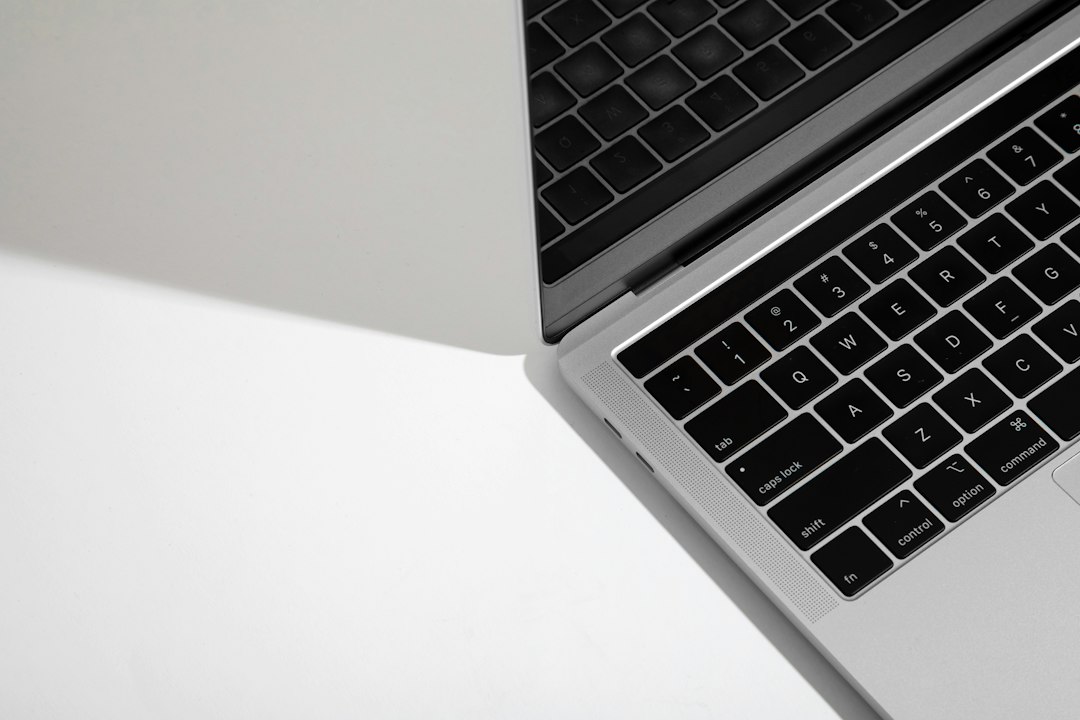
Fix 4: Look for a stuck key
A held-down ↓, Page Down, Space or End key scrolls pages exactly like a runaway mouse wheel.
- Open the On-Screen Keyboard: press Win + R, type
oskand press Enter. A key that stays highlighted while you aren’t touching anything is stuck. - Press the suspect key a few times firmly, and clean around it with compressed air.
- For a wireless keyboard, replace the batteries or charge it; a keyboard with a dying battery can repeat a key.
- Check Settings > Ease of Access > Keyboard and turn off Sticky Keys and Filter Keys if you didn’t turn them on deliberately.
If other keys also behave oddly, our Num Lock not working guide covers more keyboard checks.

Fix 5: Check mouse software and drivers
- Vendor software: apps such as Logitech Options+, Logitech G HUB, Razer Synapse or a touchpad utility can add smooth or “inertia” scrolling. Turn those features off, update the app, or uninstall it as a test.
- Reinstall the driver: right-click Start > Device Manager, expand Mice and other pointing devices, right-click your mouse or touchpad and choose Uninstall device, then restart. Windows reinstalls a standard driver. (If the touchpad is your only pointing device, have a mouse ready first.)
- Updates: install pending updates from Settings > Update & Security > Windows Update, and for laptops get the latest touchpad driver from the laptop maker’s support site.
Fix 6: Autoscroll and Scroll Lock in apps
- Browsers: clicking the scroll wheel (middle-click) on a page can turn on autoscroll in Chrome, Edge or Firefox, shown by a round arrow icon. Moving the mouse then scrolls the page by itself. Press Esc or click once to stop it. In Firefox you can turn it off under Settings by clearing Use autoscrolling.
- Excel: if the arrow keys scroll the whole sheet instead of moving between cells, Scroll Lock is on. Press ScrLk, or turn it off from the On-Screen Keyboard if your keyboard has no such key. Our guide to moving rows in Excel has more Excel navigation tips.
Fix 7: Find a program with a clean boot
If no device or setting explains it, a background program may be sending scroll input. Press Win + R, type msconfig, and on the Services tab select Hide all Microsoft services and then Disable all. Disable startup apps from Task Manager’s Startup tab, then restart. If the scrolling stops, turn items back on in small groups until it returns. Undo the changes in msconfig when you’re done.
Related guides
- Mouse cursor disappears in Windows 11/10: 7 fixes
- Num Lock not working in Windows 11/10: 6 ways to fix it
- Can’t type in Windows Search bar? 7 fixes for Windows 11/10
- How to move a row in Excel (without overwriting data)
Official sources: for more detail, see Microsoft’s own pages:
- Microsoft Support: Touchpad gestures for Windows
- Microsoft Support: Troubleshoot problems with your Surface mouse or keyboard
Frequently asked questions
Why does my screen scroll down by itself?
Usually a mouse wheel sending false signals, a stuck key, or a touchpad picking up accidental touches. Unplugging devices one at a time, as in the first section, shows which one.
Can a virus make the screen scroll?
It’s very unlikely. Hardware and settings explain nearly every case. If you’ve ruled those out and see other odd behaviour, a malware scan with Windows Security is a sensible extra check.
Why does it only scroll in Chrome or Edge?
Check for autoscroll (Fix 6) and browser extensions that add smooth scrolling. Test in an InPrivate or Incognito window, where extensions are usually off.
Does this also fix Windows 11?
Yes. The causes are the same; on Windows 11 the mouse and touchpad settings are under Settings > Bluetooth & devices.
Leave a Reply