Quick answer: PROCESS1_INITIALIZATION_FAILED (stop code 0x0000006B) means Windows failed during the very first stage of starting up. Microsoft lists the disk subsystem as the usual cause: a failing drive, a loose or bad cable, or a missing or corrupted boot file. Get to the recovery screen, copy off important files if you can, then try Startup Repair, uninstall the latest update, run System Restore, and check the disk with chkdsk. If the drive itself is failing, it has to be replaced.
Applies to: Windows 11 and Windows 10, with a separate fix for Windows 7 and Windows Server 2008 R2 near the end.
In this guide
- What PROCESS1_INITIALIZATION_FAILED means
- Read the first parameter
- Get to the recovery screen
- First: copy off important files
- Fix 1: Run Startup Repair
- Fix 2: Uninstall the latest update
- Fix 3: Use System Restore
- Fix 4: Check the disk with CHKDSK
- Fix 5: Repair system files offline
- Fix 6: Check the drive, cables and BIOS
- Windows 7: the Bootcat.cache fix
- Fix 7: Reset or reinstall Windows
- Related guides
- Frequently asked questions

What PROCESS1_INITIALIZATION_FAILED means
Windows starts in phases. In the first phase the kernel sets up the core of the system and loads the first files it needs from the boot drive. If that phase fails, Windows can’t continue, so it stops with PROCESS1_INITIALIZATION_FAILED. You’ll usually see it on every start, before the sign-in screen, which is why the PC seems stuck in a restart loop.
Microsoft’s documentation names these causes:
- Any part of the disk subsystem: a failing hard drive or SSD, a bad or loose data cable, or a drive Windows can’t reach.
- A missing file on the boot partition (often after a crash, power cut or interrupted update).
- A boot driver that was disabled by mistake.
- On Windows 7 and Server 2008 R2 only, a corrupted
Bootcat.cachefile (see the Windows 7 section).
In practice, many people see it right after a Windows update, a sudden power loss, or a drive that has started to fail. The fixes below go from safest to most drastic.
Read the first parameter
The blue screen (or the crash details) may show four numbers after the stop code, for example 0x0000006B (0xC0000102, 0x00000002, 0x00000000, 0x00000000). Only the first one matters: it’s the Windows status code for what went wrong. Common values include:
| First parameter | Meaning | What it points to |
|---|---|---|
0xC0000034 | Object name not found | A missing boot or system file: try Fix 1 and Fix 5 |
0xC0000102 | File corrupt | File system damage: try Fix 4, and back up first |
0xC0000185 | I/O device error | The drive or its connection: go to Fix 6 |
0xC000009C | Device data error | Bad sectors on the drive: back up, then Fix 6 |
If you don’t see any parameters, or yours isn’t listed, just work through the fixes in order.
Get to the recovery screen
Because this error stops Windows before you can sign in, all the fixes start from the Windows Recovery Environment (the blue Choose an option screen). After two or three failed starts, Windows normally opens it on its own with Preparing Automatic Repair. If it doesn’t:
- Turn the PC on. As soon as the Windows or manufacturer logo appears, hold the power button until it switches off.
- Do this twice. On the third start, Windows should show Automatic Repair. Choose Advanced options.
- If that never happens, create Windows installation media on another PC with Microsoft’s Media Creation Tool, boot from the USB stick, choose your language, then select Repair your computer instead of Install now.
From Troubleshoot > Advanced options you’ll find Startup Repair, Uninstall Updates, System Restore and Command Prompt. If you’re asked for a BitLocker recovery key, see where to find your BitLocker recovery key (the steps apply to any brand).
First: copy off important files
Because this stop code is so often caused by a dying drive, protect your data before running disk repairs. A failing drive can get worse with every hour of use, and chkdsk /r in particular reads the whole disk.
If your files are already in OneDrive or another backup, skip ahead. Otherwise, the simplest route is to take the drive out and connect it to another PC with a USB adapter, or ask a repair shop to copy your files. Some people also use the Open dialog of notepad started from the recovery Command Prompt to copy folders to a USB stick, which works but is slow and fiddly.
Fix 1: Run Startup Repair
Go to Troubleshoot > Advanced options > Startup Repair and choose your Windows installation. It checks the boot files and settings and fixes what it can. It can take a while, and the PC may restart. If it says it couldn’t repair your PC, move on; the log file it mentions (SrtTrail.txt) is useful if you later ask a technician for help.
Fix 2: Uninstall the latest update
If the error started right after Windows installed updates, go to Troubleshoot > Advanced options > Uninstall Updates. Try Uninstall latest quality update first (the monthly patch). If the PC still won’t start and you recently moved to a new version of Windows, go back and try Uninstall latest feature update. Neither option removes your personal files.
Fix 3: Use System Restore
Go to Troubleshoot > Advanced options > System Restore and pick a restore point from before the problem started. Your documents aren’t touched, but apps, drivers and updates installed after that point are removed. If Windows says there are no restore points, System Protection was off and you’ll need the other fixes.
Fix 4: Check the disk with CHKDSK
Open Troubleshoot > Advanced options > Command Prompt. In the recovery environment the Windows drive isn’t always C:, so check first. Type this and press Enter:
dir C:\WindowsIf you see folders such as System32, C: is the right drive. If not, try D: or E: the same way, and use that letter in the commands below. Then run:
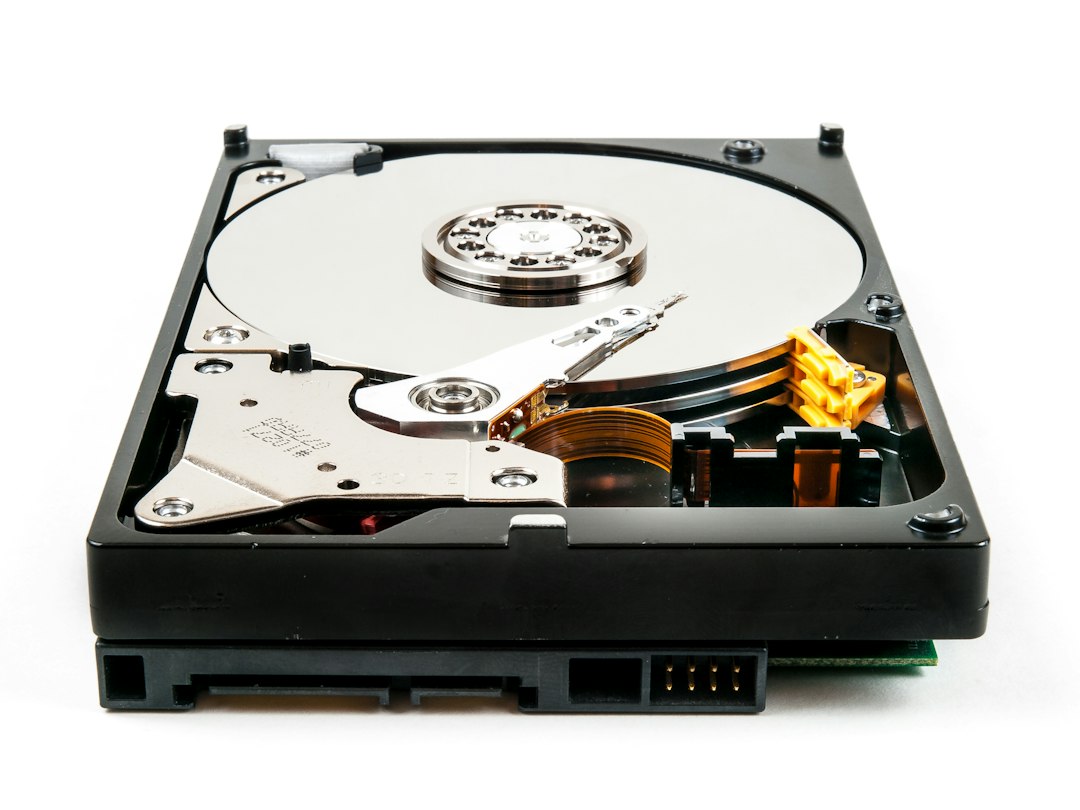
chkdsk C: /fThis fixes file system errors. If it reports bad sectors, or the first parameter on your blue screen pointed to the drive, you can run chkdsk C: /r to find and recover readable data from bad sectors. It’s much slower, and on a failing drive it’s worth backing up first, as explained above.
Fix 5: Repair system files offline
A normal sfc /scannow can’t run on a copy of Windows that won’t start, but System File Checker can repair it “offline” from the recovery Command Prompt. Use the drive letter you found in Fix 4:
sfc /scannow /offbootdir=C:\ /offwindir=C:\WindowsIt can take 15 minutes or more. If it reports that it repaired files, restart and see whether Windows starts. If it says Windows Resource Protection could not perform the requested operation, see “Windows Resource Protection could not perform the requested operation”: 7 fixes; usually it means running chkdsk first.
Fix 6: Check the drive, cables and BIOS
If the software fixes fail, or the first parameter pointed to an I/O or data error, check the hardware:
- Run the maker’s diagnostics. Most PCs have a built-in hardware test in the boot menu or UEFI (for example Dell’s ePSA/SupportAssist diagnostics or HP’s PC Hardware Diagnostics UEFI). Run the storage test. If it reports a drive failure, the drive needs replacing.
- Check that the drive is detected. Open the BIOS/UEFI setup (often F2, Del or F10 at power-on) and make sure your system drive is listed. A drive that appears and disappears is a strong sign of a hardware fault.
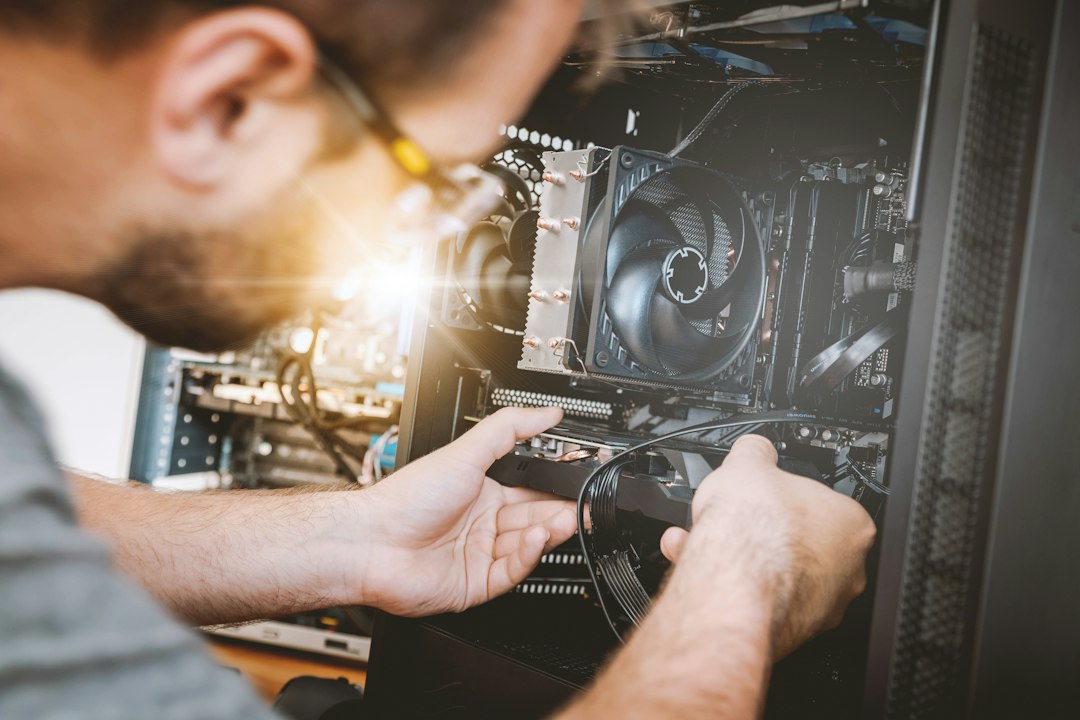
- Reseat cables and the SSD. On a desktop, turn off the power, then unplug and firmly reconnect the SATA data and power cables on the system drive, or try a different cable and port. On an NVMe SSD, reseat the drive in its slot. On a laptop, only do this if you’re comfortable opening it; otherwise use a repair shop.
- Undo recent BIOS changes. If you recently changed the storage controller mode (such as AHCI, RAID or Intel RST/VMD), updated the BIOS, or reset it, set the storage mode back to what it was. Windows can fail to start if the controller mode changes underneath it.
- Unplug extra drives and USB devices. Disconnect external drives, card readers and docks, and start with only the keyboard, mouse and system drive connected.
If the drive tests fine and the error still appears, see WHEA_UNCORRECTABLE_ERROR (0x124) for wider hardware checks such as RAM and power.
Windows 7: the Bootcat.cache fix
On Windows 7 and Windows Server 2008 R2 without Service Pack 1, Microsoft documents one specific cause: the Bootcat.cache file in C:\Windows\System32\CodeIntegrity is corrupted or has changed size since the last good start. Microsoft’s workaround is to start from installation media, remove that file and restart; the permanent fix is installing Service Pack 1 (KB976932). From the recovery Command Prompt, renaming the file does the same job and is easy to undo:
ren C:\Windows\System32\CodeIntegrity\bootcat.cache bootcat.oldUse the drive letter you found earlier. This fix is specific to those older systems. Microsoft doesn’t document it for Windows 10 or 11, so on newer versions stick to the fixes above.
Fix 7: Reset or reinstall Windows
If the drive passes its tests and nothing above worked, reset Windows from Troubleshoot > Reset this PC and choose Keep my files, or do a clean install from installation media after copying your data off. See How to reinstall Windows 10: reset, repair install or clean install for the options. If the error comes back even after a clean install, the cause is almost certainly the drive or the hardware connected to it.
Related guides
- Your PC ran into a problem and needs to restart: how to fix any stop code
- WHEA_UNCORRECTABLE_ERROR (0x124): how to fix it on Windows 11/10
- Windows Resource Protection could not perform the requested operation: 7 fixes
- Dell BitLocker recovery key: where to find it and why it appears
- How to reinstall Windows 10: reset, repair install or clean install
Official sources: for more detail, see Microsoft’s own documentation:
- Microsoft Learn: Bug Check 0x6B PROCESS1_INITIALIZATION_FAILED
- Microsoft Support: Stop error 0x0000006B during startup on Windows 7 or Server 2008 R2
- Microsoft Support: Troubleshooting Windows unexpected restarts and stop code errors
Frequently asked questions
Is PROCESS1_INITIALIZATION_FAILED a hardware or software problem?
It can be either. Corrupted boot files and bad updates are software problems that the recovery tools can fix. A failing drive or bad connection is hardware. If Startup Repair, System Restore and CHKDSK don’t help, or CHKDSK finds bad sectors, suspect the drive.
Will I lose my files?
Startup Repair, uninstalling updates, System Restore and SFC don’t delete personal files. The real risk is a failing drive, which is why it’s worth copying important files off before running chkdsk /r or resetting Windows.
Can I boot into Safe Mode to fix it?
Usually not. The error happens so early in startup that Safe Mode often fails the same way, though some people find Safe Mode with Command Prompt still works. It’s worth one try from Troubleshoot > Advanced options > Startup Settings, but the recovery environment is the more reliable place to work from.
Do I need a new drive?
Only if the evidence points there: the maker’s diagnostics report a storage failure, CHKDSK finds bad sectors, the drive keeps disappearing from the BIOS, or the error returns after a clean reinstall. If you do replace it, an SSD is a worthwhile upgrade, and you can then reinstall Windows and restore your files.
Leave a Reply