Quick answer: Right-click Start, open Terminal or Windows PowerShell, and run the command below. It lists every installed memory module with its Manufacturer, PartNumber, size and speed, read from the PC’s firmware. If the manufacturer comes back blank or as a code, search the part number online or read the label on the module itself. The old wmic memorychip command no longer works on current Windows 11, because Microsoft has removed WMIC.
Get-CimInstance Win32_PhysicalMemory | Format-Table DeviceLocator, Manufacturer, PartNumber, Capacity, ConfiguredClockSpeed, SMBIOSMemoryType, FormFactor -AutoSizeIn this guide
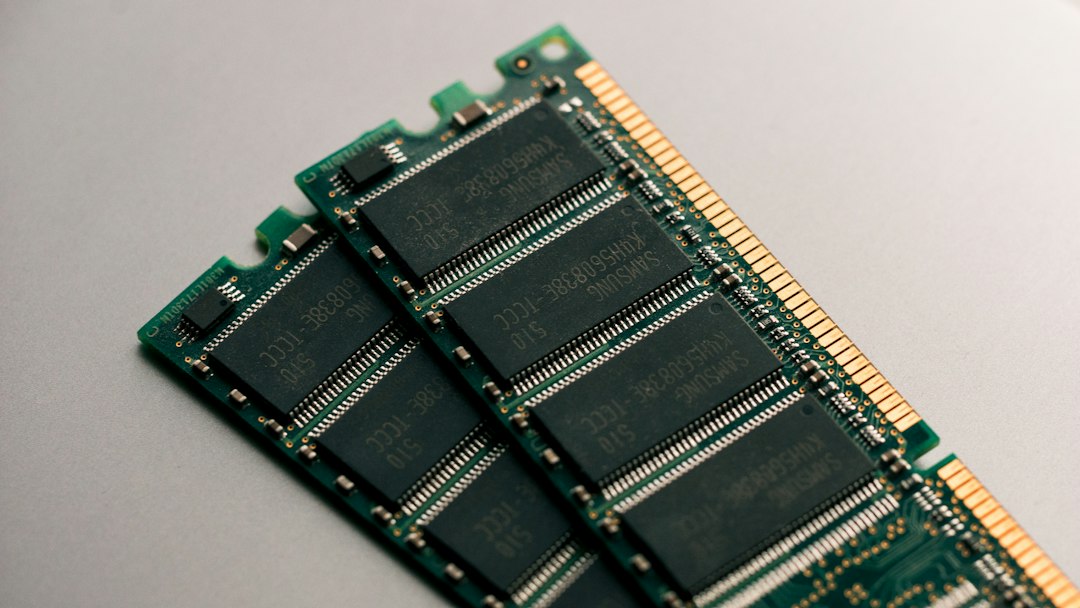
Check the RAM manufacturer with PowerShell
Windows reads memory details from the SMBIOS tables in your PC’s firmware and exposes them through the Win32_PhysicalMemory WMI class. PowerShell’s Get-CimInstance cmdlet queries it, and you don’t need administrator rights for this read-only check.
- Right-click Start and choose Terminal on Windows 11 or Windows PowerShell on Windows 10.
- Paste the command from the top of this page and press Enter.
- You get one row per module. Note the PartNumber for each one: it identifies the exact kit far better than the brand alone.
For a friendlier view with capacity in GB, use this version:
Get-CimInstance Win32_PhysicalMemory | Select-Object DeviceLocator, Manufacturer, PartNumber, @{n='GB';e={$_.Capacity/1GB}}, ConfiguredClockSpeedHow to read the results
| Column | What it means |
|---|---|
| DeviceLocator / BankLabel | Which slot the module sits in, such as DIMM 1 or ChannelA-DIMM0 |
| Manufacturer | The maker recorded in firmware, such as Samsung, SK Hynix, Micron, Kingston or Crucial |
| PartNumber | The maker’s model number for the module; search it to find the exact kit |
| Capacity | Size in bytes (8589934592 is 8 GB, 17179869184 is 16 GB) |
| ConfiguredClockSpeed | The speed the memory is running at now, in MHz; 0 means unknown |
| SMBIOSMemoryType | The memory generation as a raw SMBIOS number (see below) |
| FormFactor | 8 means DIMM (desktop stick), 12 means SODIMM (laptop stick) |
Memory type: Microsoft’s documentation describes SMBIOSMemoryType only as the raw SMBIOS value. In the SMBIOS standard, 24 is DDR3, 26 is DDR4 and 34 is DDR5. Skip the older MemoryType property: Microsoft’s list for it stops at DDR4.
Speed: there’s also a Speed property. Microsoft’s page describes it in nanoseconds, but many PCs report a rated figure like 3200 there, so treat ConfiguredClockSpeed as the speed the RAM is actually running at. If the two differ, the memory is running below its rated speed, which on desktops often means an XMP or EXPO memory profile isn’t enabled in the firmware.
Also keep in mind that the manufacturer shown is the brand on the module, which is not always the maker of the memory chips on it.
If the manufacturer is blank, Unknown or a code
The Manufacturer field is only as good as what the module and firmware report. Some PCs show it empty, as Unknown, or as a short hex code instead of a name. In that case:
- Search the PartNumber. It’s usually filled in even when the brand isn’t, and a search normally names the maker and full spec.
- Check the PC maker’s specifications for your model number. Laptops often list the exact memory that shipped.
- Read the label. Shut down, unplug the PC (and on a laptop, follow the maker’s guide to open the base), and read the sticker on the module. It shows the brand, part number, size and speed.
- Use a hardware tool. Free utilities such as CPU-Z read the module’s own SPD chip and often show the maker when Windows can’t. Download them only from the developer’s official site.
Check speed and free slots in Task Manager
Task Manager doesn’t show the manufacturer, but it’s a quick way to see the rest. Press Ctrl + Shift + Esc, open the Performance tab and select Memory. In current versions the panel lists the speed, Slots used (for example 2 of 4) and the form factor, which tells you whether there’s room to add a module. If memory use there is constantly high, this guide on high memory use may help.
What about the wmic memorychip command?
Older guides use wmic memorychip get devicelocator, manufacturer, partnumber, speed, capacity. Microsoft deprecated WMIC in 2021 and says it has now been removed from currently supported versions of Windows 11, so on an up-to-date PC you’ll get an error that the command isn’t recognized. Microsoft recommends PowerShell instead, and the WMI data behind it is still fully supported, which is why the Get-CimInstance command above returns the same information. On Windows 10 the old command may still run from Command Prompt, but the PowerShell version works on both.
If a memory problem is behind your search, such as crashes after adding RAM, see the instruction at referenced memory could not be read or WHEA uncorrectable error.
Related guides
- Desktop Window Manager high memory: why it happens and 5 fixes
- “The Instruction at 0x00007ff… Referenced Memory”: How to Fix It
- WHEA_UNCORRECTABLE_ERROR (0x124): How to Fix It on Windows 11/10
- How to open Command Prompt as administrator in Windows 11 and 10
Official sources:
Leave a Reply