Quick answer: Error 0x800f0922 means Windows downloaded an update but the install step failed. Disconnect any VPN and restart, make sure the small system partition isn’t full, run the Windows Update troubleshooter, then repair Windows with DISM /Online /Cleanup-Image /RestoreHealth and sfc /scannow. If it still fails, reset the Windows Update components or install that update manually from the Microsoft Update Catalog.
Applies to: Windows 11 and Windows 10, for monthly updates, feature updates and optional features such as .NET Framework 3.5. Work through the fixes in order and retry the update after each one.
In this guide
- What error 0x800f0922 means
- Check your connection and turn off the VPN
- Free space on the system partition
- Run the Windows Update troubleshooter
- Repair system files with DISM and SFC
- Reset Windows Update components
- Install the update manually
- 0x800f0922 when installing .NET Framework 3.5
- Last resort: repair Windows in place
- Related guides
- Frequently asked questions
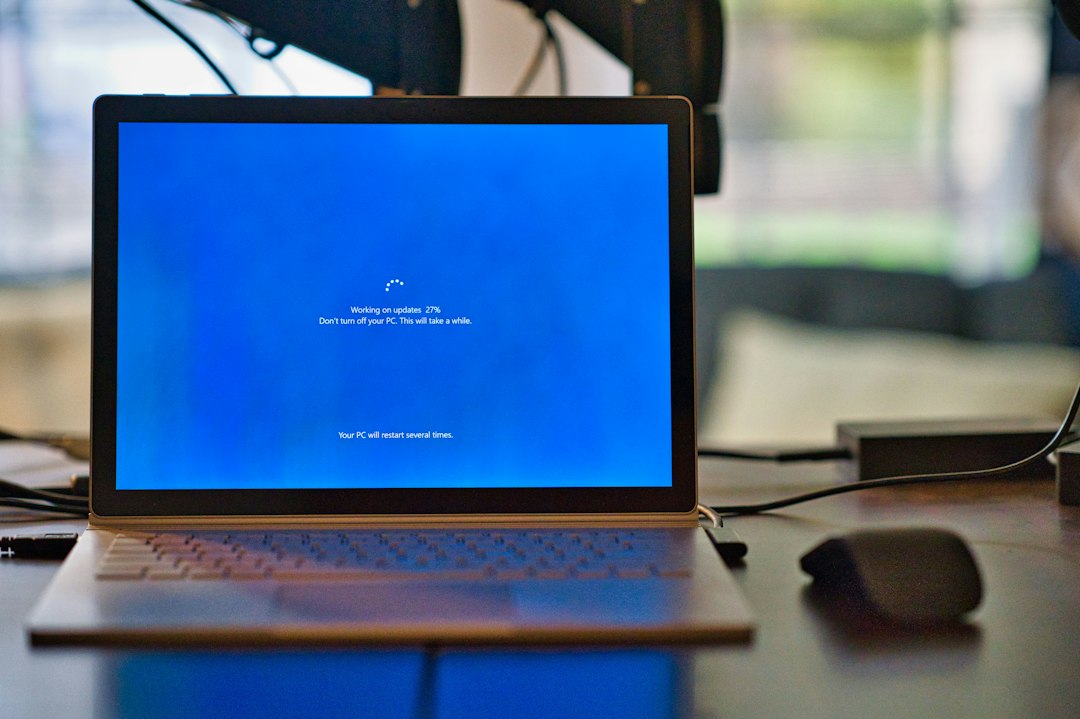
What error 0x800f0922 means
Microsoft lists 0x800F0922 as CBS_E_INSTALLERS_FAILED: the component-based servicing stack couldn’t finish the installer steps for an update. In practice it usually comes down to one of these:
- Windows couldn’t reach the update servers during install, often because of a VPN or proxy.
- The System Reserved or EFI partition doesn’t have enough free space.
- Corrupted system files or a damaged component store.
- Stuck Windows Update caches, or security software blocking the install.
- An optional feature (such as .NET Framework 3.5) can’t fetch its source files.
Check your connection and turn off the VPN
Disconnect from any VPN, turn off proxy settings in Settings > Network & internet > Proxy, and restart the PC. Then open Windows Update and select Check for updates again. If you use third-party antivirus or a firewall, pause it briefly while the update installs and turn it back on straight after.
Free space on the system partition
Updates write boot and recovery files to a small hidden partition. If it’s nearly full, installs fail with 0x800f0922. Open Disk Management (right-click Start and choose it) and look at the small partition labelled System Reserved or EFI System Partition. If it’s almost full, follow our guide to free up space on the System Reserved partition before retrying. Also make sure drive C: has at least 20 GB free.
Run the Windows Update troubleshooter

Windows 11: go to Settings > System > Troubleshoot > Other troubleshooters and select Run next to Windows Update. Windows 10: go to Settings > Update & Security > Troubleshoot > Additional troubleshooters. On recent Windows 11 builds the button opens the Get Help app, which runs the same checks. Restart afterwards and try the update again.
Repair system files with DISM and SFC
Open Command Prompt as administrator and run these two commands one after the other. The first repairs the component store that updates are installed from; the second repairs Windows files:
DISM /Online /Cleanup-Image /RestoreHealth
sfc /scannow
DISM can sit at 20% or 62% for several minutes; that’s normal. Restart when both finish. For more on reading the results, see how to use sfc /scannow.
Reset Windows Update components
This clears the download cache and lets Windows Update start fresh. In an administrator Command Prompt, run:
net stop wuauserv
net stop cryptSvc
net stop bits
net stop msiserver
ren C:\Windows\SoftwareDistribution SoftwareDistribution.old
ren C:\Windows\System32\catroot2 catroot2.old
net start wuauserv
net start cryptSvc
net start bits
net start msiserver
If a ren command says access is denied, a service is still running: run its net stop line again, then retry. Restart and check for updates. Your update history list will be empty afterwards, which is expected.
Install the update manually
Note the KB number of the failing update in Settings > Windows Update > Update history. Search for it on the Microsoft Update Catalog, download the package that matches your Windows version and system type (usually x64), and double-click the .msu file to install it. Prefer the command line? See how to run Windows Update from the command line.
0x800f0922 when installing .NET Framework 3.5
If the error appears when you turn on .NET Framework 3.5 in Windows Features, Windows usually couldn’t download the files. Make sure you’re online and not blocked by a VPN. On a work PC that gets updates from WSUS, your IT admin may need to allow downloads from Windows Update, or you can install it from Windows installation media with DISM using its /Source option. Our 0x800f081f guide covers the same media method.
Last resort: repair Windows in place

On recent Windows 11 versions, go to Settings > System > Recovery and, if you see Fix problems using Windows Update, select Reinstall now. It reinstalls the current version of Windows and keeps your apps, files and settings. On Windows 10, run an in-place upgrade from the Media Creation Tool and choose to keep everything. Back up important files first either way.
Related guides
- Windows Update error 0x800f081f: how to fix it
- Windows Update error 0x800f0831: how to fix it
- We couldn’t update the system reserved partition
- How to use sfc /scannow
- How to run Windows Update from the command line
Official sources:
Frequently asked questions
Is error 0x800f0922 dangerous?
No. The failed update is rolled back and Windows keeps working. But you miss security fixes until it installs, so it’s worth fixing.
Why does the update download fine but fail at the end?
0x800f0922 happens in the install phase, after the download. That’s why the VPN, partition space and system file checks matter more than your download speed.
Can I just hide the failing update?
You can pause updates for a while, but skipping security updates long term isn’t safe. Use the fixes above or install the update manually instead.
Leave a Reply