
Quick answer: press Windows + Ctrl + Shift + B. You’ll hear a beep and the screen may flicker while Windows restarts the graphics driver. If the screen stays black, work through the fixes below in order. They start with the safest steps and only get more involved if you need them.
Applies to: Windows 11 and Windows 10, on desktops and laptops. None of the steps below delete your personal files.
In this guide
- Which black screen do you have?
- Fix 1: Wake the display and reset the graphics driver
- Fix 2: Restart Windows Explorer
- Fix 3: Restart from the security screen
- Fix 4: Fully power the PC off and on
- Fix 5: Start Windows in Safe Mode
- Fix 6: Roll back or reinstall the display driver
- Fix 7: Uninstall the latest Windows update
- Fix 8: Turn off Fast Startup
- Fix 9: Repair Windows system files
- Fix 10: Use System Restore
- Fix 11: Check for a hardware problem
- Frequently asked questions
First, work out which black screen you have
“Black screen” covers several different problems, and the right fix depends on when the screen goes dark. Find the row that matches what you see, then jump to the fix it points to.
| What you see | Most likely cause | Start with |
|---|---|---|
| Black screen with a mouse pointer after you sign in | Windows Explorer (the desktop) didn’t load | Fix 2 |
| Black screen right after a Windows update | Display driver or update conflict | Fix 5, then Fix 7 |
| Screen goes black but the PC is clearly on (lights, fans) | Display driver, wrong display output, or sleep issue | Fix 1 |
| Laptop screen black, but an external monitor works | Laptop screen, its cable or backlight | Fix 11 |
| Nothing at all, not even the maker’s logo when you power on | Hardware or power, not Windows | Fix 11 |
Fix 1: Wake the display and reset the graphics driver
- Press Windows + Ctrl + Shift + B. Wait about 10 seconds.
- Press Windows + P. This opens the projection menu even if you can’t see it. Press Down arrow once, then Enter. Wait a few seconds. If the screen is still black, repeat. This cycles through PC screen only, Duplicate, Extend and Second screen only, which fixes the common case where Windows is sending the picture to a monitor that isn’t there.
- On a laptop, press the brightness-up key (often with Fn) a few times. A screen set to zero brightness looks exactly like a black screen.
- On a desktop, check that the monitor is on, set to the right input (HDMI, DisplayPort) and that the cable is plugged into the graphics card, not the motherboard, if you have a separate graphics card.
Fix 2: Black screen with a cursor? Restart Windows Explorer
If you can see and move the mouse pointer, Windows is running but the desktop (Windows Explorer) failed to start. You can start it by hand.
- Press Ctrl + Shift + Esc to open Task Manager.
- If Task Manager opens in its small view, select More details.
- Select Run new task (in Windows 10, it’s under the File menu).
- Type
explorer.exeand press Enter.
If the taskbar and desktop appear, restart the PC normally once to make sure it comes back on its own. If it keeps happening at every sign-in, continue with Fix 5 and Fix 9.
Fix 3: Restart from the security screen
Press Ctrl + Alt + Delete. If a blue or dark menu appears, select the power icon in the bottom-right corner and choose Restart. A clean restart clears many one-off black screens, especially after waking from sleep.
Fix 4: Fully power the PC off and on
- Hold the power button for about 10 seconds until the PC turns off.
- Unplug the power cable (and, on a laptop, the charger). Disconnect USB drives, docks and extra monitors.
- Wait 30 seconds, plug the power back in and turn the PC on.
Use this only when nothing else responds. Forcing a shutdown can lose unsaved work in open programs, but it won’t affect files that were already saved.
Fix 5: Start Windows in Safe Mode
Safe Mode starts Windows with a basic display driver and only essential services. If the screen works in Safe Mode, the problem is almost certainly a driver, an update or a startup program, and Fixes 6 to 10 can be done from there.
If you can reach the sign-in screen
Hold Shift, select the power icon, then Restart. Windows opens the blue Recovery screen.
If the screen is black before sign-in
Turn the PC on, and as soon as the manufacturer’s logo or spinning dots appear, hold the power button to turn it off. Do this twice. On the third start, Windows should show Preparing Automatic Repair and then the Recovery screen. Select Advanced options.
From the Recovery screen
- Select Troubleshoot > Advanced options > Startup Settings > Restart.
- After the restart, press 5 for Safe Mode with Networking (or 4 for Safe Mode without internet).
If the screen is also black in Safe Mode, skip ahead to Fix 7 and Fix 10, which run from the Recovery screen instead.
Fix 6: Roll back or reinstall the display driver
A new or damaged graphics driver is the most common cause of a black screen after an update. Do this in Safe Mode.
- Right-click the Start button and select Device Manager.
- Expand Display adapters, right-click your graphics card and select Properties.
- On the Driver tab, select Roll Back Driver if it’s available, then follow the prompts and restart.
- If Roll Back is greyed out, close the window, right-click the graphics card again and select Uninstall device. Tick Attempt to remove the driver for this device (or Delete the driver software for this device in Windows 10), then restart. Windows will start with its basic display driver, which is slow but stable.
Once the screen works again, install the latest driver from your PC maker’s support page or from the graphics card maker (Intel, AMD or NVIDIA). On laptops, the PC maker’s driver is often the more reliable choice.
Fix 7: Uninstall the latest Windows update
If the black screen started right after an update, removing it is often the quickest fix. This works even when you can’t get to the desktop.
- Open the Recovery screen (see Fix 5).
- Select Troubleshoot > Advanced options > Uninstall Updates.
- Choose Uninstall latest quality update first. If that doesn’t help, repeat and choose Uninstall latest feature update.
Windows may try to reinstall the same update later. If the black screen comes back afterwards, pause updates for a week in Settings > Windows Update and check your graphics driver (Fix 6) before letting it install again.
Fix 8: Turn off Fast Startup
Fast Startup saves part of Windows to disk at shutdown so it starts quicker, but it can bring back a bad driver state every time. Turning it off is safe; startup just takes a few seconds longer.
- Open Control Panel > Hardware and Sound > Power Options.
- Select Choose what the power buttons do, then Change settings that are currently unavailable.
- Untick Turn on fast startup (recommended) and select Save changes.
Fix 9: Repair Windows system files
Damaged system files can stop the desktop from loading. Windows has two built-in repair tools. Run them from an administrator Command Prompt: select Start, type cmd, then choose Run as administrator. Run this first and wait for it to finish:
DISM /Online /Cleanup-Image /RestoreHealthThen run:
sfc /scannowBoth can take 10 to 30 minutes and may seem stuck at a percentage for a while; that’s normal. Restart when they finish.
Fix 10: Use System Restore
System Restore takes Windows settings, drivers and installed programs back to an earlier date. Your documents, photos and other personal files are not changed, but programs installed after that date will need to be reinstalled.
- Open the Recovery screen (see Fix 5).
- Select Troubleshoot > Advanced options > System Restore.
- Pick a restore point from before the black screen started and follow the prompts.
If there are no restore points, System Restore was turned off on this PC and this fix isn’t available.
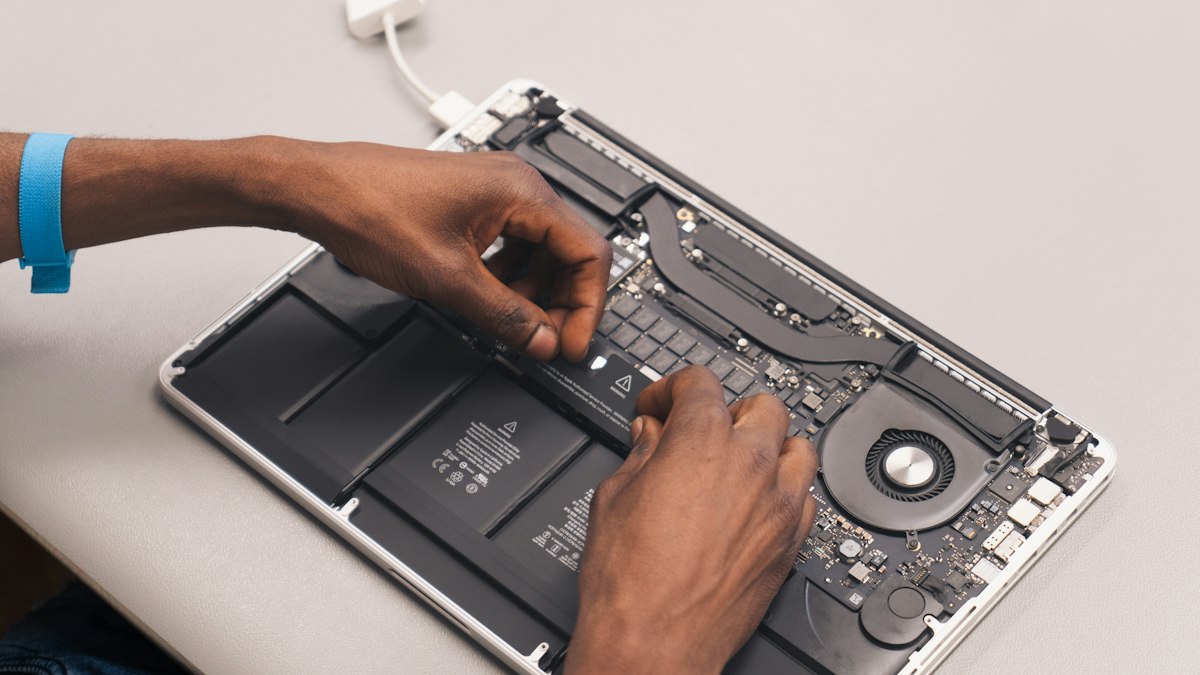
Fix 11: Check for a hardware problem
If none of the fixes above help, or you see nothing at all from the moment you press the power button, the cause is probably hardware. These checks tell you where to look:
- Connect an external monitor or TV. If a laptop shows a picture on the external screen, Windows is fine and the laptop’s own screen, its cable or its backlight has failed.
- Try the flashlight test. On a laptop, shine a torch at an angle onto the black screen. If you can faintly see the desktop, the backlight has failed. That needs a repair, not a software fix.
- Watch the startup. If the maker’s logo appears when you power on but the screen goes black later, the hardware is working and the problem is in Windows. Go back to Fix 5. If even the logo never appears, it’s hardware or power.
- Desktops with a graphics card: if your processor has built-in graphics, try plugging the monitor into the motherboard’s video port. If that works, the graphics card is the likely problem.
For a PC still under warranty, contact the manufacturer before opening it up.
Frequently asked questions
Why does my screen go black but the computer is still running?
Usually the graphics driver has crashed, Windows is sending the picture to the wrong display, or the screen brightness is at zero. Fix 1 covers all three and takes under a minute.
Will fixing a black screen delete my files?
No. Every fix in this guide leaves your personal files alone. System Restore and uninstalling updates only affect system settings, drivers and programs.
Can a virus cause a black screen?
It’s possible but uncommon. Driver and update problems are far more likely. If the black screen appeared along with pop-ups, new programs you didn’t install, or a browser that changed by itself, run a full scan with Windows Security once the desktop is back.
What does Windows + Ctrl + Shift + B do?
It tells Windows to restart the graphics driver. It’s harmless, doesn’t close your programs, and is the fastest first step for any sudden black screen.
Leave a Reply