Quick answer: Error 0xC1900101 – 0x20017 means the Windows upgrade failed while the PC restarted into the setup environment (the SAFE_OS phase), so Windows rolled back. Microsoft says it’s usually caused by a driver or third-party disk encryption, and sometimes by faulty hardware. Unplug all non-essential USB devices, update your drivers and BIOS from the PC maker, uninstall third-party antivirus or encryption software, then run the upgrade again, ideally from a clean boot with the Windows ISO.
Applies to: upgrades and feature updates to Windows 11 (for example a new yearly version) and Windows 10, whether you use Windows Update, the Installation Assistant or the ISO.
In this guide
- What 0xC1900101 – 0x20017 means
- Fix 1: Unplug everything you don’t need
- Fix 2: Update drivers and the BIOS
- Fix 3: Remove third-party antivirus and disk encryption
- Fix 4: Find the driver that caused the rollback
- Fix 5: Free up space and repair Windows
- Fix 6: Upgrade from a clean boot with the ISO
- If nothing works
- Related guides
- Frequently asked questions
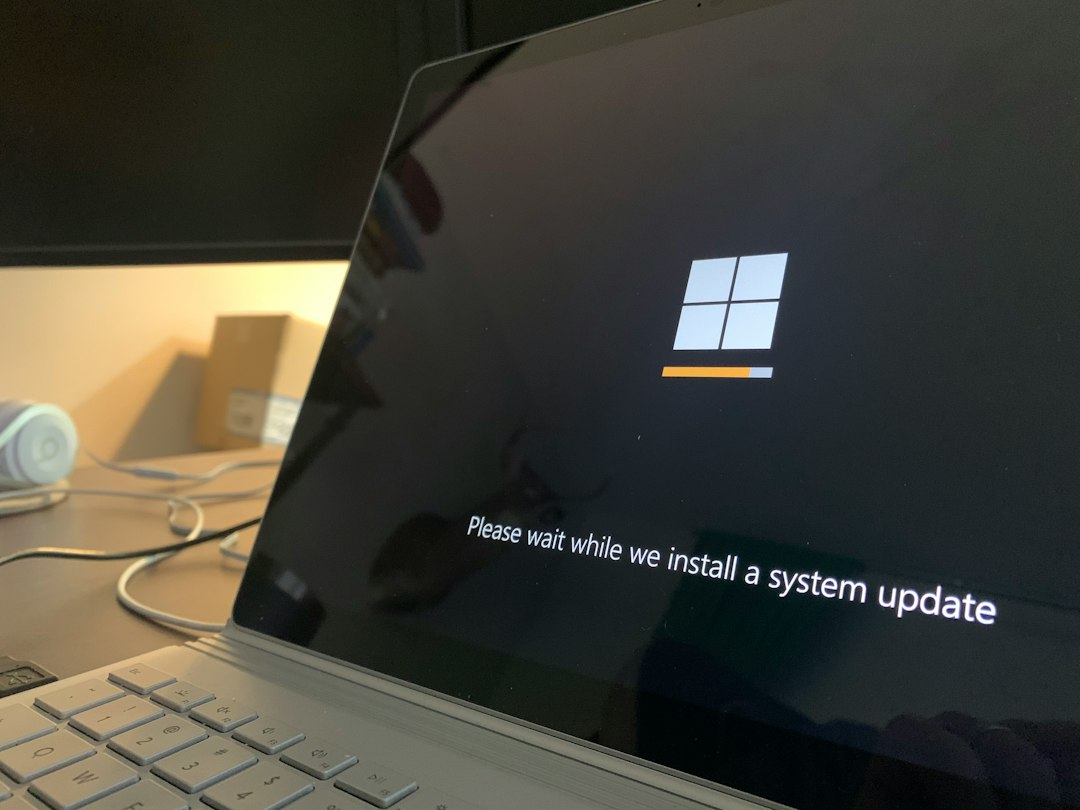
What 0xC1900101 – 0x20017 means
The full message usually reads: “The installation failed in the SAFE_OS phase with an error during BOOT operation.” The first part, 0xC1900101, is a generic rollback code. The second part, 0x20017, tells you when it happened: the PC restarted into the minimal setup environment, couldn’t boot it properly, and Windows undid the upgrade.
Microsoft’s upgrade documentation describes this as a SafeOS boot failure where a driver caused an illegal operation and couldn’t be migrated. Typical culprits are storage, graphics, Wi-Fi and USB drivers, non-Microsoft disk encryption, and old BIOS firmware. Your files and apps are normally untouched because the rollback returns you to the previous version.
Fix 1: Unplug everything you don’t need
Disconnect USB flash drives, external hard drives, SD cards, printers, docking stations, game controllers, USB audio interfaces and any extra internal drives you don’t need. Keep only the keyboard, mouse, monitor and network. The setup environment loads a reduced set of drivers, and an unusual device is a common trigger for this error. Then try the upgrade again.
Fix 2: Update drivers and the BIOS
- Right-click Start, open Device Manager and look for devices with a yellow warning icon. Fix or update those first.
- Go to your PC or motherboard maker’s support page and install the latest chipset, storage (for example Intel Rapid Storage Technology), graphics, Wi-Fi and Bluetooth drivers for your exact model.
- Install any BIOS or UEFI update listed for your model, following the maker’s instructions. Keep a laptop plugged in while it updates.
- In Settings > Windows Update > Advanced options > Optional updates, install any driver updates offered.
Fix 3: Remove third-party antivirus and disk encryption
- Antivirus: uninstall third-party security suites (not just disable them) from Settings > Apps > Installed apps (Apps & features on Windows 10). Microsoft Defender takes over automatically, and you can reinstall your antivirus after the upgrade.
- Disk encryption: non-Microsoft encryption tools are a known cause of this specific error. Check the vendor’s guidance for Windows upgrades; you may need to update the software or decrypt the drive first. Back up before you change encryption.
- BitLocker: if BitLocker is on, suspending it during the upgrade is a reasonable precaution: open Control Panel > BitLocker Drive Encryption and select Suspend protection. Make sure you have your recovery key saved first.
- Other low-level tools: older VPN clients, virtual drive tools and system tweakers that install their own drivers can also block the upgrade. Uninstall them for now.
Fix 4: Find the driver that caused the rollback
If the error keeps coming back, the setup logs can name the problem driver. Microsoft’s free SetupDiag tool reads them for you:
- Download SetupDiag from Microsoft’s website and save it to a folder such as your Downloads folder.
- Right-click
SetupDiag.exeand choose Run as administrator. - When it finishes, open
SetupDiagResults.login the same folder. Look for a named driver (a.sysor.inffile) or a matching rule that explains the failure.
You can also open the logs yourself. Microsoft points to setuperr.log and setupact.log in C:\Windows\Panther; after a failed upgrade there may be copies under C:\$Windows.~BT\Sources\Panther or the Rollback folder (these folders are hidden). Search them for .sys or Error. Once you know the driver, update or uninstall the device or software that owns it, then retry.
Fix 5: Free up space and repair Windows
Make sure the system drive has plenty of free space; for a feature upgrade, aim for at least 20 GB free. Then repair any damaged system files. Open Terminal (Admin) or Command Prompt as administrator and run these one at a time:
DISM /Online /Cleanup-Image /RestoreHealthsfc /scannowchkdsk C: /scanBecause hardware faults can also cause 0x20017, it’s worth testing the memory. Press Win + R, type mdsched and choose Restart now and check for problems. If errors appear, the RAM needs attention before any upgrade will be reliable.
Fix 6: Upgrade from a clean boot with the ISO
Microsoft recommends running setup with a minimal set of drivers and startup programs. A clean boot does that:
- Press Win + R, type
msconfigand press Enter. - On the Services tab, tick Hide all Microsoft services, then select Disable all.
- On the Startup tab, select Open Task Manager and disable every startup app. Restart the PC.
- Download the Windows ISO from Microsoft’s software download page, right-click it and choose Mount, then run
setup.exe. - When asked, choose Change how Setup downloads updates and pick Not right now, then keep your files and apps and start the upgrade.
After the upgrade, open msconfig again, choose Normal startup and re-enable your startup apps. If Windows Update itself won’t download anything, see We couldn’t connect to the update service.
If nothing works
If the upgrade keeps failing with the same code, you can stay on your current version, which is supported until its end-of-service date, while you wait for updated drivers from your PC maker. If you want the new version now, back up your files and do a clean install from a USB drive; see how to reinstall Windows for the options. If the upgrade instead complains about the boot partition, see We couldn’t update the system reserved partition.
Related guides
- We couldn’t update the system reserved partition: how to fix it
- We couldn’t connect to the update service: 7 fixes
- Windows Update error 0x800f0831: how to fix it
- Windows Update from the command line
- How to reinstall Windows 10: reset, repair install or clean install
Official sources: for more detail, see Microsoft’s own documentation:
- Microsoft Learn: Windows upgrade resolution procedures (0xC1900101 error codes)
- Microsoft Support: Get help with Windows upgrade and installation errors
Frequently asked questions
Will 0xC1900101 – 0x20017 delete my files?
No. The error means setup rolled back to your previous version of Windows, and your files and apps normally stay as they were. Backing up before you try again is still sensible.
Is 0x20017 a hardware problem?
Usually it’s a driver or encryption software, but Microsoft notes it can also be a hardware failure. If drivers, BIOS and a clean boot don’t help, test the RAM and check the drive’s health.
What’s the difference between 0x20017 and 0x30018?
Both are 0xC1900101 driver rollbacks. 0x20017 happens when setup first restarts into the SAFE_OS environment; 0x30018 happens later, in the FIRST_BOOT phase during the SYSPREP operation. The fixes are similar: update or remove the problem driver and unplug extra hardware.
Can I skip this upgrade?
Yes, for now. Your current version keeps getting security updates until its end-of-service date. Try again after your PC maker releases newer drivers or BIOS.
Leave a Reply