Quick answer: To wipe a whole Windows PC, use Settings > System > Recovery > Reset PC, choose Remove everything and turn on Clean data. For a spare hard drive, run clean all in diskpart, which writes zeros to every sector. For an SSD, use the manufacturer’s secure erase or sanitize tool, because overwriting can miss spare flash cells. One complete pass is enough: current NIST guidance says multi-pass wiping is unnecessary.
In this guide
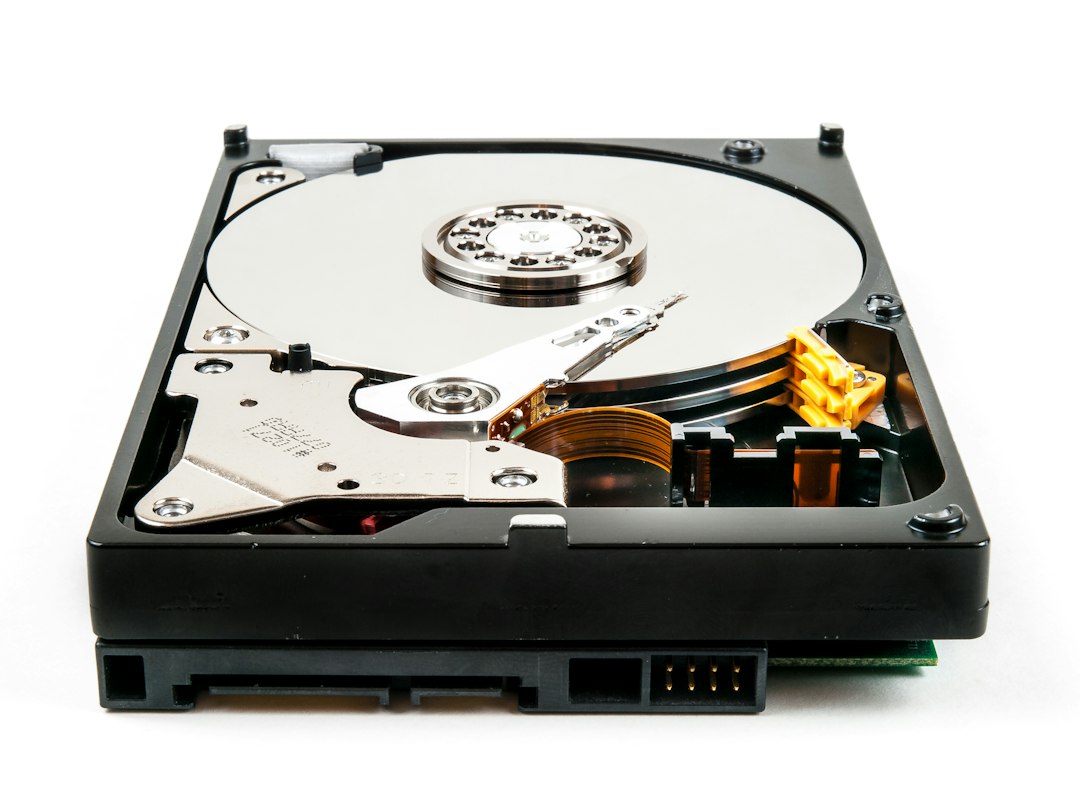
Pick the right method
| Situation | Best built-in or free method |
|---|---|
| Selling or giving away the whole PC | Reset this PC with Remove everything and Clean data on |
| Spare or external hard drive (HDD) | diskpart clean all, or a full format |
| SSD, internal or external | Manufacturer’s secure erase or sanitize tool, or the UEFI secure erase option |
| Keep the files, erase what you already deleted | cipher /w |
| Drive is dead or won’t connect | Physical destruction through a certified recycler |
Back up first. Every method below is permanent. Copy anything you want to keep, sign out of accounts tied to the PC, and check that the backup opens on another device before you start.
Wipe the whole PC with Reset this PC
- Open Settings > System > Recovery and click Reset PC. On Windows 10, it’s under Settings > Update & Security > Recovery, then Get started.
- Choose Remove everything, then Cloud download or Local reinstall.
- On the Additional settings screen, click Change settings, turn Clean data? on and click Confirm. Windows 10 may call it Remove files and clean the drive.
- If the PC has more than one drive or partition, decide on Delete files from all drives?, check the summary, then click Reset.
Microsoft says Clean data makes removed files harder to recover and recommends it when you donate, recycle or sell a PC. It takes much longer than a plain reset, and the screen can stay black for a long time; don’t switch the PC off. Microsoft also states that this feature is aimed at consumers and doesn’t meet government or industry erasure standards, so a business disposing of regulated data should use a certified tool instead.
Without Clean data, a reset removes files but leaves them recoverable with undelete software, which is why the toggle matters. For the other reset options, see how to reinstall Windows 10.
Wipe a whole drive with diskpart clean all
Warning: picking the wrong disk number erases the wrong drive. Unplug other external drives first and compare sizes carefully.
Open an elevated Command Prompt and run:
diskpart
list disk
select disk 1
clean all
Replace 1 with the number of the drive you want to erase. Microsoft documents that clean all sets every sector on the disk to zero; plain clean only removes the partition table, which leaves the data in place. A large hard drive can take many hours, and diskpart shows no progress bar. Afterwards, create a new partition in Disk Management if you plan to reuse the drive.
You can’t run this on the drive Windows is running from. To erase the system drive, boot from a Windows installation USB, press Shift + F10 at the first setup screen and run the same commands.
Wipe one partition with format
A full format also overwrites data. Microsoft confirms that since Windows Vista, a full format (with Quick Format unticked) writes zeros to the whole volume, while a quick format only rebuilds the file table. From the command line you can add extra random passes:
format E: /fs:ntfs /p:1The /p switch zeros every sector and then overwrites the volume that many more times with random data, so /p:0 is a single zero pass. It’s ignored if you also use /q. This erases one volume, not the whole disk, so other partitions stay untouched. The same steps work on removable drives covered in formatting a USB drive.
SSDs: use the drive’s own erase command
SSDs spread writes across spare cells (wear levelling) and keep extra capacity you can’t address. NIST SP 800-88 Rev. 2, published in September 2025, says this makes it infeasible for a user to sanitize all previous data by overwriting, and recommends the drive’s dedicated sanitize commands instead. Overwriting also adds wear for no real gain.
- Manufacturer tools: Samsung Magician, Crucial Storage Executive, WD Dashboard, Kingston SSD Manager and the Solidigm Storage Tool offer Secure Erase or Sanitize. Some create a bootable USB because the command can’t run on the drive Windows is using.
- UEFI/BIOS: many motherboards and business laptops have a secure erase option in firmware setup, often under a Tools or Storage menu.
- Frozen drive: if the tool reports the SSD as frozen or locked, Samsung’s guide suggests briefly disconnecting the drive’s power cable on a desktop; some bootable erase tools instead ask you to put the PC to sleep and wake it.
BitLocker adds a useful extra layer. Microsoft’s older BitLocker guidance explains that once the keys are gone, the encrypted data left on the disk can’t be read, and that formatting a BitLocker drive destroys the key data. That only protects everything if the whole drive was encrypted: Microsoft notes that used-space-only encryption can leave older unencrypted data readable until it’s overwritten. Treat it as a complement to a secure erase, not a replacement.
Wipe only free space with cipher
To erase files you’ve already deleted without touching the rest of the drive, run this in Command Prompt:
cipher /w:C:\Microsoft describes it as overwriting space that isn’t allocated to files or folders on the whole volume. It doesn’t remove existing files, so it isn’t a way to prepare a drive for sale. It can take a long time on a large, mostly empty drive, and on SSDs it has the same limits as any other overwrite.
Multi-pass wipes, DBAN and other myths
- 35-pass Gutmann or 7-pass DoD wipes: NIST’s 2025 revision says multi-pass overwriting is unnecessary; one complete pass is enough for modern hard drives.
- DBAN: development ended in 2015 and the project now belongs to Blancco. It was built for hard drives and isn’t suitable for SSDs.
- Turning off BitLocker: this decrypts the drive, the opposite of erasing it.
- Degaussing an SSD: NIST notes it has no effect on flash storage.
Related guides
- How to reinstall Windows 10: reset, repair install or clean install
- How to format a USB drive to FAT32 in Windows 11 and 10
- How to format an SD card in Windows 11 and 10 (4 ways)
- How to open Command Prompt as administrator in Windows 11 and 10
- How to reformat a hard drive in Windows 11 and 10
Official sources:
Leave a Reply