Quick answer: “Windows cannot connect to the printer. Operation could not be completed (error 0x00000006)” means Windows lost track of the printer connection it was building, usually because of a stuck Print Spooler, a leftover connection from an old printer, or a damaged driver. Restart the Print Spooler on your PC and on the PC or server that shares the printer, remove the old connection and driver, then add the printer again. If it still fails, add it through a local port or by its IP address instead.
Applies to: Windows 11 and Windows 10 when you add a shared network printer (for example \\OFFICE-PC\HP-LaserJet) from another PC or a print server. Some steps need an administrator account.
In this guide
What error 0x00000006 means
Code 6 is the Windows system error ERROR_INVALID_HANDLE: “The handle is invalid.” When you connect to a shared printer, Windows opens a handle to the printer on the sharing computer and copies its driver across. If the spooler on either side is in a bad state, or an earlier attempt left broken data behind, that handle stops being valid and the connection fails with 0x00000006. Typical triggers:
- A stuck Print Spooler on your PC or on the PC that shares the printer.
- A leftover connection to the same printer name, often after the printer or the sharing PC was renamed or replaced.
- A damaged or mismatched driver, for example a 32-bit or older driver package on the sharing PC.
- Remote sessions such as Citrix or Remote Desktop, where printers are mapped through extra software.
The message looks like other “Operation could not be completed” errors, but the fixes differ. If your code is 0x0000011b or 0x000003e3, use the 0x0000011b guide or the 0x000003e3 guide instead.
Fix 1: Restart the Print Spooler on both PCs
Do this first on your PC, then on the PC or server that shares the printer.
- Press Win + R, type
services.mscand press Enter. - Find Print Spooler, right-click it and choose Restart. If it is stopped, choose Start.
- Double-click it and make sure Startup type is Automatic.
- Try adding the printer again.
If the spooler stops again by itself or printing fails with a print processor message, see “The print processor does not exist”.
Fix 2: Remove the old printer connection
A broken entry from an earlier attempt can block new connections to the same printer. First remove the printer in Settings > Bluetooth & devices > Printers & scanners if it is listed there. If it isn’t listed but still fails, clear the leftover entry from the registry. Export the key first so you can undo the change.
- Press Win + R, type
regeditand press Enter. - Go to
HKEY_CURRENT_USER\Printers\Connections. Right-click Connections and choose Export to save a backup. - Under it, look for a key named like
,,OFFICE-PC,HP-LaserJet(commas instead of backslashes). Right-click the one for the failing printer and choose Delete. - Restart the PC, then add the printer again.
This only removes your user account’s link to that printer. It doesn’t touch the printer or the sharing PC.
Fix 3: Remove the printer driver and reconnect
If the driver package on your PC is damaged, every new connection reuses it and fails. Remove it so Windows downloads a fresh copy.
- Remove the printer from Printers & scanners if it is there.
- Press Win + R, type
printui /s /t2and press Enter. This opens Print Server Properties on the Drivers tab. (In Settings it is under Printers & scanners > Print server properties.) - Select the driver for the failing printer, click Remove, choose Remove driver and driver package and click OK. If Windows says the driver is in use, restart the Print Spooler and try again.
- Connect to the shared printer again.
On the sharing PC, it also helps to install the latest driver from the printer maker’s website, ideally a Type 4 or current 64-bit driver, so clients receive a clean copy. On a company network, driver installs for shared printers often need an administrator because of Point and Print security rules, so ask your IT team if you see a prompt for admin credentials.
Fix 4: Add the shared printer through a local port
This workaround skips the normal Point and Print connection that throws 0x00000006. It installs the driver on your PC and sends jobs to the share through a local port.
- Install the printer’s driver on your PC first, from the maker’s website.
- Open Settings > Bluetooth & devices > Printers & scanners and click Add device. When The printer that I want isn’t listed appears, click Add manually. (Windows 10: Add a printer or scanner.)
- Choose Add a local printer or network printer with manual settings and click Next.
- Select Create a new port, pick Local Port and click Next.
- Type the share path, such as
\\OFFICE-PC\HP-LaserJet, and click OK. - Pick the driver you installed, finish the wizard and print a test page.
Use the exact computer and share names. To check or set up the share itself, see how to share a printer on your network.
Fix 5: Add the printer by its IP address
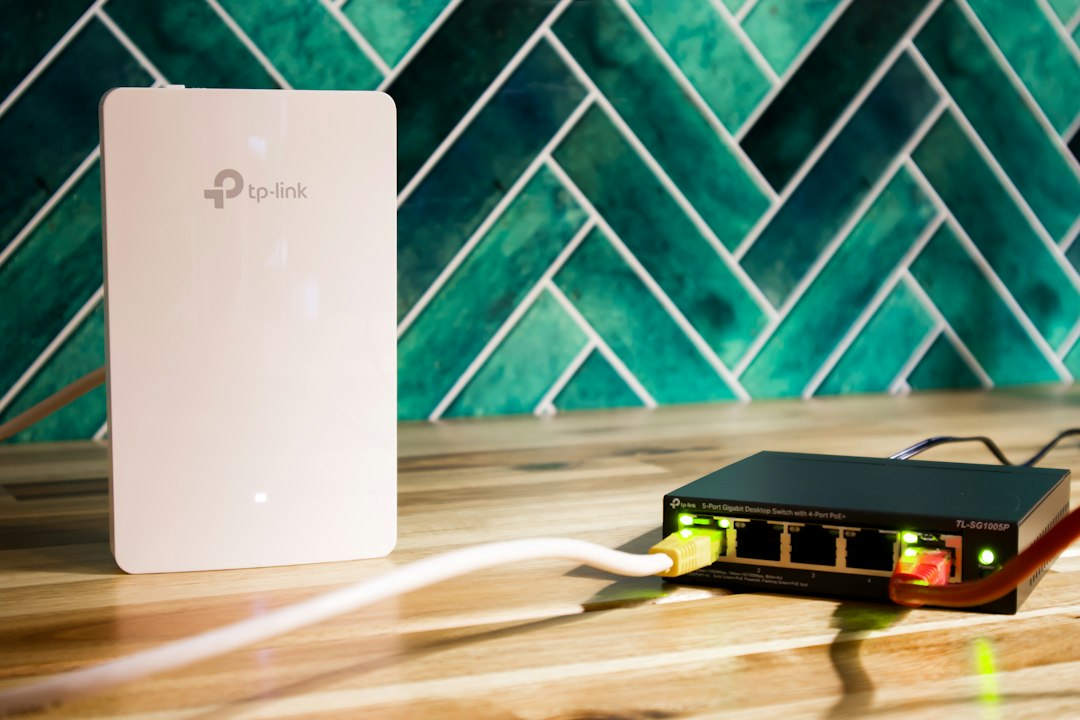
If the printer is plugged into the network (not into another PC by USB), you can skip the share and talk to it directly. Find its IP address on the printer’s display or a printed network configuration page, then in the same manual wizard choose Add a printer using an IP address or hostname, enter the address and follow the steps. This also stops the printer from depending on the sharing PC being switched on.
After adding it, if Windows won’t keep it as your default printer, see error 0x00000709.
Related guides
- Error 0x0000011b: Windows cannot connect to the printer
- Printer error 0x000003e3: Operation could not be completed
- The print processor does not exist: how to fix it
- Printer sharing in Windows 11 and 10
- Error 0x00000709 when setting a default printer
Official sources:
- Microsoft Learn: Printing issue troubleshooting guidance
- Microsoft Learn: System error codes 0-499 (code 6, ERROR_INVALID_HANDLE)
Frequently asked questions
Is error 0x00000006 caused by the printer itself?
Rarely. The printer usually prints fine from the PC it is connected to. The problem is the connection or driver on the Windows side.
Why does it work for one user but not another on the same PC?
Printer connections are stored per user under HKEY_CURRENT_USER\Printers\Connections. One user can have a broken entry while another doesn’t, which is why Fix 2 often solves it.
Can I fix it without admin rights?
You can try Fix 1 and removing the printer in Settings, but removing drivers and installing new ones needs an administrator. On a work PC, ask your IT team.
Leave a Reply